
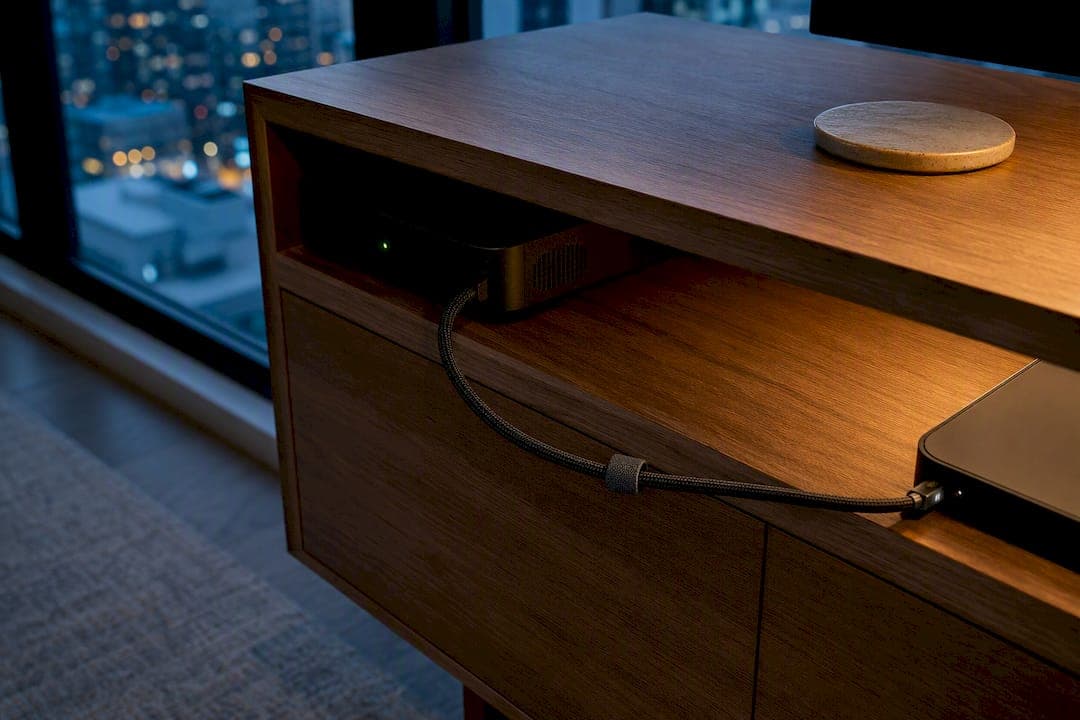
Run one Ethernet cable to your main streaming device and buffering usually stops within minutes. If wiring isn't an option, switch to mesh with wired backhaul between nodes instead of relying on wireless hops. Then turn on your router's QoS setting to prioritize that device, and test speeds directly on the streamer, not on a phone sitting beside the router.
TL;DR:
- Connecting your streaming device to Ethernet often resolves buffering issues more effectively than upgrading your router or changing settings.
- Wired backhaul in mesh systems can reduce latency by up to 8 milliseconds and maintain stable throughput, especially for multiple simultaneous 4K streams.
- Testing should be done directly on the streaming device with a wired connection, not on a phone next to the router, to accurately diagnose network performance.
- Prioritizing your primary device with QoS and switching to less congested Wi-Fi channels can significantly improve streaming stability.
- Most buffering problems stem from wiring and testing rather than hardware upgrades, making low-cost wiring solutions the most impactful fix.
Table of Contents
- What quick fixes stop streaming buffering fastest?
- Wired vs wireless: when Ethernet wins and when Wi-Fi is fine
- How do you choose and place a router or mesh system for streaming?
- What settings actually stop the buffering?
- How do you wire a living room with one cable and an unmanaged switch?
- How do you test streaming performance and troubleshoot buffering?
- Can you run a media server or NAS across your home network?
- Practical notes from Aj and Toronto's Best IPTV
- Why most streaming advice gets the priorities backwards
- Sources
What quick fixes stop streaming buffering fastest?
Before touching any settings, rule out the simple stuff. Most buffering complaints trace back to one of five things, and you can check all of them in under an hour.
- Restart your modem, router, and streaming device, in that order, then wait two full minutes before reconnecting.
- Confirm your ISP plan actually delivers enough speed for what you're streaming (a household running two 4K streams plus a video call needs real headroom, not just the advertised number).
- Pause any large downloads, cloud backups, or game updates before you press play.
- Plug your main streamer into Ethernet, or add an inexpensive unmanaged switch if the router is far from the TV.
- Move the router to a central, open spot, then turn on QoS or device prioritization for the box you watch on most.
Pro Tip: If you only do one thing tonight, wire the TV. A $15 Ethernet cable often fixes what a $300 router upgrade won't.
Wired vs wireless: when Ethernet wins and when Wi-Fi is fine
Ethernet gives you consistent throughput and the lowest latency, which is exactly what 4K streaming boxes and consoles need during a live sports broadcast or a busy Friday night of streaming across the house. Wi-Fi introduces variability. Walls, microwaves, neighbouring networks, and even other people's routers on the same channel all chip away at your signal.
A wired connection removes that variability entirely, and it's why Ethernet vs Wi-Fi streaming remains the first question worth answering before buying new gear. Mesh systems benefit from the same logic: wired backhaul between nodes, rather than wireless-only backhaul, can reduce latency by 4 to 8 milliseconds and keeps throughput stable even with multiple devices pulling data at once.
For speed guidance, plan conservatively:
- 4K streaming needs roughly 25 Mbps per stream, with 35 to 50 Mbps recommended as a buffer.
- Multiply that by the number of simultaneous streams in your household, then add headroom for background devices.
Wi-Fi 6E or Wi-Fi 7 matters if you've got a dozen connected devices and multiple 4K streams running at once. For a single TV and a couple of phones, it's overkill.
How do you choose and place a router or mesh system for streaming?
Match the hardware to the home, not the marketing copy. A small apartment rarely needs mesh. A multi-floor house with thick walls almost always does, and that's the first decision to make before spending a dollar.
- Size the solution to your space. Single router for apartments and bungalows; mesh for anything with multiple floors or dead zones.
- Prioritize the right features. Look for multi-gig ports, tri-band or quad-band support, and a CPU strong enough to handle QoS and traffic steering without slowing down. PCMag's testing consistently ranks throughput, range, and signal strength ahead of flashy extras.
- Place it centrally. Avoid closets, basements, and corners. Keep it off the floor and away from metal appliances.
- Skip the premium single router if mesh with wired backhaul is available. A mid-range mesh kit with a wired connection between nodes will usually outperform a single high-end router trying to cover the same square footage.
What settings actually stop the buffering?
Configuration takes longer to explain than to do. Most of it lives in one settings page.
- Open your router's admin panel and find the QoS or Traffic Manager section, then set your streaming box or app as the top priority.
- Check your Wi-Fi channel with a free analyzer app and switch to a less congested one if several neighbours are stacked on the same channel.
- If you're running mesh, confirm each node shows "wired backhaul" in the admin app rather than a wireless connection.
- Leave UPnP and NAT settings alone for local streaming. There's rarely a reason to expose a NAS or media server directly to the internet.
How do you wire a living room with one cable and an unmanaged switch?
You don't need to rewire your whole house to get every living room device off Wi-Fi. One Ethernet run and a cheap switch does the job.
Connect your router to the living room with a single Ethernet cable, then plug that cable into an unmanaged Gigabit switch tucked behind your media cabinet. From there, run short cables to your TV, streaming box, console, and receiver.
- Removes four or five devices from Wi-Fi congestion in one move.
- Delivers noticeably steadier 4K playback almost immediately.
- Powerline adapters work as a temporary fix but expect inconsistent speeds through older wiring.
- An 8-port unmanaged switch typically costs less than a dinner out.
Pro Tip: Label both ends of the cable before you run it through the wall. Future you will be grateful.
How do you test streaming performance and troubleshoot buffering?
Test on the actual streaming device, using its built-in speed test or a wired laptop connected at the same spot, never a phone standing next to the router. That's the single biggest mistake people make when diagnosing buffering, because a phone's Wi-Fi radio doesn't reflect what your TV experiences three rooms away.
- Run the test on the streamer itself. Toronto's Best IPTV's guide on 4K streaming requirements walks through exactly how to check this.
- Compare results against your plan. If speeds are far below what you're paying for, it's an ISP issue. If speeds are fine at the router but weak at the TV, it's a home network issue.
- Match symptoms to fixes. Buffering at peak evening hours points to ISP congestion; quality drops during use point to Wi-Fi interference; intermittent disconnects usually mean a firmware update or channel change is overdue.
- Escalate to your ISP with evidence. Provide device-level test logs, timestamps, and both downstream and upstream speeds if the problem persists after the fixes above.
For device-specific issues, Toronto's Best IPTV's troubleshooting guide and the Android TV Box fix guide cover the most common playback errors step by step.
Can you run a media server or NAS across your home network?
A NAS with a fast LAN port handles local 4K playback well, especially if it can transcode on the fly for devices that don't support the original file format. Keep it wired wherever possible. Wi-Fi introduces the same latency problems for a NAS as it does for any other streaming device.
- Avoid exposing your NAS to the internet directly. A VPN or selective port forwarding is safer than opening ports outright.
- DLNA, SMB, and VLC all handle local playback well, though DLNA is the simplest for smart TVs to detect automatically.
- If streaming works on your own subnet but fails from a different router or network, the issue is almost always NAT or routing configuration rather than the NAS itself.
Practical notes from Aj and Toronto's Best IPTV
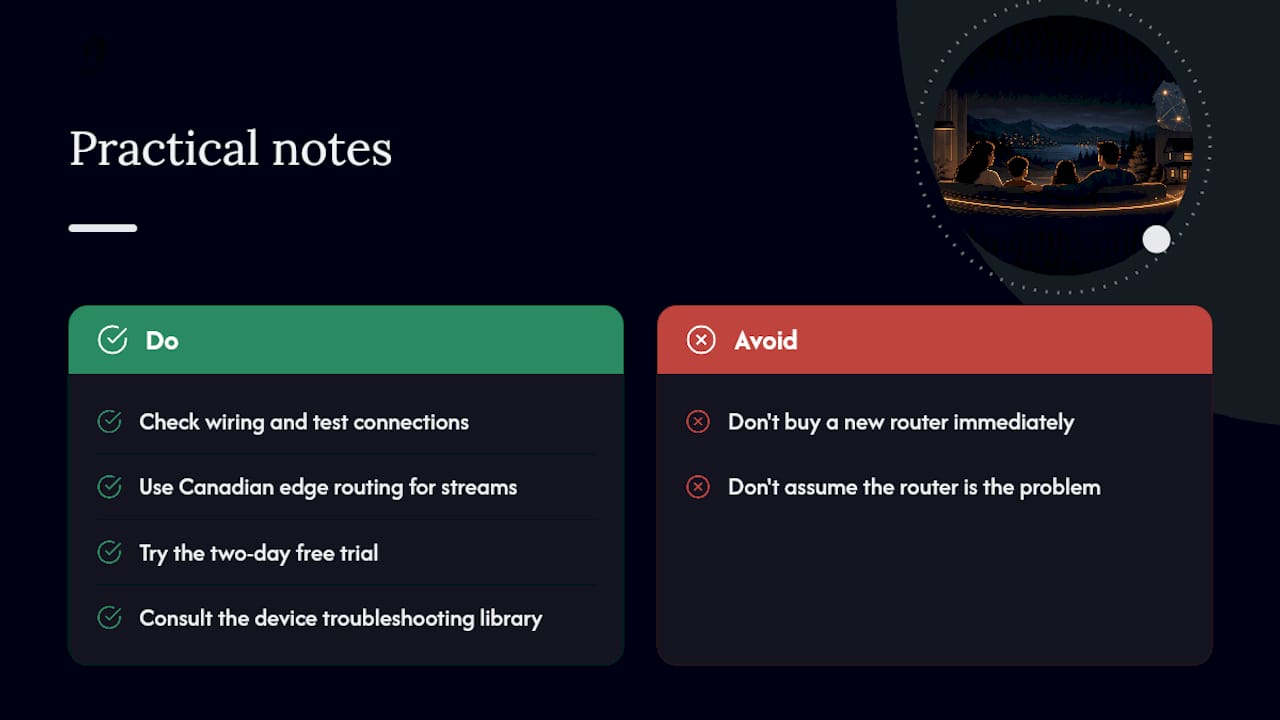
Years of fielding buffering complaints taught me one thing: the fix is almost always wiring and testing, not a new router. Toronto's Best IPTV backs that up with Canadian edge routing built for smoother live NHL and NFL streams, plus a two-day free trial so you can test your setup before committing. For device-specific hiccups, its troubleshooting library covers the fixes that matter most.
Why most streaming advice gets the priorities backwards
Most guides push you toward buying gear first. That's backwards. The research consistently points to wiring and testing as the highest-leverage fixes, and they cost almost nothing compared to a premium router.
The conventional wisdom oversells mesh systems as a blanket solution. A mesh kit with wireless-only backhaul can actually perform worse than a single well-placed router, because every hop between nodes adds latency. Wired backhaul is what makes mesh worth buying, not the mesh itself.
If you take one thing from this checklist, prioritize the Ethernet run to your main streamer before anything else. Test on the device that's actually giving you trouble, not a phone in another room. Everything else, from QoS settings to channel selection, matters, but it's a distant second to getting your highest-traffic device off Wi-Fi entirely.
— Aj
Sources
- CRTC (broadband/industry guidance)
- MakeUseOf — I took my whole living room off Wi‑Fi; everything got faster
- PCMag — The best wireless routers we've tested for 2026
Ready to see the difference a stable connection makes on live sports and 4K content? Check Toronto's Best IPTV's pricing calculator and start with the two-day free trial before you commit to a plan.