
You need at least 8 Mbps for a single HD live stream and 25 Mbps for one 4K stream, according to T-Mobile's speed guidance. SD gets by on roughly 3 Mbps. Multiply those general speed recommendations by how many screens run at once, then add some extra headroom for background devices to estimate your target plan speed.
Here's the quick math:
- Single viewer watching HD content typically needs a moderate speed plan
- Small household with mixed HD and 4K streams requires a higher speed plan
- Multi-room households with multiple 4K streams benefit from an even higher speed plan
Pro Tip: Before you touch your router settings or call your provider, run a speed test directly on the device you watch on, whether that's a smart TV, Fire Stick, or Android box. That's the number that actually matters for live TV.
Key Takeaways
Buffer-free live TV depends on sustained per-stream download speed, low latency and jitter, and efficient routing, not just a high plan number.
| Point | Details |
|---|---|
| Match speed to quality | Aim for 8 Mbps per HD stream and 25 Mbps per 4K stream, sustained, not peak. |
| Multiply for your household | Add up per-stream needs for every simultaneous viewer, then add 20 to 30% headroom. |
| Test on the actual device | Run Fast.com or Speedtest on the TV or streaming box itself, not your laptop. |
| Watch latency and jitter | A fast download number can still buffer if jitter or packet loss is high. |
| Fix locally before upgrading | Restart hardware, switch to Ethernet or 5 GHz, and test at different times before buying more Mbps. |
| Routing matters as much as speed | Torontobestiptv's Canadian edge routing can reduce buffering even without the fastest plan on paper. |
Table of Contents
- Internet speed for live TV: what SD, HD, and 4K actually need
- Why raw speed isn't the whole story
- How to test your internet speed for live TV properly
- Fixing buffering before you upgrade your plan
- Does upload speed or latency matter for watching live TV?
- A worked example: sizing your plan the right way
- What actually causes buffering, from the operator's side
- Get fewer buffering headaches with Canadian-routed IPTV
- Frequently asked questions
- Sources
Internet speed for live TV: what SD, HD, and 4K actually need
The quality tier you're watching sets the baseline, but live TV asks for more consistency than Netflix reruns because there's no buffer window to fall back on. Adaptive bitrate streaming lets an on-demand show quietly downgrade quality when your connection dips. A live hockey broadcast can't preload the next three minutes the way a movie can, so any dip in throughput shows up immediately as a freeze or a pixelated frame.
Here's how the numbers break down per stream:
| Quality tier | Minimum Mbps (per stream) | Comfortable Mbps (per stream) |
|---|---|---|
| SD | 3 | 5 |
| HD | 5 | 8 |
| HD | 8 | 10 |
| 4K | 25 | 35 |
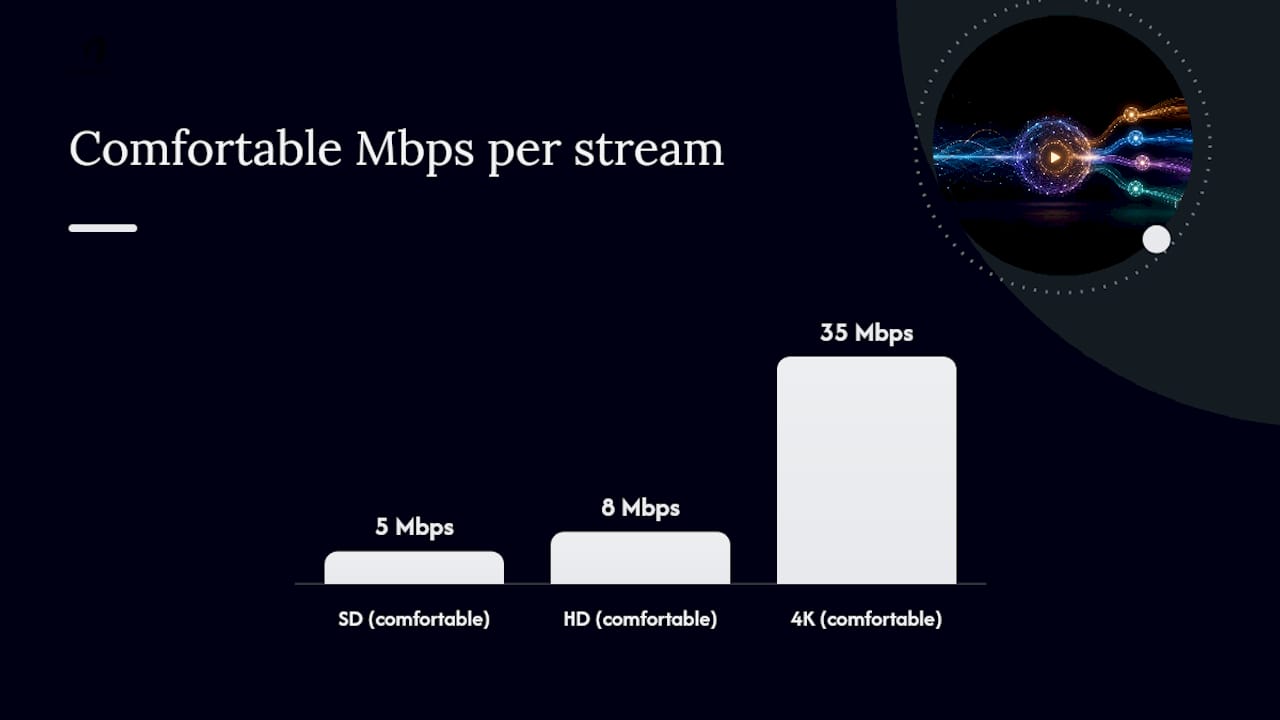
Those figures line up closely with what IPTV-focused testing shows: 8 Mbps sustained for HD, 25 Mbps sustained for 4K. The word "sustained" is doing real work in that sentence. A speed test measures a short burst, but your TV needs that throughput held steady for the length of the broadcast, not just for the ten seconds a typical test runs.
Scaling this to a household is simple arithmetic, but it's the step most people skip.
- 2 simultaneous HD streams: 8 Mbps x 2 = 16 Mbps, plus headroom = roughly 20 Mbps
- 3 simultaneous streams (2 HD, 1 4K): (8 x 2) + 25 = 41 Mbps, plus headroom = roughly 50 Mbps
- 4 simultaneous 4K streams: 25 x 4 = 100 Mbps, plus headroom = roughly 130 Mbps
If that last scenario sounds like a lot for one household, it's not unusual during a Saturday night with the Leafs on in the living room and three other TVs running elsewhere in the house. USA Today's breakdown of streaming speed needs points to the same conclusion: the number of devices running at once matters more than any single stream's quality setting.
Why raw speed isn't the whole story
A 300 Mbps plan can still buffer on live TV, and that trips up a lot of people who assume more Mbps automatically means a smoother picture. Bandwidth is only one variable. Latency (how long it takes a data packet to make a round trip), jitter (how much that round-trip time varies from packet to packet), and packet loss (data that never arrives at all) all shape whether a live stream holds together.
Here's how each one shows up on your screen:
- Low bandwidth: the stream drops to a lower resolution or stalls completely, especially on 4K channels.
- High latency: noticeable delay between the live action and what appears on your screen, most obvious during live sports.
- Jitter: the picture freezes for a second or two, then jumps forward, even though your overall speed test looks fine.
- Packet loss: blocky artifacts, audio that cuts out, or a channel that briefly goes black and recovers.
Wi-Fi is usually where jitter and packet loss creep in, since a crowded 2.4 GHz band shares airtime with your neighbours' routers, microwaves, and every other smart gadget in the house. Switching your streaming device to a strong 5 GHz connection, or better yet a wired Ethernet run, removes most of that variability. IPTV diagnostic guides consistently point to Ethernet as the most reliable way to isolate whether a buffering problem is your network or something further upstream.
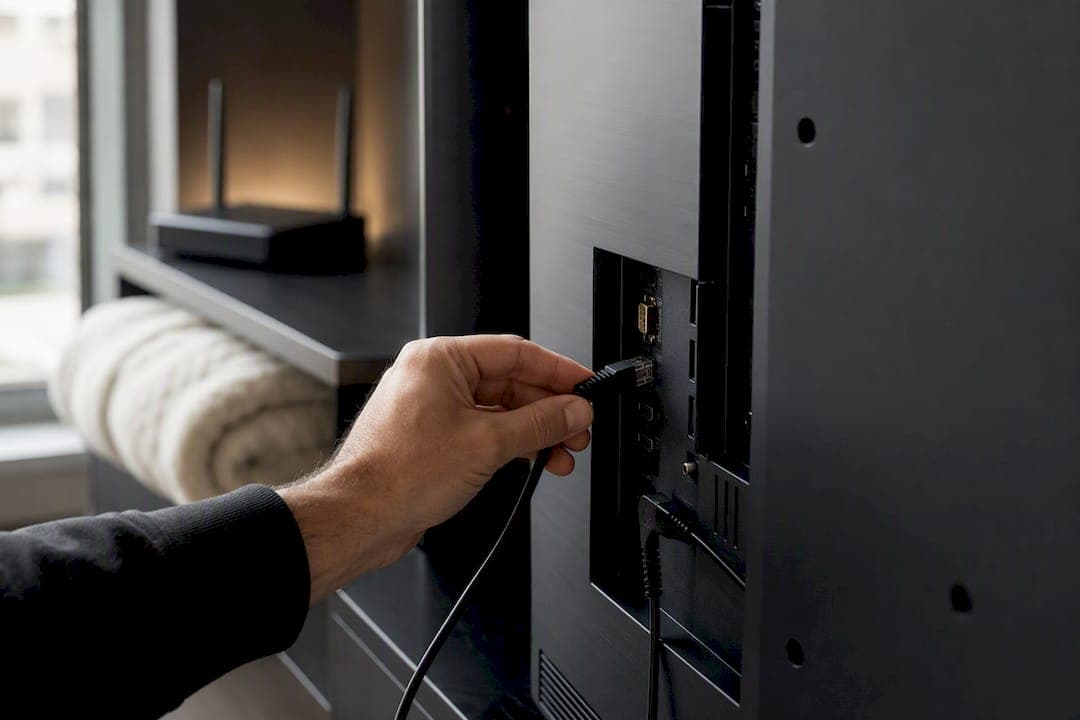
Pro Tip: If your smart TV supports Ethernet but you've never plugged it in, that's often the single fastest fix for random freezing during live broadcasts. Wi-Fi hides bandwidth loss that a wired connection simply doesn't have.
How to test your internet speed for live TV properly
Testing on your laptop tells you almost nothing about what your TV is actually getting. Run the test on the exact device you watch on, sitting in the exact spot where the TV or streaming box lives, because a Wi-Fi signal that's strong in your office might be weak by the time it reaches the media cabinet.
Follow this sequence for a result you can actually trust:
- Open Fast directly on your smart TV's browser or a phone held right next to it, and note the download number.
- Run Speedtest by Ookla on the same device for a second read, plus latency and jitter figures Fast.com doesn't show.
- If possible, plug in an Ethernet cable and repeat both tests as a control, since this shows your true plan speed without Wi-Fi interference.
- Test again during peak hours, typically 7pm to 10pm, when neighbourhood congestion and household usage are both highest.
- Run each test two or three times and average the results rather than trusting a single reading.
Fast.com is built for a fast device-level gut check. Speedtest earns its place when you need the diagnostic layer underneath, particularly the latency and jitter numbers that explain why a fast connection still stutters. Write your numbers down, including the time of day, before you contact your provider or switch services. Providers move faster when you can hand them concrete figures instead of "it keeps buffering."
Fixing buffering before you upgrade your plan
Most buffering problems get solved without spending another dollar on bandwidth. Work through this list in order, since the fixes are ranked from fastest and free to more involved.
- Restart your router and streaming device. This clears memory leaks and refreshes the connection more often than people expect.
- Switch to Ethernet if your device supports it. This immediately removes Wi-Fi as a variable in your diagnosis.
- Move your device to the 5 GHz band if you're stuck on 2.4 GHz, since 5 GHz carries far less interference from neighbouring networks.
- Reposition your router or streaming box. Even one wall between them can meaningfully cut throughput.
- Change your router's Wi-Fi channel through its admin settings, especially in apartment buildings where dozens of networks compete for the same frequencies.
- Test a different channel or app on the same service. If only one channel buffers while everything else runs fine, the problem usually sits with that content's source, not your connection.
- Test at a different time of day. Buffering that appears only during evening peak hours points to network congestion rather than a hardware fault.
- Contact your provider with your recorded speed test results if every local fix has been ruled out and the problem persists across multiple channels and times.
If you're troubleshooting a specific box, the fix often comes down to device settings rather than the network at all. Older or budget Android boxes sometimes struggle to decode 4K H.265 streams fast enough, which looks identical to a bandwidth problem but has nothing to do with your internet plan. Guides for fixing buffering on Amazon Firestick, Android TV boxes, and Apple TV walk through the device-specific settings worth checking first.
Pro Tip: Try watching the same channel with a VPN turned off, then on. If performance changes noticeably in either direction, you've likely found a routing issue between your ISP and the content's server, not a problem with your home network at all.
Once you've worked through local fixes and the issue persists across multiple devices, times of day, and channels, that's your signal to consider a faster plan or a provider with better routing, rather than continuing to troubleshoot equipment that isn't the actual bottleneck.
Does upload speed or latency matter for watching live TV?
Download speed carries almost all the weight for straight live TV viewing. Upload speed matters far more if you're doing something two-way at the same time, like a video call or uploading footage while the game plays in the background. For pure viewing, a modest upload connection is typically sufficient.
Latency and jitter deserve more attention than most people give them. A connection can post excellent download numbers on a speed test and still deliver a choppy live broadcast if jitter is high, because the steady packet delivery live TV depends on gets interrupted even when total bandwidth is sufficient.
Quick checks worth running:
- Latency (ping) under 50ms is generally solid for live viewing; anything above 100ms often introduces noticeable lag.
- Jitter under 30ms keeps playback smooth; higher numbers correlate with random freezing.
- Upload of 5 Mbps or more covers interactive features like live chat overlays or simultaneous video calls.
Speedtest by Ookla reports both of these figures alongside your download number, so one test covers everything you need to rule latency in or out.
A worked example: sizing your plan the right way
Start with a simple count: how many screens run live TV at the same time in your home, and at what quality? A family of four with two TVs running HD in different rooms and two people casually streaming on phones needs roughly 20 to 30 Mbps once headroom is factored in. A household with three 4K TVs running NHL, NFL, and a kids' channel simultaneously during a busy Saturday needs closer to 100 to 130 Mbps.
| Household profile | Simultaneous streams | Recommended plan speed |
|---|---|---|
| Single viewer, HD | 1 | 15 to 25 Mbps |
| Small family, mixed HD/4K | 2 to 3 | 50 to 100 Mbps |
| Multi-room, multiple 4K sports | 4 or more | 130 to 300 Mbps |
Raw plan speed isn't the only lever, though. Where your streams get routed matters just as much as how fast your last mile connection is.
Canadian edge routing keeps content closer to the viewer instead of bouncing every request through a distant server. Fewer hops between the source and your living room means less chance for jitter or packet loss to creep in along the way, even on a plan that isn't the fastest one available.
That's a real operational difference, not a marketing line. A household on a 100 Mbps plan with efficient regional routing can outperform a 300 Mbps connection stuck pulling content across a congested cross-border path. Speed on paper and speed in practice aren't always the same thing.
What actually causes buffering, from the operator's side
Most buffering complaints that land in our support inbox have nothing to do with the customer's plan speed. The pattern shows up again and again: someone with a perfectly good connection reports one channel freezing while everything else streams fine, and the fix is almost always on the provider or Wi-Fi side, not the customer's internet bill.
That's why we built our routing around Canadian edge servers instead of relying on distant international paths that add hops and unpredictability. One thing generic guides rarely mention: test the exact same channel at two different times of day before assuming your network is at fault. If it buffers at 8pm and runs clean at 2pm, the server load, not your Mbps, is the real culprit.
Get fewer buffering headaches with Canadian-routed IPTV
If you've run through every fix above and your live TV still stutters, the problem might be the service itself rather than your connection. Torontobestiptv routes traffic through Canadian edge servers, which cuts down the cross-border hops that cause jitter and freezing on international streaming paths, particularly during NHL and NFL broadcasts when everyone's watching at once.
Plans start at $15 a month, and preconfigured boxes ship with a 2-year warranty so device decoding limits stop being a variable in your troubleshooting. A household running two or three simultaneous HD streams typically does well on a mid-tier plan, while multi-room 4K sports viewing calls for the higher end. Every subscription includes a two-day free trial, so you can test real-world performance on your own network before committing. Head over to what IPTV actually is and how it works to see the full setup, or jump straight to current plans to find the tier that matches your household's stream count.
Frequently asked questions
What internet speed do I need for live TV without buffering?
Is 100 Mbps enough for live TV streaming? Yes, for most households. A 100 Mbps plan comfortably covers two to three simultaneous HD or one 4K stream alongside general household internet use.
Why does my TV buffer even though my speed test shows a fast connection? The bottleneck is often latency, jitter, or provider-side server load rather than raw bandwidth. Testing on the actual streaming device, and at different times of day, usually reveals the real cause.
Does upload speed matter for watching live TV? Not much for passive viewing. Upload speed matters mainly for two-way features like video calls happening at the same time; 5 Mbps upload is typically plenty for live TV viewing alone.
How much speed do I need for 4K live sports on multiple TVs? Plan for roughly 25 to 35 Mbps per 4K stream, so three simultaneous 4K TVs during a big game could need 100 Mbps or more once headroom is included.
Sources
- What Internet Speed Do You Need
- Testmyspeed
- Fast
- Speedtest by Ookla - The Global Broadband Speed Test
- How much internet speed do you need for IPTV? — Klipa