
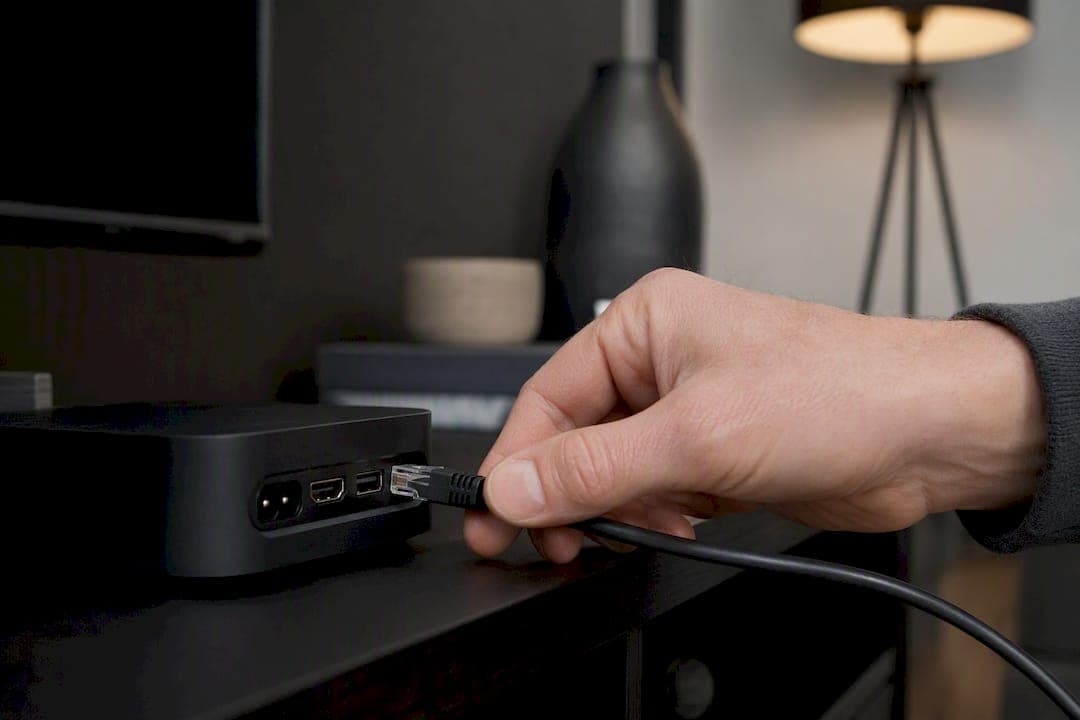
For the most reliable, low latency streaming, especially live sports and gaming, use Ethernet. Wi-Fi is fine only when you're streaming on-demand content on a device close to your router with no interference. Ethernet's advantage isn't really about top speed anymore; it's about consistency, and consistency is what stops your screen from freezing during the third-period power play.
Here's when Wi-Fi is genuinely okay, and when you should run a cable instead:
- Wi-Fi is acceptable for short viewing sessions, on-demand content with a healthy buffer, and any device sitting within a room or two of your router with no walls made of brick or metal in between.
- Wired is the better call for live TV, live sports, gaming, and any device that's a permanent fixture in your living room, like a set-top box or console.
Want to know which one is causing your buffering right now? Run this test tonight: unplug your Wi-Fi streaming box, connect it to your router with a short Ethernet cable, and watch the same channel for ten minutes. If the stutter disappears, your Wi-Fi is the problem, not your internet plan.
Key Takeaways
Ethernet delivers the packet loss, jitter, and consistency that live streaming and gaming demand, while Wi-Fi remains a reasonable choice only for short, buffered, on-demand viewing.
| Point | Details |
|---|---|
| Run the cable test first | Connect the buffering device to your router with a short Ethernet cable to isolate Wi-Fi as the cause. |
| Wire the permanent devices | Prioritize set-top boxes, smart TVs, and consoles used for live sports or gaming over portable devices. |
| Consistency beats peak speed | Ethernet's near-zero packet loss and low jitter matter more for live streams than headline speed numbers. |
| Consider MoCA or powerline | Where a direct cable run isn't practical, coax based MoCA or wall-plugged powerline adapters close most of the gap. |
| Optimize Wi-Fi deliberately | Use the 5 GHz band, central router placement, and QoS rules before accepting Wi-Fi limitations as permanent. |
Table of Contents
- Ethernet vs WiFi performance: speed, latency, jitter, and packet loss compared
- Which streaming devices actually need a wired connection?
- How do you tell if buffering is caused by WiFi, your ISP, or the device?
- What are your options when a direct Ethernet run isn't practical?
- When is Wi-Fi actually good enough for streaming?
- How does a Canadian IPTV provider approach wired vs wireless for live sports?
- Ready to stop troubleshooting and start watching?
- What the data actually tells us about wired vs wireless streaming
- Frequently asked questions about Ethernet vs Wi-Fi streaming
- Sources
Ethernet vs WiFi performance: speed, latency, jitter, and packet loss compared
Speed numbers on a router's box are almost always theoretical peaks, not what you'll get during a Saturday night NHL broadcast with three other devices online. Wi-Fi 6 might advertise multi-gigabit speeds, but sustained real-world throughput in a typical house usually lands far below that, especially once you factor in walls, neighbouring networks, and the number of devices fighting for airtime. Ethernet doesn't have that problem. A Cat5e or Cat6 cable delivers close to its rated speed consistently, because it isn't sharing a signal with your neighbour's router or your microwave.
One home test captured this gap clearly: Wi-Fi measured around 126 Mbps while a wired connection on the same network hit roughly 395 Mbps, and the difference showed up in faster load times and noticeably better gaming responsiveness. That's not a fluke. It's the nature of shared radio spectrum versus a dedicated copper line.
But speed alone doesn't tell the whole story for streaming vs WiFi streaming quality. Three other metrics matter more for what you actually notice on screen:
- Latency is the delay between a request and a response; low latency matters enormously for live streams and anything interactive, like game consoles or video calls layered on top of your stream.
- Jitter is the variation in that delay from moment to moment. Even a stable average latency can hide jitter spikes that cause a live feed to stutter or briefly freeze.
- Packet loss happens when data simply doesn't arrive, forcing your device to either skip frames or pause to rebuffer.
Ethernet's real strength is that it keeps all three of these remarkably steady. Testing shows wired connections typically running under 0.01% packet loss with sub-millisecond jitter, while Wi-Fi's numbers climb and fall depending on how many devices are active and how much interference is bouncing around your home. That variability, more than raw speed, is why a Wi-Fi connection can pass a speed test with flying colours and still stutter mid-stream.
By the numbers: Ethernet connections commonly hold packet loss below 0.01% with jitter under 1 millisecond, while Wi-Fi's packet loss and jitter climb noticeably under congestion or interference, according to Studio Supplies' stability testing.
The takeaway isn't that Wi-Fi is slow. It's that Wi-Fi's real problem is consistency, not peak throughput, and live streaming is unusually sensitive to those small, frequent gaps.
Which streaming devices actually need a wired connection?
Not every device in your home needs a cable. Prioritize wiring where the reliability payoff is biggest, and let the rest coast on Wi-Fi.
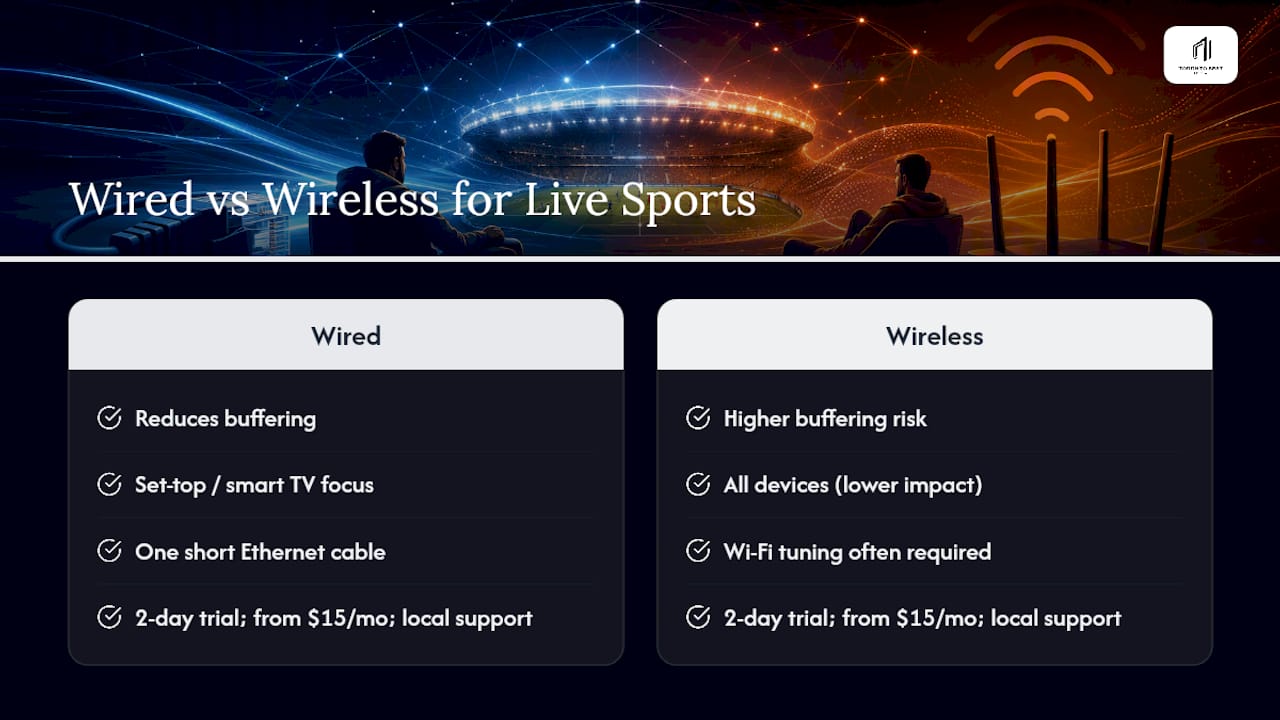
- Set-top boxes and IPTV devices should be wired first. These run for hours at a stretch during live broadcasts, and any Wi-Fi hiccup shows up immediately as a frozen frame.
- Smart TVs, especially for live sports, benefit enormously from a cable. Most smart TVs ship with a built-in Ethernet port capped at 100Mbps, which sounds limiting, but 100Mbps is still plenty for 4K on-demand streaming. The real win is stability: a wired TV stops competing with your phone, laptop, and kids' tablets for the same wireless channel.
- Game consoles used for streaming apps or online play should always be wired if a cable run is at all practical. Latency spikes that are invisible on a movie stream become obvious the second you're trying to react to a fast break.
- Desktop PCs running streaming software or heavy background downloads pull real Wi-Fi bandwidth away from other devices in the house.
Streaming sticks and mobile devices, on the other hand, are usually fine on Wi-Fi. They're portable by design, and most people aren't parking a Fire Stick permanently in the same spot next to a router anyway. If you notice a stick or phone struggling to hold a signal even at close range, the culprit is often the device's older Wi-Fi radio hardware rather than your network. A five-year-old streaming stick with an outdated Wi-Fi chip will underperform on a brand-new router no matter how you optimize the signal, so check the fixes for buffering on your Amazon Firestick before assuming it's your network's fault.
How do you tell if buffering is caused by WiFi, your ISP, or the device?
Streaming without WiFi entirely, even temporarily, is the fastest way to diagnose what's actually wrong. Work through these steps in order before buying new equipment.
- Run the short Ethernet test. Move the buffering device next to your router and connect it with any spare cable. If the stuttering disappears, your Wi-Fi signal or interference is the cause, not your internet plan or the streaming service.
- Repeat speed tests at different times of day. A single test tells you your peak. Testing at 7 PM versus 2 AM tells you your sustained performance under real household load, which is what actually matters for prime-time viewing.
- Try the same stream on mobile data. If a show buffers on Wi-Fi but plays smoothly on cellular, the issue is your home network. If it buffers on both, the problem sits with the streaming provider or the wider internet path, not your router.
- Check the negotiated link speed on the device itself. A TV or box might be capable of gigabit Ethernet but negotiating down to 100Mbps due to a bad cable, port, or outdated firmware. Most devices show this in their network settings menu.
- Update firmware on both the router and the streaming device. Outdated firmware is a surprisingly common, invisible cause of dropped packets and slow reconnections.
If you've run all five steps and the problem persists across multiple devices and networks, the issue is on your ISP's end or the streaming provider's servers, and it's time to escalate rather than keep troubleshooting at home.
Pro Tip: Most people assume a Wi-Fi speed problem is actually a Wi-Fi consistency problem. A quick Ethernet swap separates the two causes in under five minutes, saving you from buying a new router you didn't need.
What are your options when a direct Ethernet run isn't practical?
Not every home is set up for a clean cable run from the router to the living room. The good news is you have real options beyond drilling through walls or accepting shaky Wi-Fi.
- Cat5e vs Cat6: Cat5e handles most home streaming needs just fine, including 4K, since it comfortably supports gigabit speeds over typical home distances. Choose Cat6 or Cat6a if you're future-proofing for multi-gigabit internet plans or running cable through a wall where you won't want to redo the work later.
- Powerline adapters send network signal through your home's electrical wiring, and they're a solid middle ground when a coax or Ethernet run isn't feasible. Plug them directly into a wall outlet rather than a power bar, since surge protectors can degrade the signal, and expect real-world performance to vary depending on your home's wiring age.
- MoCA adapters use existing coaxial cable, the same wiring your old cable TV used, to carry network traffic. Where that coax is already run to the right rooms, MoCA delivers performance close to Ethernet, often outperforming powerline in older homes.
- Mesh systems with Ethernet backhaul let you wire one satellite unit near your TV and use it as a wired access point for that device, even while the rest of the mesh talks wirelessly to the main router.
- USB-to-Ethernet adapters solve the problem for laptops or streaming devices with no built-in port, but check driver support before buying and confirm the adapter's rated speed actually matches your connection, since many budget adapters cap out well below gigabit.
When is Wi-Fi actually good enough for streaming?
Wi-Fi isn't the villain here. It's simply the wrong tool for a specific job, and the right tool for plenty of others.

Wi-Fi handles on-demand streaming reliably when the content has a healthy buffer, when sessions are short, and when you're not asking for 4K across three simultaneous streams. Casual browsing on a tablet, catching up on a show on your laptop in bed, or background music on a smart speaker rarely needs a cable.
Modern Wi-Fi standards close some of the gap. Wi-Fi 6 improvements like OFDMA and better beamforming reduce interference and boost sustained throughput, but only if both your router and your streaming device support the standard. An older smart TV connected to a brand-new Wi-Fi 6 router won't see any of that benefit.
A few adjustments make Wi-Fi noticeably more dependable:
- Connect on the 5 GHz band instead of 2.4 GHz whenever your device supports it; less congestion, more speed.
- Move your router to a central, elevated spot, away from thick walls and metal appliances.
- Switch to a less crowded Wi-Fi channel using your router's built-in analyzer tool.
- Disable legacy wireless rates in your router settings to stop older, slower devices from dragging down the whole network.
- Set up basic QoS (Quality of Service) rules to prioritize streaming traffic over background downloads.
Pro Tip: If you've made every one of these adjustments and a device still buffers during live content, that's your signal to stop optimizing Wi-Fi and start running a cable instead.
How does a Canadian IPTV provider approach wired vs wireless for live sports?
Buffering during a live game is the single biggest complaint IPTV subscribers raise, and it's almost always a network consistency issue rather than a content issue. Torontobestiptv builds around that reality with Canadian edge routing designed to cut load times and minimize buffering, particularly for high-demand live sports like NHL and NFL broadcasts.
When customers report choppy playback during a big game, the first question worth asking isn't "is my internet plan fast enough?" It's "is this device wired?" A short Ethernet cable to the streaming box, even a basic one, resolves more live sports buffering complaints than any amount of Wi-Fi tinkering.
For subscribers streaming through a set-top box or smart TV, wiring that single device is usually the highest-leverage fix available before touching anything else on the network. Torontobestiptv's two-day free trial gives new users a low-risk window to test exactly that setup, wired versus wireless, on their own hardware, with plans starting at $15 a month and local Canadian support available if something doesn't click.
If you're setting up for a big broadcast, the same wiring logic applies directly to watching the Grey Cup in 4K without buffering.
Ready to stop troubleshooting and start watching?
If you've run the Ethernet test, checked your firmware, and confirmed your Wi-Fi just can't keep up with live sports and 4K content, the fix might not be your network at all. It could be your provider. Torontobestiptv combines Canadian edge routing with a broad channel lineup spanning Canada, the USA, and international content, all built to hold up on a wired connection during the moments that matter most, like a tied third period. Explore what IPTV actually is and how it works, or head straight to the channel guide to see what's included before starting your two-day free trial.
What the data actually tells us about wired vs wireless streaming
The conventional advice on this topic obsesses over speed test numbers, and that's the wrong fixation entirely. Nobody's stream buffers because their connection tops out at 300 Mbps instead of 500. It buffers because of a 200 millisecond jitter spike during a crucial replay, and speed tests don't measure that at all.
What the research actually supports is a much simpler priority list: wire the devices that run for hours during live content, and let everything else stay wireless without guilt. Homeowners overspend on mesh systems and premium routers when a $10 Ethernet cable to the TV would have solved the actual problem. The trade-off isn't performance versus convenience. It's consistency versus convenience, and for live sports or 24/7 channels, consistency wins every time. Start with the cable test before buying anything.
Frequently asked questions about Ethernet vs Wi-Fi streaming
Is Ethernet better for streaming than Wi-Fi? Yes, for live TV, live sports, and gaming, Ethernet is more reliable because it holds steady latency, jitter, and packet loss regardless of how many other devices are on your network.
Does WiFi streaming speed matter more than latency? Not usually. A fast Wi-Fi speed test can still produce a stuttering live stream if jitter or brief packet loss spikes occur, which is why consistency matters more than peak throughput.
Can I stream 4K reliably over Wi-Fi? Often yes, for on-demand 4K content with a healthy buffer, especially on Wi-Fi 6 or 6E with both router and device supporting the standard. Live 4K sports are far less forgiving.
Why does my smart TV still buffer even with a 100Mbps Ethernet port? A 100Mbps wired connection is normally enough bandwidth for 4K streaming; if buffering continues, check firmware updates and confirm the cable is fully seated, since the port itself is rarely the bottleneck.
Are powerline adapters as reliable as Ethernet for streaming? They come close in homes with good electrical wiring, but performance varies more than a direct Ethernet run, so treat powerline as a practical compromise rather than a full replacement.
Sources
- Ethernet vs. Wi‑Fi: One Crushed the Speed Test, the Other Barely Kept Up
- Your smart TV's unused port can make streaming significantly better
- Ethernet vs Wi‑Fi for 4K Streams: What Actually Matters (2026) | Tuneline
- WiFi vs Ethernet for Streaming: Why Wired Connections Still Rule | Studio Supplies