
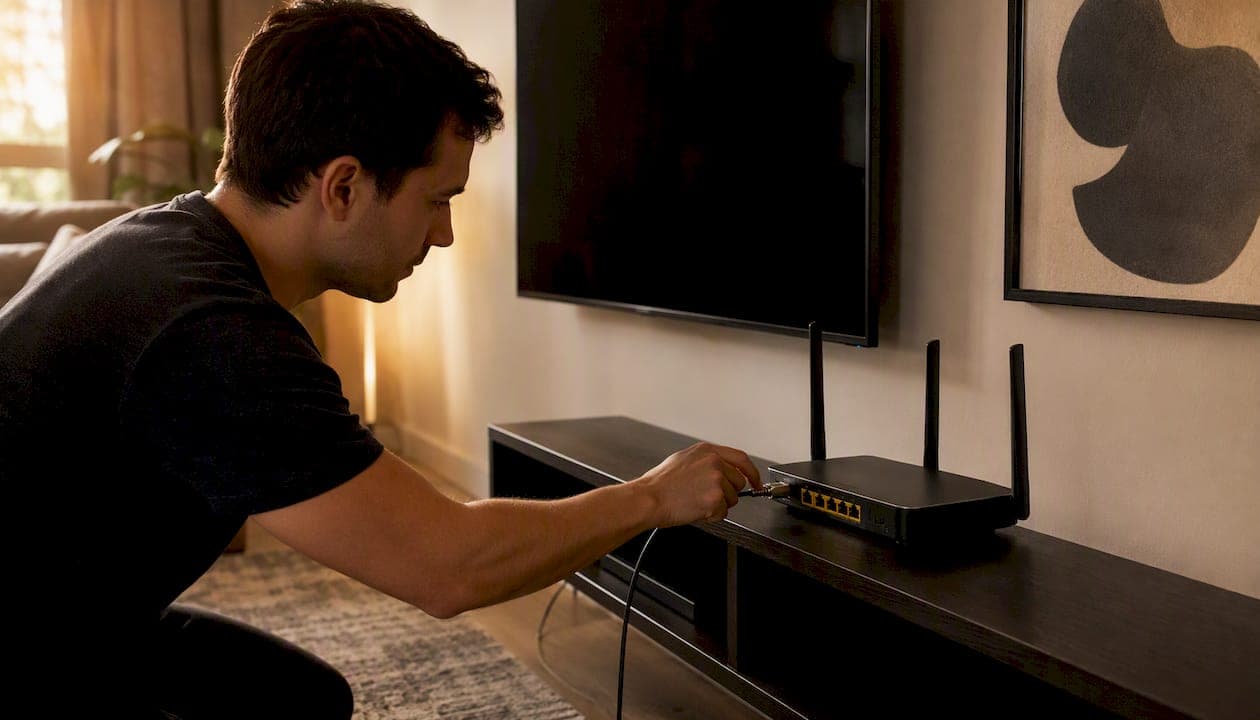
For most Canadian homes, a 100–300 Mbps internet plan paired with a Wi-Fi 6 or Wi-Fi 7 router delivers smooth 4K streaming on multiple devices. If you are only running one 4K stream, 25 Mbps is the technical minimum, but aiming for 50 Mbps per 4K device gives you the headroom to handle background updates, other household devices, and the natural speed fluctuations that come with any internet connection. The single most effective upgrade you can make right now costs nothing: plug your primary streaming device directly into your router with an Ethernet cable.
Quick checks to do before anything else:
- Run a speed test at Fast or Speedtest and compare the result to your plan speed
- Check how far your streaming device sits from the router (more than two rooms away is a problem)
- Try a wired Ethernet connection, even temporarily, to rule out Wi-Fi as the cause of buffering
- Confirm no other household devices are running large downloads or video calls at the same time
Key takeaways
A solid Wi-Fi setup for streaming comes down to three things: enough plan speed with headroom, a modern router with QoS support, and Ethernet for your most critical device.
| Point | Details |
|---|---|
| Speed targets | HD needs 5 Mbps minimum; 4K needs 25 Mbps minimum, 50 Mbps recommended per device. |
| Ethernet first | Wiring your primary streaming device removes Wi-Fi interference and is the highest-value free fix. |
| Enable QoS or SQM | Bufferbloat, not plan speed, causes most choppy streams; enabling SQM on your router often fixes it without a plan upgrade. |
| Wi-Fi 6 vs 7 | Wi-Fi 6 handles most single-family 4K needs; upgrade to Wi-Fi 7 only if you run four or more simultaneous high-bandwidth streams. |
| Torontobestiptv | Canadian edge-routed IPTV service with plans from $15/month; a practical alternative to managing multiple streaming app subscriptions. |
Table of Contents
- How much Wi-Fi speed do you actually need for streaming?
- How to choose a Canadian ISP for streaming
- Which routers and ISPs give you the best streaming experience?
- How to pick the right router and ISP for your home
- Step-by-step Wi-Fi optimisation to stop buffering
- How to diagnose and fix buffering at the source
- Why QoS, bufferbloat, and Wi-Fi standards actually matter for your streams
- The honest truth about Wi-Fi and streaming in Canada
- Canadian streamers have another option worth knowing about
- Sources
How much Wi-Fi speed do you actually need for streaming?
Speed requirements for streaming are simpler than most ISPs make them sound. HD video (1080p) needs roughly 5 Mbps per stream. A single 4K stream requires at least 25 Mbps, though 50 Mbps per 4K device is the practical target for stability. Think of it like a water pipe: the minimum gets water through, but a wider pipe means no pressure drop when someone else turns on a tap.
Here is how those numbers scale across real households:
- One person, one 4K stream: 50 Mbps plan is comfortable; 25 Mbps works but leaves no margin.
- Two adults, two 4K streams: Target 100 Mbps. Add 10–15 Mbps for background device traffic (phones, smart speakers, updates).
- Family of four, mixed HD and 4K: Two 4K streams at 50 Mbps each plus two HD streams at 5–10 Mbps each puts you at roughly 120 Mbps. A 150–200 Mbps plan gives you comfortable headroom.
- Heavy household (two 4K + two HD + gaming + video calls): Budget 200–300 Mbps and look for an unlimited data plan.
Data usage matters too. A single 4K stream consumes roughly 7 GB per hour on Netflix and up to 20 GB per hour on Apple TV+ at full quality. A family watching four hours of 4K content daily can burn through 800 GB in a month. If your plan caps at 300 GB, you will hit the limit in under two weeks. Check your ISP's data policy before assuming your plan is streaming-ready.
| Stream type | Minimum Mbps | Recommended Mbps | Suggested plan tier |
|---|---|---|---|
| Standard HD | Around 3 Mbps | Moderate Mbps | Basic plan tier |
| Full HD (1080p) | Around 5 Mbps | Moderate Mbps | Moderate plan tier |
| 4K (single device) | Around 25 Mbps | Higher Mbps | Moderate to higher plan tier |
| 4K (two devices) | Approximately double single device | Higher Mbps | Higher plan tier |
| Heavy household (4K + HD + gaming) | High Mbps | Higher Mbps | High-tier plan |
Pro Tip: Always add at least 20–30% headroom above your calculated need. ISP speeds are "up to" figures, and real-world throughput during peak evening hours often drops 10–30% below the advertised rate.
How to choose a Canadian ISP for streaming
Raw Mbps is only part of the story. Two plans with identical advertised speeds can deliver very different streaming experiences depending on connection technology, data policies, and how the ISP manages traffic during peak hours.
Connection type and what it means for your streams
Fibre (FTTH/FTTP) is the gold standard. Because fibre carries light signals rather than electrical ones, it is immune to the interference and congestion that affect cable. Bell Fibe and TELUS PureFibre both offer fibre-to-the-home in their coverage areas, and both deliver symmetrical or near-symmetrical upload and download speeds. That consistency matters for households where someone is video calling while another person streams 4K.
Cable (DOCSIS) is what Rogers, Videotron, and Shaw / Freedom primarily use outside their fibre footprints. Cable is fast and widely available, but it is a shared medium: your neighbourhood shares bandwidth on the same node. Peak-hour slowdowns are real, particularly in dense urban areas. That said, modern DOCSIS 3.1 cable can deliver gigabit speeds and is more than adequate for most streaming households.
DSL is slower and more sensitive to distance from the exchange. It works for HD streaming but struggles with multiple simultaneous 4K streams. If DSL is your only option, prioritise a plan with the highest available speed and consider a wired connection to your primary TV.
Fixed wireless and 5G home internet (offered by Freedom and some regional providers) can match cable speeds in good conditions, but performance varies with signal strength, weather, and tower congestion. T-Mobile 5G Home Internet in the US has shown that fixed wireless can be a genuine cable alternative, but Canadian deployments are still maturing.
Satellite (including Starlink) has improved dramatically but still carries higher latency than fibre or cable. Buffering is less of an issue than it once was, but latency-sensitive content like live sports can feel slightly delayed.
Questions to ask your ISP before signing up
- What is the typical speed during peak hours (7–11 PM), not just the advertised maximum?
- Is there a monthly data cap, and what happens when you exceed it (throttling vs. overage charges)?
- Does the plan include traffic shaping or throttling for video streaming services?
- Is the connection fibre-to-the-home, fibre-to-the-node, or cable?
- What is the contract length and early-termination fee?
Canadian ISP comparison for streaming
| ISP | Connection type | Typical speed band | Data cap | Availability |
|---|---|---|---|---|
| Bell Fibe | Fibre (FTTH) | 50–300 Mbps | Unlimited on most plans | Ontario, Quebec, Atlantic |
| Rogers | Cable (DOCSIS 3.1) | 75–250 Mbps | Unlimited on most plans | Ontario, Atlantic, BC |
| TELUS PureFibre | Fibre (FTTH) | 150–300 Mbps | Unlimited | BC, Alberta, parts of Ontario |
| Videotron | Cable / Fibre | 60–250 Mbps | Capped or unlimited tiers | Quebec |
| Shaw / Freedom | Cable / Fibre | 75–150 Mbps | Unlimited on higher tiers | BC, Alberta, Saskatchewan, Manitoba |
Which routers and ISPs give you the best streaming experience?
The router sitting between your modem and your devices has a bigger impact on streaming quality than most people realize. A fast internet plan throttled through a five-year-old router is like pouring water through a funnel. Below is a practical shortlist of hardware and ISP categories that cover the range of Canadian households.
Rtings note that Wi-Fi 7 routers with Multi-Link Operation (MLO) reduce jitter and improve multi-stream stability, while Wi-Fi 6 remains sufficient for most single-family 4K setups. That finding shapes the recommendations here.
| Product | Best for | Wi-Fi standard | Real-world throughput / range | Multi-gig ports | Typical CA price | Setup ease |
|---|---|---|---|---|---|---|
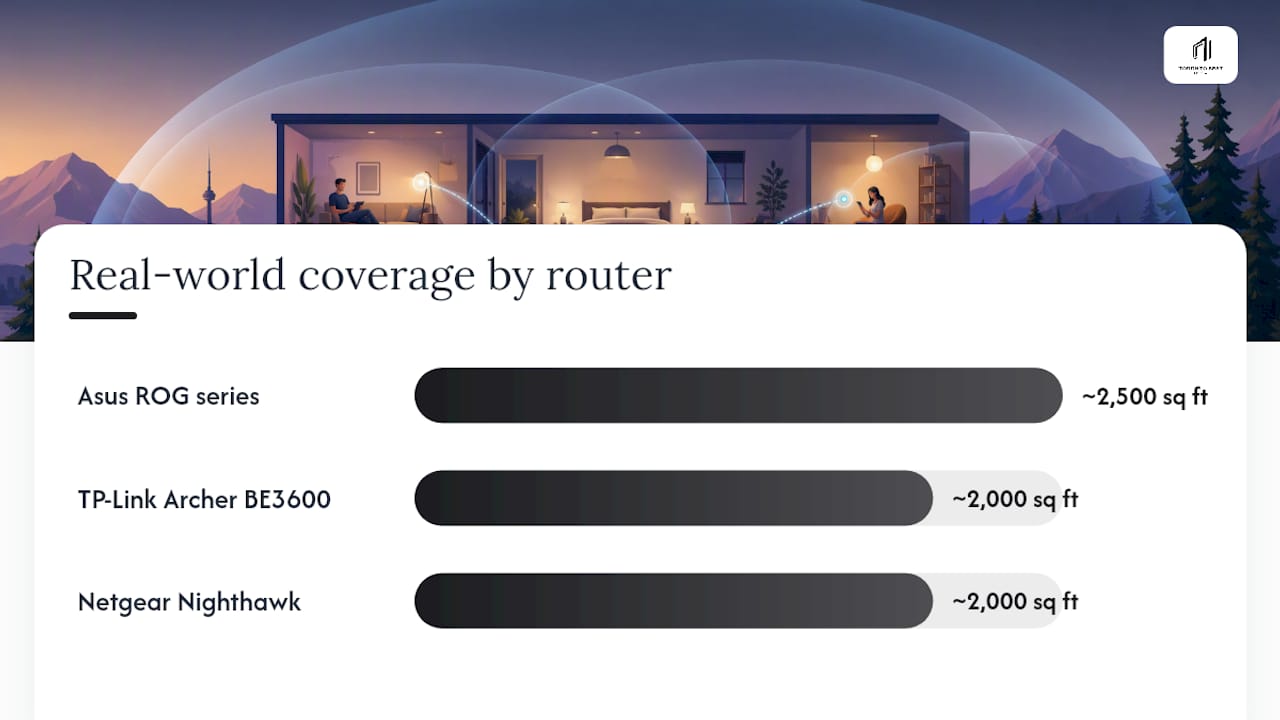
| TP-Link Archer BE3600 | Multi-device households wanting Wi-Fi 7 value | Wi-Fi 7 | Strong mid-range; covers ~2,000 sq ft | 2.5GbE WAN/LAN | ~$200–$250 | Easy app setup |
| TP-Link Deco 7 Pro | Larger homes needing mesh Wi-Fi 7 | Wi-Fi 7 | Excellent whole-home; wired backhaul capable | 2.5GbE | $150–$250 (2-pack) | Very easy app |
| Netgear Nighthawk (RAXE series) | Power users wanting Wi-Fi 6E performance | Wi-Fi 6E | High throughput; ~2,000 sq ft | 2.5GbE WAN | $150–$250 | Moderate (web UI) |
| Asus ROG / RT-AX / GT-AXE series | Gamers and streamers who want granular QoS | Wi-Fi 6 / 6E / 7 | Excellent; up to ~2,500 sq ft on flagship | 2.5GbE–10GbE | $150–$250 | Moderate (ASUSWRT) |
| Ubiquiti UniFi (Dream Router) | Tech-savvy users or small offices | Wi-Fi 6 | Excellent; enterprise-grade reliability | 2.5GbE | $150–$250 | Advanced (web UI) |
| Eero (Amazon, Canadian models) | Simple whole-home mesh, easy app control | Wi-Fi 6 / 6E | Good; scales with nodes | 1GbE (base) / 2.5GbE (Pro) | $150–$250 | Very easy app |
| Bell Fibe | Urban/suburban fibre streaming | N/A (ISP) | 50–300 Mbps | Fibre gateway included | From $50/mo | ISP-managed |
| Rogers | High peak-speed cable households | N/A (ISP) | 75–250 Mbps | DOCSIS gateway | From $50/mo | ISP-managed |
| TELUS PureFibre | Western Canada fibre homes | N/A (ISP) | 150–300 Mbps | Fibre gateway included | From $50/mo | ISP-managed |
| Videotron | Quebec households | N/A (ISP) | 60–250 Mbps | Cable/fibre gateway | From $50/mo | ISP-managed |
| Shaw / Freedom | Western Canadian suburban/rural | N/A (ISP) | 75–150 Mbps | Cable/fibre gateway | From $50/mo | ISP-managed |
A note on US-based providers: Google Fiber, Verizon Fios, AT&T Fiber, Xfinity, Spectrum, T-Mobile 5G Home Internet, Frontier Fiber, Cox Communications, and Kinetic by Windstream are all US services and are not available to Canadian subscribers. They are worth knowing about for context: Google Fiber and Verizon Fios are widely cited as benchmarks for fibre reliability, while Xfinity and Spectrum represent the cable-dominant model similar to Rogers. T-Mobile 5G Home Internet has demonstrated that fixed wireless can compete with cable in many US markets, a trend that Canadian providers are beginning to follow.
Consumer tests of the TP-Link Archer BE3600 series confirm that affordable Wi-Fi 7 routers now deliver tri-band designs and 2.5GbE ports at prices that make upgrading from Wi-Fi 5 a straightforward decision for most households.
Independent buying guides consistently recommend mesh systems for homes with dead zones or floor plans over roughly 2,500 sq ft, and single powerful routers for compact homes under 2,000 sq ft. Wired backhaul between mesh nodes significantly improves throughput compared to wireless backhaul.
How to pick the right router and ISP for your home
The right combination depends on four things: home size, number of simultaneous streams, budget, and whether you are willing to run any Ethernet cable.
- Assess your home size. Under 1,500 sq ft with a central router location: a single Wi-Fi 6 or Wi-Fi 7 router handles it. Over 2,000 sq ft, multi-storey, or with thick concrete walls: a mesh system with wired backhaul is the better path.
- Count your simultaneous streams. One or two 4K streams: almost any modern Wi-Fi 6 router on a 100–150 Mbps plan is fine. Four or more streams plus gaming: look for Wi-Fi 6E or Wi-Fi 7 with OFDMA support and a plan of 300 Mbps or more.
- Set a realistic budget. A $150–$250 router covers most households. Spending more buys you faster Wi-Fi 7 speeds, better QoS controls, and multi-gig ports, which only matter if your ISP plan and devices can actually use them.
- Decide on Ethernet. Even one wired connection to your main TV or streaming box removes that device from the wireless congestion equation entirely.
Must-have router specs for streaming
- Wi-Fi 6 minimum (Wi-Fi 6E or 7 if budget allows): OFDMA and MU-MIMO reduce congestion in multi-device homes
- QoS or SQM support: lets you prioritise streaming traffic over background downloads
- 2.5GbE WAN port: future-proofs the router for gigabit-plus ISP plans
- Dual or tri-band: keeps 5 GHz / 6 GHz bands available for streaming devices
Nice-to-have features
- MLO (Wi-Fi 7 only): reduces jitter on heavily loaded networks
- 10GbE LAN port: useful if you have a NAS or wired workstation
- Dedicated mobile app with traffic monitoring
Red flags to avoid
- Routers marketed by "max speed" alone with no mention of QoS or SQM
- Single-band or Wi-Fi 5 routers sold as "streaming routers" in 2026
- ISP plans with hard data caps below 500 GB if you stream 4K regularly
- Mesh systems that only support wireless backhaul between nodes
Step-by-step Wi-Fi optimisation to stop buffering
Before buying new hardware, work through these steps. Most households find that one or two of them resolve the problem entirely.
- Run a speed test and a bufferbloat check. Use Speedtest for throughput and Waveform for latency under load. A bufferbloat grade of C or lower means your router's queue management is the bottleneck, not your plan speed.
- Connect your primary streaming device via Ethernet. Wired connections remove interference entirely and deliver consistent, low-latency throughput. A $15 Ethernet cable from your router to your TV is the highest-value upgrade in this guide.
- Force your streaming device onto the 5 GHz or 6 GHz band. The 2.4 GHz band is slower and more congested. On most routers, you can do this by creating a separate SSID for 5 GHz and connecting your TV or streaming box to that network only.
- Adjust channel width. In low-interference suburban homes, set 5 GHz to 80 MHz for maximum throughput. In dense urban apartments where neighbour networks overlap, drop to 40 MHz or 20 MHz for more stable connections with less interference.
- Enable QoS or SQM on your router. QoS lets you assign priority to your streaming device's IP address. SQM (Smart Queue Management) goes further by actively managing queues to reduce bufferbloat. Not all consumer routers support SQM, but Asus ROG / RT-AX routers running ASUSWRT and OpenWrt-compatible routers do.
- Handle band steering carefully. Automatic band steering can cause momentary disconnects by moving devices between bands mid-stream. For smart TVs and streaming boxes, disable band steering and manually assign the device to a specific 5 GHz or 6 GHz SSID.
- Update router firmware. Manufacturers release firmware updates that fix known performance bugs. Check your router's admin panel or app monthly.
- Cap your guest network bandwidth. If guests or smart-home devices share your main network, move them to a guest SSID and cap its bandwidth in your router settings to protect headroom for streaming.
Pro Tip: Assign a static IP to your main streaming device in your router's DHCP settings, then create a targeted QoS rule for that IP. This is more reliable than QoS rules based on device name, which can change after a reboot.
For device-specific fixes, the guides on fixing buffering on Android TV boxes and Amazon Firestick buffering cover the app-level settings that complement these router tweaks.
How to diagnose and fix buffering at the source
Buffering has four main causes: not enough plan speed, a congested or underpowered router, a Wi-Fi signal problem, or an issue on the ISP's network. Knowing which one you are dealing with saves a lot of frustration.
Start with these quick checks:
- Reboot your router and modem (unplug for 30 seconds, not just a soft restart)
- Run a speed test on the buffering device, not just your phone
- Plug the streaming device directly into the router with Ethernet and test again
- Check whether other devices in the home are running downloads, backups, or video calls
Interpreting your test results
Low throughput (speed test shows well below your plan speed): The problem is likely between your modem and the ISP, or your modem itself is ageing. Call your ISP and ask for a line test.
Normal throughput but high latency or packet loss: Your router is the likely culprit. A router with a weak CPU struggles to manage multiple simultaneous connections. Check CPU usage in your router's admin panel; if it is consistently above 80%, the router needs replacing.
Normal speed and latency on Ethernet, but poor Wi-Fi: The problem is wireless. Work through the optimisation steps above: band selection, channel width, and placement.
Bufferbloat grade D or F: Enable SQM or QoS immediately. This is one of the most common and most overlooked causes of choppy streams in households with otherwise adequate plan speeds.
Decision tree: what to do next
- If Ethernet fixes the problem: your Wi-Fi setup needs work (band, channel, placement, or router upgrade).
- If Ethernet does not fix it and speed test shows low throughput: call your ISP.
- If speed test is fine but buffering persists: enable QoS/SQM or replace an ageing router.
- If the problem only happens in the evening: ISP network congestion. Ask about a plan upgrade or consider switching providers.
For a full IPTV troubleshooting walkthrough covering buffering errors across common streaming devices, that guide covers the device-level steps that follow once your network is confirmed healthy.
Why QoS, bufferbloat, and Wi-Fi standards actually matter for your streams
Understanding the mechanics here helps you make smarter decisions without needing a networking degree.
Bufferbloat: the hidden cause of choppy video
Bufferbloat happens when your router's internal queues fill up with data packets and hold them too long before forwarding them. The result is not slow video, it is inconsistent video: a stream that plays fine for 30 seconds, then stutters, then recovers. Raw plan speed does not fix this. A household with a 500 Mbps plan and a cheap router can experience worse buffering than a household on 100 Mbps with a router running SQM.
Channel width trade-offs in the real world
Wider channels carry more data but are more vulnerable to interference from neighbouring networks. Setting 5 GHz to 80 MHz in a low-interference suburban home maximises throughput. In a dense urban apartment building where dozens of networks overlap, dropping to 40 MHz or 20 MHz reduces interference and produces more stable, consistent speeds even if the peak number is lower.
What Wi-Fi 6 and Wi-Fi 7 actually change
Wi-Fi 6 introduced OFDMA, which lets a router communicate with multiple devices simultaneously rather than taking turns. In a home with eight or ten connected devices, this reduces the latency each device experiences. Wi-Fi 6E added the 6 GHz band, which is largely interference-free because few devices use it yet.
Wi-Fi 7's MLO (Multi-Link Operation) goes further by using multiple bands at the same time for a single connection, reducing jitter in heavily loaded homes. The practical benefit shows up most in households running four or more simultaneous high-bandwidth streams. For a single-family home with one or two 4K streams, Wi-Fi 6 is genuinely sufficient.
Ethernet still wins for critical devices. Walls, appliances, and neighbour networks all limit wireless performance regardless of the Wi-Fi generation. A Wi-Fi 7 router is impressive, but a Cat 6 cable to your main TV is more reliable than any wireless standard.
The honest truth about Wi-Fi and streaming in Canada
Most buffering problems in Canadian homes are not caused by a slow internet plan. They are caused by a router that is too old to manage modern traffic, a device sitting on the wrong Wi-Fi band, or band steering quietly moving a smart TV between frequencies mid-stream.
The conventional wisdom says "upgrade your plan." The more useful advice is: test first, then fix the cheapest thing. Run a bufferbloat test. Plug in an Ethernet cable. Separate your 5 GHz SSID. In most cases, those three steps cost nothing and solve the problem. If they do not, then the conversation about a plan upgrade or a new router becomes much more informed.
Wi-Fi 7 is genuinely exciting for multi-device households, but the jump from Wi-Fi 5 to Wi-Fi 6 delivers most of the real-world benefit at a lower price. If your router is more than four years old and runs Wi-Fi 5, replacing it with a mid-range Wi-Fi 6 model is the single hardware upgrade most likely to improve your streaming experience. Save Wi-Fi 7 for your next router cycle unless you are running a heavily loaded home network today.
For Canadian households specifically: fibre availability from Bell Fibe or TELUS PureFibre is the ISP upgrade worth waiting for if it is coming to your area. The consistency of fibre during peak hours is noticeably better than cable, and the symmetrical speeds matter more as households add video calls and cloud backups to their streaming load.
Canadian streamers have another option worth knowing about
If you have sorted your Wi-Fi and internet plan but still find that live sports, international channels, or on-demand content is scattered across five different apps, Torontobestiptv offers a different approach. Rather than patching together Netflix, Crave, DAZN, and a sports package, a single IPTV subscription delivers live TV, NHL, NFL, Premier League, and on-demand content through one app on your existing streaming device.
Torontobestiptv uses Canadian edge routing to minimise buffering on live content, which is where standard streaming apps tend to struggle most. Plans start at $15 per month, and a two-day free trial lets you test the service on your actual network before committing. The team has been supporting Canadian subscribers since 2016 and offers device setup help if you need it. Use the pricing calculator to see what a multi-device plan costs for your household, then start your free trial directly from the site.
Disclosure: this article is published by Torontobestiptv.
Sources
- This is how much bandwidth you need for 1080p, 4K, and 8K streaming
- Linksys support — wireless channel width guidance
- Ethernet vs Wi‑Fi: which is best for performance?
- Router band steering and TV streaming
- Rtings
- TP‑Link Archer BE550 product page
- 12 Best Routers for Streaming (June 2026) Complete Guide