
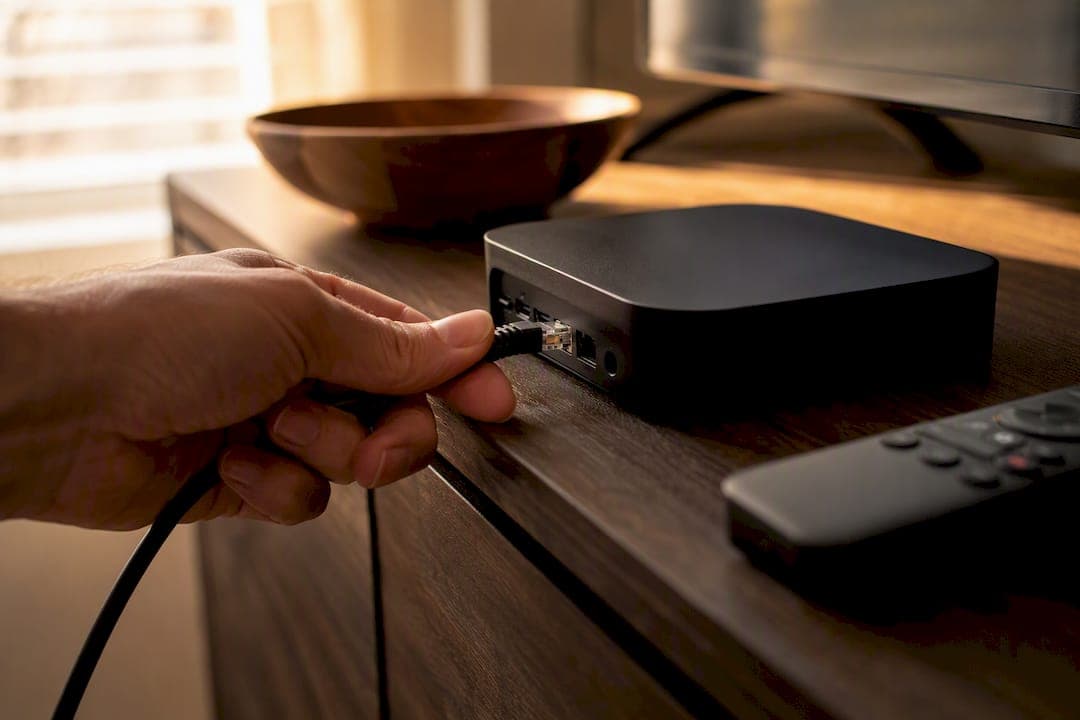
Wired wins for streaming reliability, full stop. Ethernet gives you a dedicated, stable connection with almost no jitter and near-zero packet loss, which matters far more for smooth video than any peak speed number on a router box. WiFi still earns its place for phones, tablets, and casual browsing where you're moving around the house and don't want a cable trailing behind you.
Here's where the line actually falls:
- Wire it: live sports, competitive gaming, and any 4K stream you care about not stuttering during the third period or the final round.
- WiFi is fine: on-demand shows, background viewing, or anything you'd shrug off if it buffered for two seconds.
Before you touch a cable, run two quick checks. First, move the device next to your router and connect it with a short Ethernet cable. If the stuttering disappears instantly, WiFi was the problem the whole time. Second, check the negotiated link speed in your device's network settings. A connection stuck at 100 Mbps instead of 1 Gbps tells you something is throttling before you even start streaming.
Key Takeaways
Wired connections deliver consistent low latency and near-zero packet loss, which matters more for streaming reliability than any peak WiFi speed rating.
| Point | Details |
|---|---|
| Wired wins on consistency | Ethernet jitter stays under 1 millisecond versus 5 to 50 milliseconds on WiFi, which prevents live stream stutter. |
| Run the proximity test first | Connect your device next to the router with a short cable; instant improvement confirms WiFi was the problem. |
| Wire stationary, high-bitrate devices first | Prioritize IPTV boxes, smart TVs, streaming PCs, and consoles over mobile devices. |
| Bandwidth needs are modest | 4K streaming needs roughly 20 to 25 Mbps sustained, well within most 100 Mbps TV Ethernet ports. |
| Use fallbacks when cabling isn't possible | MoCA, powerline, and mesh nodes with wired backhaul all beat relying on a weak TV WiFi radio. |
| Toronto's Best IPTV supports wired setups | Canadian edge routing plus device setup guidance and a two-day trial help you confirm reliability before subscribing. |
Table of Contents
- Ethernet vs WiFi for TV: why one is more consistent than the other
- How much bandwidth does streaming actually need?
- Which devices should you hardwire first?
- What if you can't run an Ethernet cable?
- How do you test whether WiFi is causing your buffering?
- How do you set up a wired connection properly?
- Why we push wired connections so hard for live streaming
- Get a wired setup that actually holds up during live sports
- Frequently asked questions
- Sources
Ethernet vs WiFi for TV: why one is more consistent than the other
The core difference between wired and wireless isn't top speed. It's consistency, and that distinction decides whether your Saturday night stream holds together or falls apart during the third act.
Ethernet runs on a dedicated, full-duplex connection. Your cable sends and receives data simultaneously on separate paths, with nothing else fighting for that bandwidth. WiFi operates on a shared, half-duplex medium: every device on your network, from your laptop to your neighbour's smart fridge leaking signal through the wall, competes for the same slice of spectrum. That competition is where buffering is born.
The numbers back this up. How-To Geek's technical comparison shows Ethernet jitter typically stays under 1 millisecond, while WiFi jitter ranges from 5 to 50 milliseconds depending on interference and distance from the router. Packet loss tells a similar story: Ethernet holds below 0.01%, while WiFi typically runs 0.1% to 0.5% under normal conditions, with spikes far higher during network congestion.
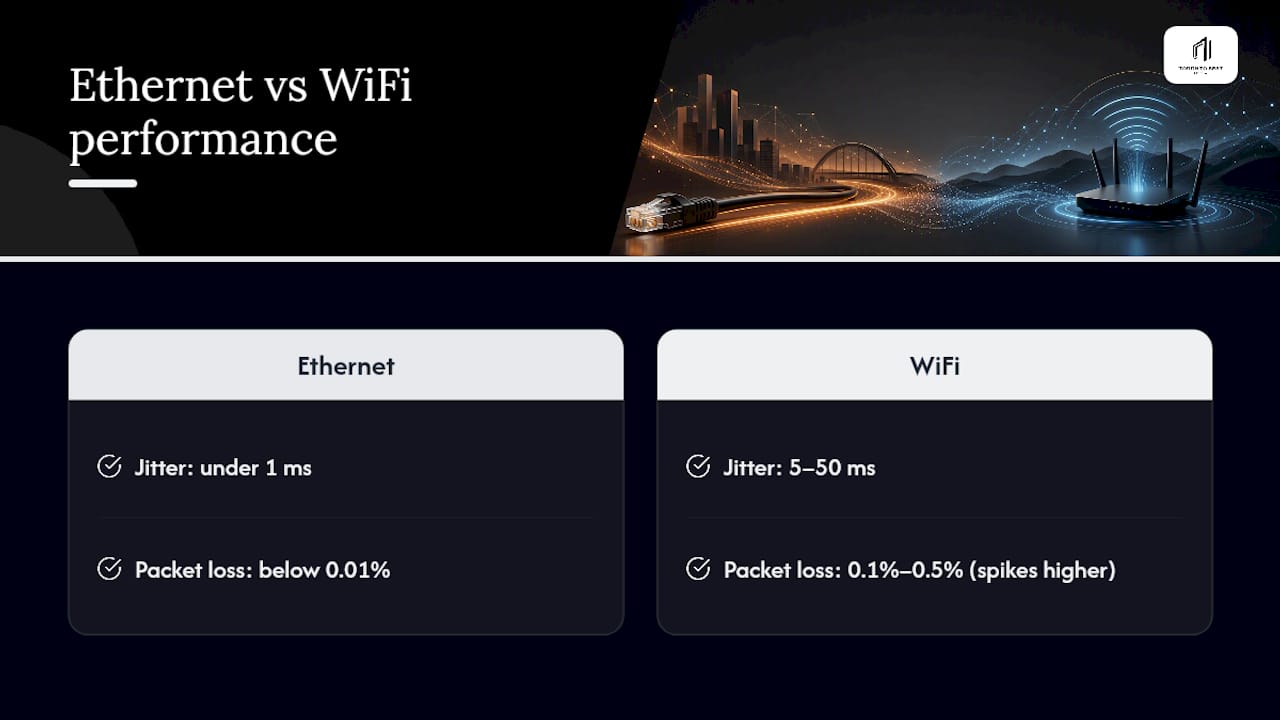
Those numbers might look small, but streaming video is unforgiving about timing. A live stream needs packets to arrive in order, on schedule, every time. When WiFi jitter spikes or a packet gets dropped and has to be resent, your player either freezes for a beat or drops resolution to catch up — that's the stutter you're seeing during the overtime goal.
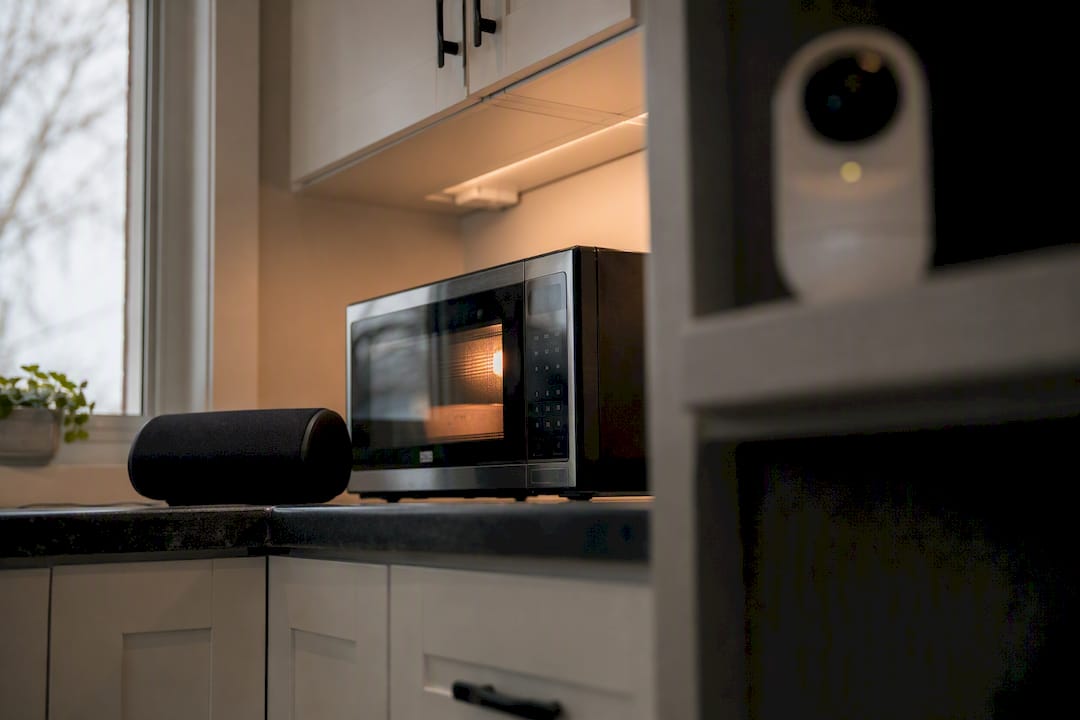
Interference is the usual culprit. Microwaves, Bluetooth speakers, your neighbour's router, even a poorly shielded baby monitor can create the momentary gaps that wreck a live broadcast. On-demand content survives this fine because your player buffers ahead. Live streaming has no such cushion. It's playing the data almost as fast as it arrives.
Modern WiFi standards have made real progress here. Wi-Fi 6, 6E, and the newer Wi-Fi 7 bring features like OFDMA (which lets a router talk to multiple devices more efficiently in a single transmission) and improved beamforming that focuses signal toward your device instead of broadcasting it everywhere. These upgrades genuinely help in crowded households. What they can't do is eliminate physics: walls still absorb signal, other networks still exist on your channel, and radio interference doesn't respect your router's feature list.
That's the practical limit of wireless streaming quality no matter how new your mesh system is. Faster WiFi standards raise the ceiling on peak throughput, but they don't remove the shared-medium problem that causes jitter in the first place.
How much bandwidth does streaming actually need?
A sustained 4K stream needs roughly 20 to 25 Mbps, and 1080p content typically runs 5 to 8 Mbps, according to XDA Developers' breakdown of streaming bitrates. Compare that to a typical home connection delivering hundreds of Mbps on a speed test, and you'll see the gap between what your internet plan promises and what your stream actually consumes.
That gap is exactly why speed test results can mislead you. A speed test measures a short burst of maximum throughput. Streaming needs sustained throughput at a much lower, steady rate, with minimal interruption. You can have a gigabit connection and still buffer constantly if your WiFi signal drops out for half a second every few minutes. The bottleneck usually isn't your ISP's advertised speed. It's the consistency between your router and your screen.
Here's a detail that surprises a lot of people: many smart TVs ship with only 10/100 "Fast Ethernet" ports, capped at 100 Mbps rather than the 1 Gbps you'd expect from a modern device.
- That cap is almost never a real problem for streaming services, since a 4K Netflix stream at roughly 25 Mbps uses a fraction of even a 100 Mbps port.
- It becomes relevant only for local high-bitrate streaming, such as pulling 4K remuxes from a home media server, where sustained demand can approach or exceed that ceiling.
- If your TV's port negotiates 100 Mbps but a USB-Ethernet adapter or external streaming box negotiates a full 1 Gbps, routing high-bitrate local content through that adapter instead of the TV's built-in port solves the problem outright.
If you've wired your device and you're still buffering, the issue likely isn't your local network at all. It could be your ISP's connection during peak hours, or congestion on the streaming provider's servers. Wiring solves LAN problems. It won't fix a slow upstream source.
Which devices should you hardwire first?
Not every device in your house needs a cable, and trying to wire all of them is a waste of your weekend. Prioritize based on how stationary the device is and how much it depends on sustained, high-bitrate delivery.
- IPTV boxes and smart TVs. These sit in one place permanently, stream the highest-bitrate content in the house, and are the devices viewers notice buffering on first, especially during live sports.
- Streaming PCs. If you're running Plex, Jellyfin, or casting from a desktop, a wired connection keeps that traffic off congested WiFi airspace entirely.
- Game consoles. Lower latency and steadier packet delivery matter for both streaming apps and online play, which is the same reasoning behind gaming over wired vs WiFi debates in gaming forums.
- NAS units and media servers. If you're running a local server for a household media library, wiring it prevents it from becoming the weakest link for every other device pulling content from it.
- Mobile devices, last or never. Phones and tablets move around by design; WiFi is the right tool for that job, and their bandwidth needs are typically far lower than a 4K TV stream.
Wiring the heaviest users on your network has a side benefit worth mentioning: it frees up WiFi airspace for everyone else. A household running three 4K streams simultaneously puts real strain on a shared wireless channel. Move two of those three devices to Ethernet, and the third suddenly performs better too, without you touching a single setting on it.
What if you can't run an Ethernet cable?
Not every home allows for a clean cable run to the living room, and that's fine. You've got four realistic fallbacks, each suited to a different situation.
- Powerline adapters send network data over your home's existing electrical wiring. They work best when both adapters sit on the same electrical circuit, and performance varies by household wiring, so results aren't guaranteed until you test it.
- MoCA adapters use your home's coaxial cable, the same wiring that used to feed cable TV boxes. Where that wiring already exists, MoCA typically performs closer to true Ethernet than powerline does, making it a strong alternative when you've got unused coax jacks near your TV.
- Mesh nodes with wired backhaul let you plug a satellite node's Ethernet port directly into your TV, using the mesh system's own wireless link between nodes instead of your TV's often weaker built-in radio.
- USB or Thunderbolt Ethernet adapters solve the problem for laptops, streaming sticks, and other devices without a built-in Ethernet port.
Pro Tip: Plug powerline adapters directly into a wall outlet, never into a power strip or extension cord. Surge protection circuitry in strips can severely degrade the signal, turning a promising powerline setup into a disappointing one.
How do you test whether WiFi is causing your buffering?
Run these checks in order before you assume the worst about your internet plan.
- Do the proximity test. Move the device next to your router and connect with a short Ethernet cable. Technicians favour this step because it isolates the problem into one of three categories almost instantly: WiFi, your ISP or the source server, or the device's own decoding hardware.
- Check the negotiated link speed in your device's network settings. A connection sitting at 100 Mbps when your plan promises gigabit speeds points to a port, cable, or adapter limitation.
- Test the same stream on mobile data or a different WiFi network. If it buffers there too, the problem is the source or your ISP, not your home network.
- Watch for jitter and packet loss symptoms inside your player: repeated resolution drops, brief freezes with audio still running, or a spinning buffer icon that clears itself after a few seconds.
| Symptom | Likely Cause |
|---|---|
| Buffering clears instantly when wired near router | WiFi signal or interference |
| Buffering persists on Ethernet and on mobile data | ISP connection or source server |
| Resolution drops but audio keeps playing | Jitter or intermittent packet loss |
| Link speed shows 100 Mbps instead of 1 Gbps | Port, cable, or adapter bottleneck |
For device-specific fixes once you've narrowed down the cause, our guides on fixing buffering on Android TV boxes and resolving Apple TV playback issues walk through the settings menus specific to each platform.
How do you set up a wired connection properly?
Getting this right takes about twenty minutes and a trip to a hardware drawer, not a weekend project.
- Pick the right cable. Cat5e is the practical minimum for a wired streaming setup; Cat6 gives you more headroom for future gigabit upgrades. Keep any single run under 100 metres without an active device in between.
- Choose your switch. An unmanaged gigabit switch handles a typical household fine. Only step up to a 2.5G or 10G switch if you're running a local media server pushing high-bitrate 4K content to multiple devices at once.
- Use an adapter where needed. A USB-to-Ethernet adapter solves the problem for laptops or streaming sticks without a built-in port, but check your device's network settings afterward to confirm it's prioritizing the wired connection over WiFi.
- Place your router thoughtfully, and set basic quality-of-service (QoS) rules if your router supports them, prioritizing your IPTV box or streaming device over background downloads and other traffic.
Pro Tip: After wiring a device, unplug its WiFi connection entirely or disable WiFi in its network settings. Some devices default back to wireless even with a cable connected, which quietly defeats the whole point of running one.
For platform-specific wiring steps, our Samsung and LG smart TV setup guide covers the exact menus you'll need.
Why we push wired connections so hard for live streaming
We've spent years watching customers troubleshoot buffering during exactly the moments they cared about most: overtime goals, championship matches, season finales. The pattern is consistent. Households that wire their main IPTV box report noticeably fewer complaints during high-demand live events than households running everything over WiFi, even on the same internet plan.
Our Canadian edge routing reduces the distance data has to travel, but it can't compensate for a wireless connection dropping packets in the last ten feet inside your own house. That's a local problem, not an ISP problem, and no amount of backend optimization fixes it. If you're serious about live sports without the stress, wire the box. It's the cheapest reliability upgrade available to you.
Get a wired setup that actually holds up during live sports
If running a cable feels like one more thing on your plate, that's exactly where Toronto's Best IPTV earns its keep. We combine Canadian edge routing with real device setup support, so you're not guessing whether your Ethernet run, adapter, or switch is configured correctly for live NHL and NFL broadcasts.
For customers who want a wired-ready device out of the box, our Formuler Z10 Pro comes with a full Ethernet port built for sustained 4K playback, backed by a two-year warranty and our team's setup guidance. Whether you're troubleshooting an existing wireless headache or starting fresh, our two-day free trial lets you test real performance on your own network before committing to anything. Head over to our IPTV guide for Canadian households to see plans starting from $15 a month and find the setup that fits your home.
Frequently asked questions
Is wired always better than WiFi for streaming? For live sports, competitive gaming, and any high-bitrate local streaming, yes. For casual on-demand viewing on a phone or tablet, WiFi's convenience outweighs the small consistency trade-off.
Why does my WiFi speed test show gigabit speeds but I still get buffering? Speed tests measure short bursts of peak throughput, not the sustained, low-jitter delivery that live streaming actually needs. A fast test result and a stable stream are two different things.
Does a 100 Mbps Ethernet port on my TV limit my streaming quality? Rarely. A 4K stream from services like Netflix uses about 25 Mbps, well under a 100 Mbps port's ceiling. It only becomes a limit for local high-bitrate content from a home media server.
What's the fastest way to tell if WiFi is causing my buffering? Run the proximity test: connect the device to the router with a short Ethernet cable and see if the problem disappears immediately. That single test isolates WiFi from ISP or device issues.
Can I get wired-level reliability without running cable through my whole house? Yes. MoCA over existing coax, powerline adapters plugged directly into wall outlets, and mesh nodes with wired backhaul all offer a meaningful step up from relying on WiFi alone.