
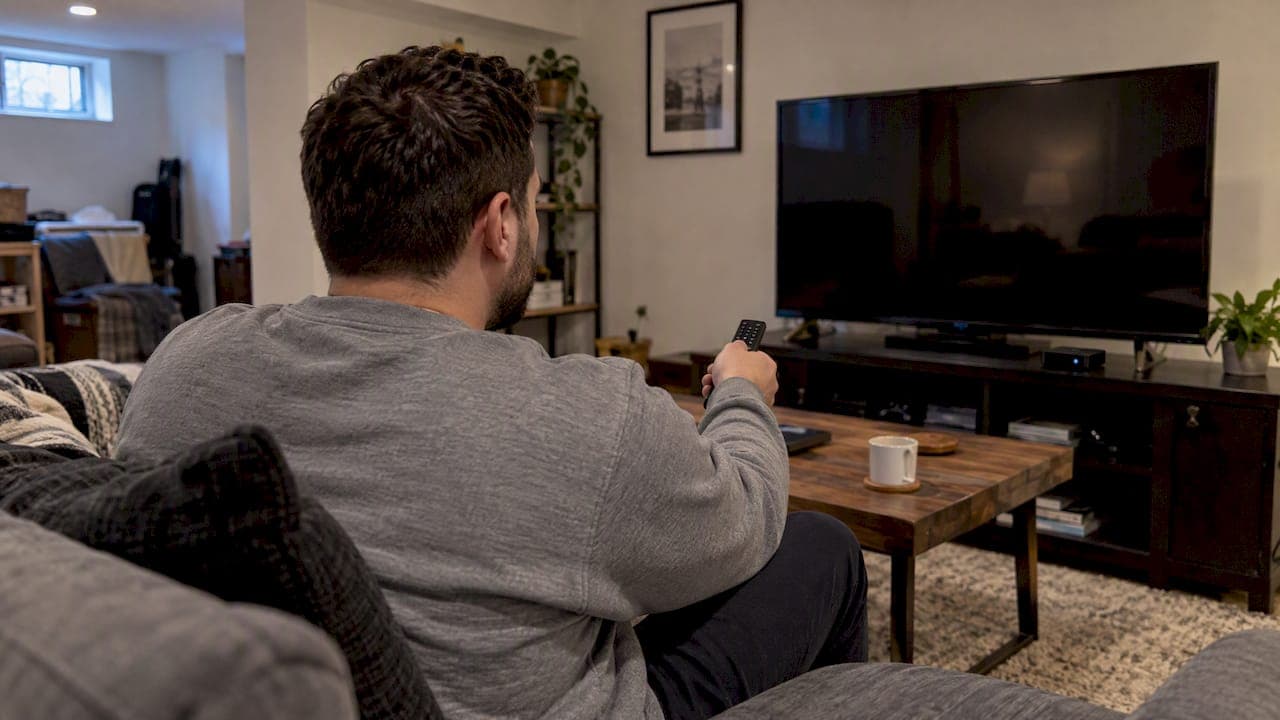
Most VOD playback failures are fixed with a quick power cycle, a cache clear, or a short network check. Start with a full restart of your device and router, then try a wired connection or run a speed test. If the app still won't load content, clear its cache or reinstall it. Still stuck? Grab your exact error message and contact support.
TL;DR:
- Unplug your streaming device and router for 30 seconds, reconnect the router first, and wait until it is online before restarting the device.
- If only one title fails while other titles or apps work, treat it as a content or server issue; restarting your setup may not help.
- On Android TV and Google TV, clear the app cache first, but avoid Clear Data unless you are ready to sign in again.
- Before contacting support, record the exact error and server ID, device and app versions, speed test results, and whether Ethernet changes playback.
- Update device firmware and the streaming app before considering a factory reset, which erases settings and may remove logs support needs to diagnose the fault.
Table of Contents
- Your 5-minute triage checklist for VOD problems
- Device-specific fixes for Roku, Android TV, Firestick, and MAG boxes
- Testing and fixing your network connection
- Fixing low storage and corrupted cache on your streaming device
- Why firmware and app updates fix VOD problems you didn't know you had
- What to collect before you contact support
- Where to find reliable troubleshooting help
- Realistic timelines and what usually causes VOD to fail
- Let us take VOD troubleshooting off your plate
- FAQ
- Sources
Your 5-minute triage checklist for VOD problems
Before you dig into device-specific settings, run through this quick sequence. It takes about five minutes and tells you whether you're dealing with a network problem, a device glitch, an account issue, or something on the service's end.
- Power-cycle everything. Unplug your streaming device and your router, wait a full 30 seconds, then plug the router back in first and let it fully reconnect before powering the device.
- Try a different title or app. If one show won't play, but others do, that usually points to a problem with that specific piece of content rather than your setup, according to Roku's own troubleshooting guidance.
- Run a speed test on another device. Use a laptop or phone connected to the same Wi-Fi to check download speed and latency, since this tells you fast whether your connection can support streaming.
- Switch to Ethernet if you can, or move closer to the router. A wired connection eliminates Wi-Fi interference as a variable entirely.
- Write down the exact error text, any server ID shown on screen, and the time it happened. This detail saves time later if you need to contact support.
This order matters because it moves from the broadest possible fix (a full restart) to the most specific (isolating one title or one app). If step 2 shows that every title and every app fails, you're likely looking at a network or device issue, which the next sections cover in detail. If only one show refuses to load while everything else works fine, the problem is probably server-side, meaning a restart on your end won't help much and the fix is contacting support with the details from step 5.
A lot of viewers skip straight to factory resets or app reinstalls when a simple restart would have solved it. Give the full cycle a real try first. It costs you two minutes and rules out the most common cause before you touch any settings.

Device-specific fixes for Roku, Android TV, Firestick, and MAG boxes
Different streaming boxes store cache and handle app data differently, so the fix that works on one device often doesn't exist as an option on another. Here's what to try based on what you're using.
Roku:
- Go to Settings, then System, then System Restart, which clears temporary data without touching your installed channels or settings, following Roku's official restart instructions.
- If a plain restart doesn't help, try the secret button sequence: press Home five times, Up once, Rewind twice, then Fast Forward twice, which forces a deeper cache flush on Roku that a normal restart sometimes misses.
- Uninstall and reinstall the VOD app if the issue persists after both restarts.
- Check your HDMI cable connection and remote batteries, since a loose cable can mimic a playback error.
Android TV and Google TV:
- Open Settings, then Apps, select the VOD app, and tap Clear cache, which is the recommended first step from Sony's Android TV support page.
- Avoid the "Clear data" option unless you're prepared to sign back in, since that wipes saved login credentials along with the cache.
- Free up internal storage if the device feels sluggish or apps crash on launch, since low storage is a frequent cause of loading failures.
- Reinstall the app entirely if clearing cache doesn't resolve the problem.
Fire TV and Firestick:
- Go to Settings, then Applications, then Manage Installed Applications, select the app, and choose Force Stop, followed by Clear Cache.
- Uninstall and reinstall the app if force-stopping and clearing cache don't fix it.
- Check whether developer options are enabled, since some sideloaded tweaks or debugging settings can interfere with normal playback.
MAG and Formuler boxes:
- Double-check your portal settings match what your provider gave you, since a single typo in the portal URL will block VOD entirely.
- Update firmware through the vendor portal rather than skipping updates, since outdated firmware is a common source of playback bugs on these boxes.
- Power-cycle the box before trying anything more drastic, and hold off on a factory reset until you've collected logs, since a reset erases the details that would help support diagnose the issue. Our Formuler portal setup guide walks through the configuration screens if you need a refresher.
Pro Tip: Keep a note on your phone with your device model and app version so you're not hunting for that information mid-troubleshooting session.
Testing and fixing your network connection
A surprising number of VOD complaints turn out to be network problems wearing a disguise. Before you blame the app, rule out your connection.
- Run a speed test using a tool like Speedtest.net on a laptop or phone connected to the same network as your streaming device, checking both download speed and latency.
- Compare what you measure against what your streaming setup actually needs, then try a wired Ethernet connection to your streaming device to see if performance improves, since that eliminates Wi-Fi interference as a factor.
- Restart your router and modem, then test again after disconnecting other heavy-usage devices like gaming consoles or laptops mid-download.
- Try switching to an alternate DNS provider temporarily, and check whether your internet provider has any parental controls or security filtering enabled that might be blocking streaming traffic.
If your speed test looks healthy but VOD still won't load, the problem is more likely sitting with your device or the service itself rather than your connection. If you're setting up on a phone or tablet as a workaround while you troubleshoot your main device, our guide to installing IPTV on mobile walks through that setup.
Fixing low storage and corrupted cache on your streaming device
A full storage drive or a corrupted cache file is one of the quieter reasons VOD apps freeze, crash, or refuse to load new content.
- On Android TV and Google TV, head to Settings, then Apps, choose the app, and select Clear cache. Stay away from Clear data unless you're fine signing back in.
- On a Chromecast with Google TV, go to Settings, then System, then Storage, and clear cached data across all apps when storage runs low, which Google's own support page recommends as a safe first move.
- On Roku, remove apps you don't use anymore and run a system restart, since that clears out transient data that can quietly fill up storage over time, a fix Roku support confirms resolves many "can't run app" and low-memory errors.
- If clearing cache doesn't help after a couple of tries, uninstall and reinstall the app completely rather than repeating the same step.
Why firmware and app updates fix VOD problems you didn't know you had
Outdated software is behind a good chunk of playback bugs that otherwise look like network or account problems.
- Check for device OS updates through Settings on Roku, Android TV, Google TV, Fire TV, and most IPTV boxes, since manufacturers patch playback bugs regularly.
- Update your IPTV or VOD app directly from the device's app store, since an outdated app version can lose compatibility with the service's current servers.
- Update before you reset. A factory reset should be close to your last resort, not your first move, since it wipes everything and you lose the chance to collect logs that would help support pinpoint the problem.
Updates are easy to ignore because they rarely announce themselves loudly, but a stale app version is often the quiet reason last month's fix stopped working this month.
What to collect before you contact support
Support teams move faster when you hand them specifics instead of "it's not working." Before you reach out, gather:
- The exact error message text, including any server ID or error code shown on screen.
- Your device model, operating system version, and the version number of your IPTV or VOD app.
- The results of your speed and latency tests, and whether switching to Ethernet changed anything.
- Whether the problem affects every title or app, or only specific ones, since that distinction often separates a device issue from a server issue.
Having this ready before you message support cuts down the back-and-forth considerably, since it skips the round of questions a support agent would otherwise need to ask first.
Where to find reliable troubleshooting help
Working through device settings on your own gets you most of the way, but a few resources make the process faster. We built a 5-minute checklist and 3-test triage specifically for VOD and channel issues, along with device setup pages for Formuler and MAG boxes that cover portal configuration step by step.
The service runs on edge routing in Canada, which helps keep load times quick and buffering to a minimum, particularly useful when streaming sports or 4K content where every dropped frame is noticeable. If your VOD problems turn out to be bigger than a cache clear, a home installation visit can get a technician into your space to set things up correctly the first time, and a Premium VOD + 4K library add-on can provide a deeper on-demand catalogue once your playback is running smoothly. For a broader look at buffering and error troubleshooting beyond VOD specifically, our troubleshooting guide covers more ground, and if the issue is specifically channels refusing to load, we've got a dedicated checklist for that too.

Realistic timelines and what usually causes VOD to fail
In our experience, most VOD issues resolve within a short time once you work through a restart, a cache clear, and a network check in that order. The failures that outlast an hour are almost always server-side, which is exactly why having your logs and error codes ready matters so much before you contact support.
Picking hardware that gets regular firmware updates and keeping that firmware current prevents a lot of tomorrow's headaches today. Devices left on old firmware for months tend to accumulate the small bugs that eventually show up as "VOD not working" complaints.
— Aj
Let us take VOD troubleshooting off your plate
If you'd rather skip the device menus entirely, the setup is designed to prevent most of these headaches before they start. Edge routing can keep load times fast and buffering low, a home installation visit can allow a technician to set up your hardware correctly from day one, and a two-day free trial lets you test the service before committing to anything.
If you've already gone through the troubleshooting steps above, hang onto the error codes and timestamps you collected. They'll help our local customer support team get you sorted quickly instead of starting from scratch.
Ready to stop fighting with buffering and broken VOD menus? Check out our plans and start your free trial today, or browse add-on services like installation and Premium VOD if you want extra peace of mind from day one.
FAQ
Why is my Shaw VOD not working?
VOD failures on any provider, including Shaw, typically trace back to a device cache issue, a weak network connection, or a temporary server-side outage. Start with a full power cycle of your device and router, then try a different title to see if the problem is isolated to one piece of content or affects everything.
How do I clear cache on a VOD app?
On Android TV or Google TV, go to Settings, then Apps, select the app, and tap Clear cache, which Sony's support page lists as the standard fix for loading errors. On Roku, a full system restart clears temporary cache data, and a secret remote sequence (Home five times, Up once, Rewind twice, Fast Forward twice) forces a deeper cache flush when a regular restart isn't enough.
What does "VOD" mean?
VOD stands for video on demand, meaning content you can watch whenever you choose rather than at a scheduled broadcast time. It covers movies, series, and other recorded content available through a streaming service's library.
Why is my VOD ultra not working?
If a 4K or "ultra" VOD title won't play while standard-definition content works fine, the most common cause is insufficient network speed or an unstable connection, since higher-resolution streams demand more consistent bandwidth. Run a speed test and try switching to a wired Ethernet connection, since that often resolves 4K-specific playback failures that standard content doesn't trigger.
How do I know if the VOD service itself is down?
Try several different titles and, if possible, a different app or device on the same network; if nothing loads anywhere, the issue is more likely your network or device rather than the service. Checking your provider's status page or support channels can confirm whether an outage is affecting other customers too.
Sources
- Clear data and cache for apps on your Android TV or Google TV | Sony USA
- Free up storage on Chromecast with Google TV or Google TV Streamer - Streaming Help