
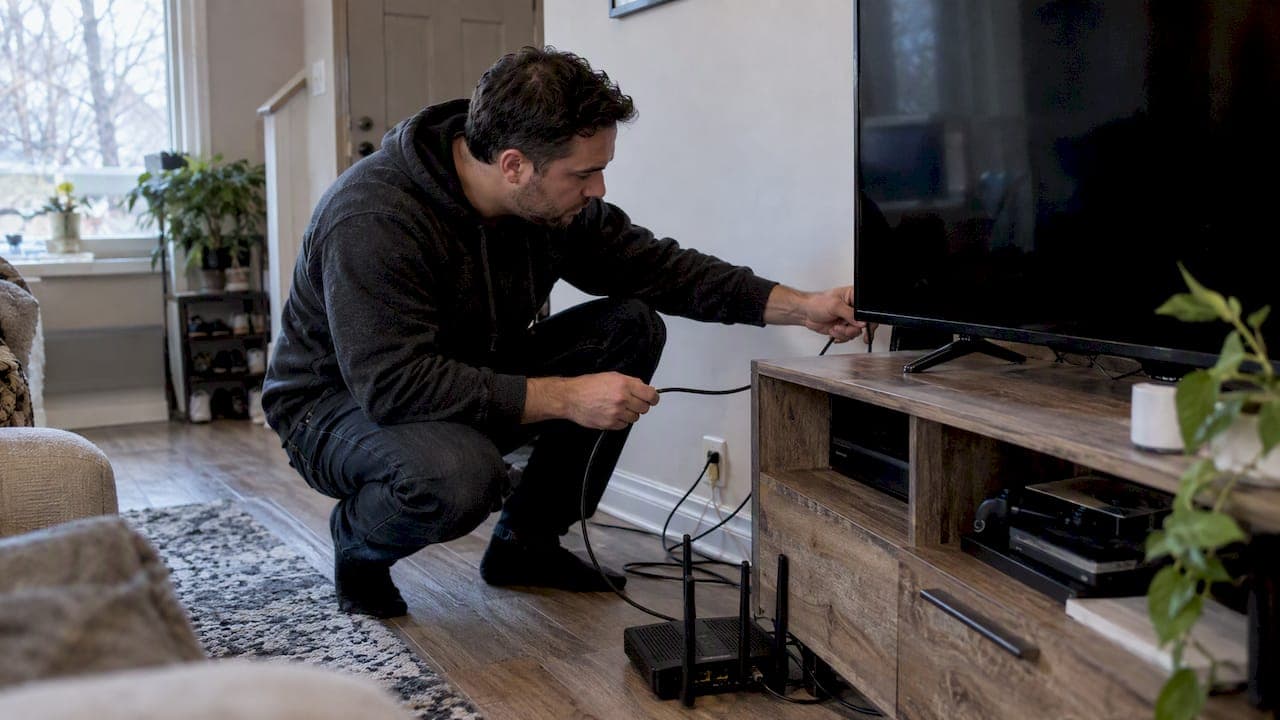
Try this first: restart your streaming device and check that your subscription hasn't lapsed. Most IPTV outages trace back to a crashed app, an expired plan or a quick network hiccup, and a simple restart clears the problem more often than you'd think. If that doesn't work, run the three-test triage below to find out whether the issue sits with your device, your network, or your provider.
TL;DR:
- Restarting your streaming device and checking your subscription status resolves most IPTV issues caused by app crashes or expired plans.
- Using an Ethernet connection and switching to the 5GHz Wi-Fi band can significantly reduce buffering and improve picture quality for high-bitrate streams.
- Account or playlist errors are common; re-adding URLs and verifying subscription entitlements often fix channel-loading problems faster than resetting devices.
- Troubleshooting differs by device: clearing app cache on Fire TV, updating firmware on IPTV boxes, and confirming network band settings on Google or Apple TV are crucial steps.
- If multiple tests indicate provider outages, checking their status pages and saving test results before contacting support can speed up resolution efforts.
Table of Contents
- Quick fixes to try right now (five-minute checklist)
- Fix buffering, freezing and poor picture quality
- Login, authentication and playlist errors
- Device-specific troubleshooting steps that actually work
- Running the right network tests and reading the results
- VPNs, ISP blocking and what Canadian rules actually allow
- Service-side outages and how to confirm them
- Advanced fixes: DNS changes, router resets and hardware replacement
- How Toronto's Best IPTV supports you through setup
- When to stop troubleshooting and call for help
- Trials, setup help and support from Toronto's Best IPTV
- FAQ
- Sources
Quick fixes to try right now (five-minute checklist)
Before you call anyone or dig into settings, work through this list in order. Each step takes under a minute, and together they solve the vast majority of IPTV hiccups.
- Force-quit the IPTV app completely, then restart your streaming device. A half-loaded app is one of the most common causes of a frozen screen.
- Power-cycle your modem and router: unplug both for 30 seconds, plug them back in, and wait for the lights to stabilize before testing again.
- Open your provider account and confirm your subscription is active. If it's expired or the playlist looks blank, re-add it.
- Clear the app's cache, or reinstall it if the screen still won't load channels properly.
- Open YouTube or another streaming app on the same device. If that works fine, your network and device are healthy and the fault likely sits with the IPTV service itself.
That last step matters more than people realize. It tells you in seconds whether you're chasing a Wi-Fi problem or waiting on your provider.
Fix buffering, freezing and poor picture quality
Live IPTV behaves a lot like a FaceTime call: it needs a steady connection far more than it needs a fast one. A connection can test at 100 Mbps and still buffer constantly if the signal keeps dropping packets along the way.
- Plug your device into Ethernet when possible, since wired connections avoid the interference that plagues Wi-Fi.
- Switch your router to the 5GHz band, which carries less congestion than the crowded 2.4GHz band most neighbours share.
- Lower the stream quality temporarily if your connection is marginal, since a stable 720p beats a stuttering 4K feed every time.
- Reboot your router and move it away from walls, microwaves and other electronics that interfere with the signal.
- Change your Wi-Fi channel in the router settings if several networks nearby are fighting for the same frequency.
If buffering keeps coming back at the same time every evening, that pattern usually points to local network congestion rather than your IPTV app. Testing at different times of day and comparing wired versus wireless results will confirm it. If the problem persists across multiple devices and times, your router itself may be the weak link, and replacing an older unit often resolves it for good.
Pro Tip: Always use a wired Ethernet connection for live sports or anything in 4K. Wi-Fi is fine for casual viewing, but a cable removes the guesswork during high-bitrate streams.
Login, authentication and playlist errors
When the app loads but channels won't play, the issue is usually tied to your account rather than your network.
- Check that your subscription hasn't expired and that you're not exceeding the number of simultaneous streams allowed on your plan.
- If your playlist won't load, re-add the M3U or portal URL exactly as your provider issued it. A single typo or expired link is the most common playlist error.
- Clear the app's stored data and sign back in rather than jumping straight to a factory reset, which wipes out settings you'll have to rebuild from scratch.
- If credentials still fail after a clean sign-in, contact your provider and ask them to check server-side entitlements or reissue your login details.
Many channel-loading problems trace back to one of these account-level issues rather than anything broken on your device, and a support-tested fix for channels not loading can walk you through the less common error codes.
Device-specific troubleshooting steps that actually work
Different devices fail in different ways, so it helps to know where to look first.
- Fire TV Stick: Clear the app cache under storage settings, check for a pending system update, and watch for storage running low, which causes sluggish performance on older models. A full Firestick activation walkthrough covers the reset steps in detail.
- Google TV and Android TV: Confirm you're on the 5GHz band, install any pending system updates and restart the device, steps Google TV's own support page recommends when video won't play. Hold off on DNS-changing apps until you've ruled out simpler causes.
- Apple TV: Restart the device, confirm the app is up to date, and re-check your sign-in. A dedicated Apple TV setup guide covers the activation steps if you're starting fresh.
- Pre-configured IPTV boxes: Check for firmware updates first, then try a safe factory reboot rather than a full reset. If the box is still under warranty, contact support before attempting repairs yourself.
Running the right network tests and reading the results
A quick speed check tells you a lot, but only if you know what the numbers mean.
- Run a test on Fast using the same device that's having trouble, and note both the download speed and whether you're on Wi-Fi or Ethernet.
- Standard-definition streams generally need a stable connection in the low single-digit Mbps range, HD needs more headroom, and 4K needs a consistently strong connection with low latency.
- A connection can look fine on paper and still buffer: packet loss and DNS failures cause stuttering even when your download speed test comes back healthy.
- If your results stay poor across multiple tests and devices, contact your ISP and share screenshots along with the times the problem occurred.
fast.com offers a quick way to confirm your bandwidth, and comparing wired versus wireless results on the same device helps isolate where the slowdown is happening.
VPNs, ISP blocking and what Canadian rules actually allow
ISPs in Canada are not in the business of blocking IPTV traffic for content reasons. The CRTC ruled in 2018 that it lacks the jurisdiction to force internet providers to block piracy websites, which is one reason broad content blocking isn't standard practice here. A more recent CRTC framework from 2026 confirms carriers may block malicious traffic for cybersecurity purposes, but only under strict conditions, and they're required to disclose their blocking practices and offer a complaint process.
- Try a mobile hotspot or a brief VPN session to see if the stream loads differently on another network path.
- If it does, check your ISP's website for a cybersecurity blocking disclosure, since a false positive there could explain the outage.
- Report the issue to your ISP with details of when it happened if you suspect your traffic was caught by an automated filter.
Service-side outages and how to confirm them
Sometimes the problem simply isn't yours. The fastest way to find out is the three-test triage technicians use every day.
- Open a different streaming app on the same device. If it works, your device and network are fine.
- Try your IPTV app on a second device. If it also fails, the problem likely sits with the provider.
- Switch to a different network, such as a mobile hotspot, and test again to rule out a local issue entirely.
If all three point to the provider, check their status page or community channels for reports before assuming the worst, and save timestamps and screenshots so support can resolve things faster.
Advanced fixes: DNS changes, router resets and hardware replacement
A few deeper fixes are worth trying once the basics are ruled out, but they come with caveats.
- Changing your DNS settings to a public provider can help when channels load slowly due to resolution delays, though it won't fix a bandwidth or provider-side problem.
- Before resetting your router to factory settings, write down your Wi-Fi name, password and any custom configurations like static IPs or forwarded ports.
- Reconfigure the router one setting at a time after a reset rather than restoring everything at once, since rushed reconfiguration is a common source of repeat issues.
- If your router is several years old and buffering persists across every device, replacing it is often more effective than continued troubleshooting.
How Toronto's Best IPTV supports you through setup
A local IPTV provider has experience since 2016, offering device setup tutorials and customer support to help with the problems covered above. A free trial period allows testing the connection and device before committing, and support includes activation guides, remote troubleshooting, and warranty service on pre-configured boxes.

When to stop troubleshooting and call for help
If you've spent 30 to 60 minutes without progress, or the same outage keeps returning, it's time to escalate. Weigh the time you're losing against a quick support call. Save your screenshots and test results first, since they speed up every fix that follows.
— Aj
Trials, setup help and support from Toronto's Best IPTV
If the checklist above hasn't fully solved things, you don't have to keep guessing on your own. A two-day free trial is offered to confirm connection and device functionality before payment, along with device setup tutorials for Firestick, Apple TV, and Android boxes.
- Browse the 1 Month, 6 Months and 12 Months plans, starting at $15 CAD per month.
- Add a home installation visit for $60 CAD one-off if you'd rather have someone set it up for you.
- Check pre-configured IPTV boxes if your current hardware is the real bottleneck.
Start your free trial and see whether the fix was really just a better connection all along.
FAQ
Is IPTV shut down in Canada?
No single IPTV shutdown applies across the country. Individual providers can experience outages or shut down, but IPTV as a technology remains legal and widely used by services operating within Canadian telecom rules.
Why is my IPTV not working today?
The most common causes are an expired subscription, a crashed app, a local network hiccup or a temporary provider outage. Running the three-test triage, trying another app, another device, and another network, usually tells you which one applies within a few minutes.
Are internet providers blocking IPTV?
Generally, no. The CRTC has ruled that it doesn't have the authority to force ISPs to block services for content reasons, and more recent CRTC rules only permit carriers to block malicious traffic under strict, disclosed cybersecurity conditions.
What has happened to IPTV?
IPTV itself hasn't gone anywhere: it remains a widely used way to stream live TV and on-demand content over the internet. Individual outages usually come down to a specific provider's servers, your own network, or an expired subscription rather than any change to the technology itself.