
If your IPTV channels won't load, the fix is usually one of four things: expired credentials, a network hiccup, a stuck app cache, or a provider outage. Start by confirming your subscription is active, then restart the app, the device, and the router, in that order. Test another network or device before you assume the worst.
TL;DR:
- Most IPTV load issues are caused by expired credentials or provider-side outages, not by your internet speed or hardware.
- Running a speed test directly on your streaming device and switching to a wired or 5 GHz connection can significantly improve loading stability.
- Confirming your subscription and re-entering credentials often resolve blank channel lists and login failures faster than router resets.
- Clearing app cache, switching DNS settings, and testing with a mobile hotspot help diagnose whether the problem stems from your network or device.
- A provider outage can be confirmed by entering your playlist URL into a browser and checking for error messages, especially if it fails on multiple networks.
Table of Contents
- Priority quick fixes for IPTV channels not loading
- What does your symptom actually mean?
- How do you fix IPTV on Fire TV, Android boxes, Apple TV, and smart TVs?
- Which network settings actually fix IPTV loading problems?
- Fixing playlist and login errors: M3U, Xtream Codes, and Stalker
- How do you confirm a provider outage before contacting support?
- What Aj checks first when IPTV channels won't load
- Tools worth bookmarking
- The take on fixing IPTV problems fast
- Sources
Priority quick fixes for IPTV channels not loading
Most cases of IPTV not working clear up quickly if you work through these steps in order. Don't skip ahead. Each step rules out a specific cause, and jumping straight to router resets when your subscription has actually expired just wastes your evening.
- Force-close the app completely. Don't just back out of it. On most devices, holding the home button or opening the recent apps tray lets you swipe the app away entirely. A half-closed app is often the quiet culprit behind a frozen channel list.
- Restart the streaming device. Unplug it, wait about 15 seconds, plug it back in. This clears whatever memory leak or background process is choking your player.
- Reboot your router. Unplug it, wait a full 60 seconds (not 5, not 10) so it fully discharges, then power it back on. A quick unplug/replug often doesn't give the router time to properly clear its connection table.
- Verify your subscription and re-enter credentials. Log into your account portal and confirm the subscription hasn't expired. If you're re-adding a playlist, retype the URL, username, and password rather than pasting from an old note. Hidden characters and stray spaces cause more login failures than people realize.
- Clear the app's cache and data, or reinstall it. On most platforms this is buried in device settings under app management. If clearing cache doesn't help, a full uninstall and reinstall from the official app store resets everything cleanly.
- Switch to wired or 5 GHz Wi-Fi, and pause other heavy traffic. If someone in the house is uploading video or running a big download, your stream is the one that suffers first.
- Run a speed test directly on the streaming device. Open Fast on the actual box or TV you're streaming to, not your phone. Compare the result against 10 Mbps for HD or 25 to 40+ Mbps for 4K streaming.
If you get through all seven steps and channels still won't load, you're likely looking at a server-side issue rather than anything on your end, which the Torontobestiptv troubleshooting guide walks through in more depth.
Pro Tip: Keep your login credentials saved in a notes app on your phone, not just memorized. When you're re-adding a playlist under stress, typos are the number one cause of a failed login that looks like a bigger problem than it is.
What does your symptom actually mean?
Different failure patterns point to different causes, and matching the right fix to the right symptom saves you from troubleshooting the wrong system entirely.
- Blank channel list. This almost always means wrong credentials, an expired subscription, or a mistyped server URL. Most troubleshooting resources agree this is the most common cause of an empty list, so check your account status before touching your router.
- Partial list, some channels missing. This usually points to a single-stream or server-side hiccup rather than your connection. Try a different channel in the same category, or check whether your provider offers a backup server.
- Constant buffering on channels that do load. This is a network problem, full stop. Test your Wi-Fi band (5 GHz beats 2.4 GHz for streaming), check your DNS setting, and run a hotspot test to confirm whether your home network is the bottleneck.
- Black screen with audio playing. The stream is reaching your device, but something is mismatched in how it's being decoded. Try a different player app, since VLC and the built-in app on your box don't always handle the same codecs.
- Missing or blank TV guide (EPG). This is separate from channel playback entirely. Refresh the EPG manually in your app's settings, double-check your device's timezone is correct, and confirm the guide URL your provider gave you was entered properly.
Roughly 80% of IPTV playback problems trace back to the home network or the device rather than the provider itself. That's why the recommended order is always network first, then device and app, and only then start suspecting your provider.
How do you fix IPTV on Fire TV, Android boxes, Apple TV, and smart TVs?
Every platform hides its cache and force-stop options in a slightly different place, and that alone trips people up more than any actual streaming bug.
- Fire TV. Go to Settings, then Applications, then Manage Installed Applications, select your IPTV app, and choose Clear Cache. If problems persist, use Force Stop before uninstalling and reinstalling from the Amazon app store.
- Android TV boxes. Settings, Apps, select the app, then Storage, where you'll find separate buttons for Clear Cache and Clear Data. Clearing data logs you out, so have your credentials ready. For a full setup walkthrough, the Android TV IPTV guide covers install steps too.
- Samsung and LG smart TVs. These platforms are stricter about background processes. Exit the app fully using the TV remote's home button, then use the built-in Smart Hub or LG Content Store to check for app updates before reopening. The Samsung and LG setup guide has model-specific screenshots.
- Apple TV. Hold the Home button, swipe up on the app card, and swipe it off the top to force-quit. Apple TV doesn't offer a manual cache-clear option, so a full delete and reinstall from the App Store is your next move. The Apple TV setup guide covers activation codes too.
Ethernet adapters matter more than people expect. Most Fire TV Stick and Android box models need a USB-to-Ethernet adapter to get a wired connection, and that single change often eliminates buffering that Wi-Fi troubleshooting never quite solves.
Before assuming your box itself is broken, load the same playlist on your phone or laptop using a VLC app. If it plays fine there, the problem is isolated to that one device, not your subscription or your network.
Pro Tip: If your box feels sluggish across every app, not just IPTV, check for a pending firmware update before blaming the streaming app. An outdated box operating system causes playback issues that look exactly like a broken IPTV connection.
Which network settings actually fix IPTV loading problems?
Your home network is the most common hidden cause of iptv stream issues, and it's also the easiest to test properly if you know what to check.
- Run fast.com directly on the streaming device, not your phone or laptop. Testing speed on the device itself matters because Wi-Fi signal strength varies wildly by location in the house, and a strong result on your phone in the kitchen tells you nothing about the box behind your TV.
- Compare against the real thresholds. HD streaming needs roughly 10 Mbps sustained on that device, and 4K needs 25 to 40+ Mbps. Stability matters more than peak speed. A connection that hits 50 Mbps but drops to 2 Mbps every few minutes will buffer constantly.
- Switch your DNS to 1.1.1.1 (Cloudflare) or 8.8.8.8 (Google). Many ISPs quietly throttle or misroute IPTV-related domains at the DNS level, and switching DNS providers bypasses that without touching your actual connection speed.
- Temporarily disable IPv6 on your device or router if channels are still failing after a DNS change. Some ISPs handle IPv6 traffic inconsistently, and forcing IPv4 only clears up mysterious connection drops.
- Run the phone hotspot test. Connect your streaming device (or a phone running the same app) to a mobile hotspot instead of home Wi-Fi. If channels load fine on hotspot, your home router or ISP is the problem. If they still fail, the fault sits with your provider or server, not your connection.
A VPN can help in one specific scenario: when your ISP is actively throttling or blocking IPTV traffic. It will not fix weak Wi-Fi, and it will not make a slow connection faster. Try a VPN only after you've already ruled out your network and DNS, not as a first move.
Fixing playlist and login errors: M3U, Xtream Codes, and Stalker
Every IPTV player expects one of three formats. Getting the credentials right in each one is where most login failures actually happen.
- M3U playlists. Re-add the URL by typing it fresh rather than pasting it, since a trailing space at the end of a copied link is invisible but breaks the connection every time. Double-check whether your provider requires
http://orhttps://. Getting that one detail wrong is a surprisingly common cause of a playlist that "loads" but shows nothing. - Xtream Codes. Confirm the server address, port number, and API path match exactly what your provider issued. You can test this directly by opening a URL formatted like
http://server:port/player_api.php?username=X&password=Yin a regular web browser to see whether the server responds with valid data or rejects you outright. If several devices are logged into the same account simultaneously, you may be hitting a connection limit. - Stalker portal. This system binds your subscription to a specific device's MAC address. If you've switched boxes or reinstalled the app, your new MAC address may not match what's registered, and the fix is confirming the correct MAC with your provider rather than re-entering the same login repeatedly.
If none of that clarifies things, open the playlist link directly in VLC or a diagnostic tool like Tuneline to see the raw server response. A clean 403 or 404 error tells you immediately whether the playlist itself is reachable, which saves you from troubleshooting your app when the actual problem is server-side.
How do you confirm a provider outage before contacting support?
Paste your playlist URL directly into a browser address bar. A 403 or 404 error, or a message mentioning an expired session, tells you plainly whether the server is rejecting you rather than your app misbehaving.
Run the same test from a different network and device, ideally your phone on mobile data. If it fails there too, the fault sits with your provider, not your home setup.
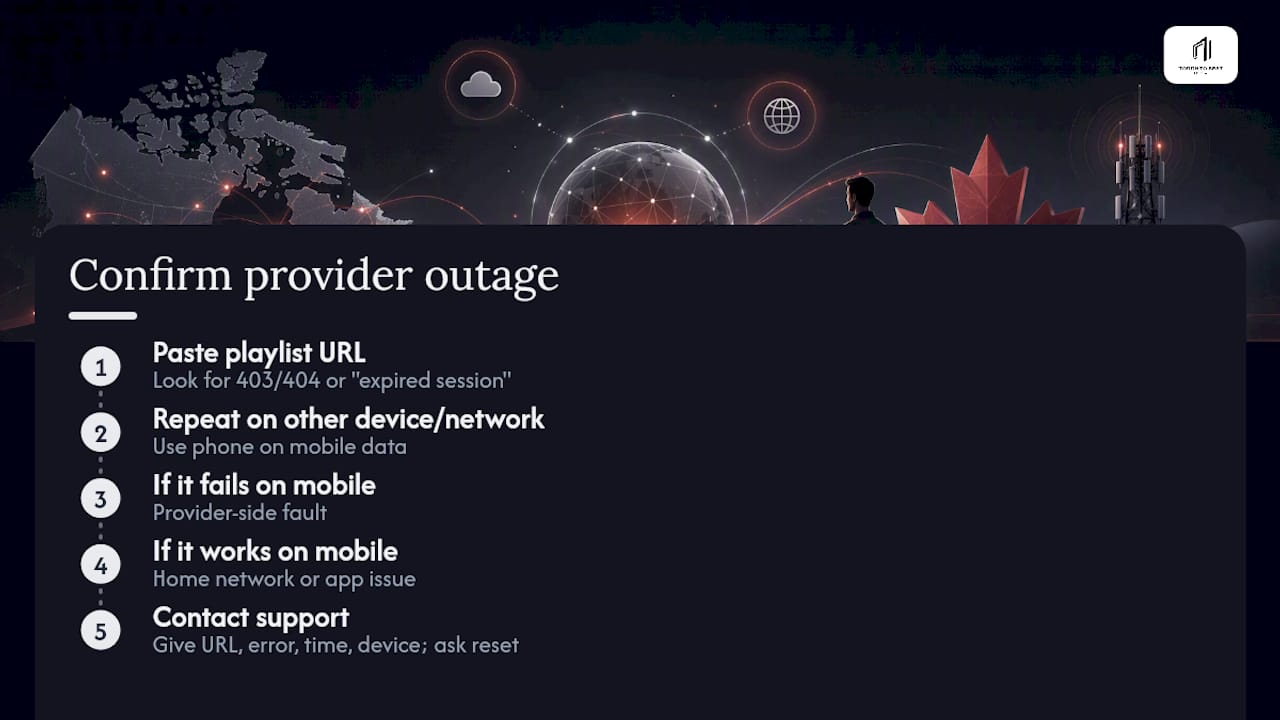
When you contact support, hand them specifics: the exact playlist URL, the error message word for word, the time it happened, and your device type. Ask directly whether a backup server is available or whether your account needs a manual reset. Vague reports like "it's not working" get vague, slow responses.
What Aj checks first when IPTV channels won't load
Aj's one-minute checklist, in order: subscription status, credentials, restart, speed test, DNS, then try an alternate player. That sequence alone resolves most support tickets before a technician ever gets involved.
- Confirm the subscription is active and paid up before touching anything technical.
- Retype credentials rather than trusting a saved copy that might have a hidden character.
- Restart app, device, then router, always in that order.
- Run fast.com on the device, then switch DNS if results look inconsistent.
Canadian edge routing is a network architecture designed to shorten the physical distance a stream travels before it reaches a household, which helps reduce buffering during high-demand moments like NHL playoff games. On Apple TV and Android TV boxes, new subscribers may be guided to paste their activation code directly into the app rather than manually typing the long alphanumeric string, since a single mistyped character is the most frequent activation failure.
Pro Tip: If your channels worked fine yesterday and suddenly stopped today with zero changes on your end, check for a provider-side update or outage before assuming your equipment failed overnight.
Tools worth bookmarking
Run fast.com on your streaming device whenever channels feel slow, not just when they fail outright. For deeper device fixes, the buffering fix guide for iPhone and the Android TV box guide cover platform quirks in more detail than a general troubleshooting checklist can.
The take on fixing IPTV problems fast
Most troubleshooting guides bury the highest-yield fix under six other steps that rarely matter. Credential and subscription checks solve more cases than router resets, DNS changes, or app reinstalls combined, yet most people start with the router because it feels more "technical." That instinct is backwards.
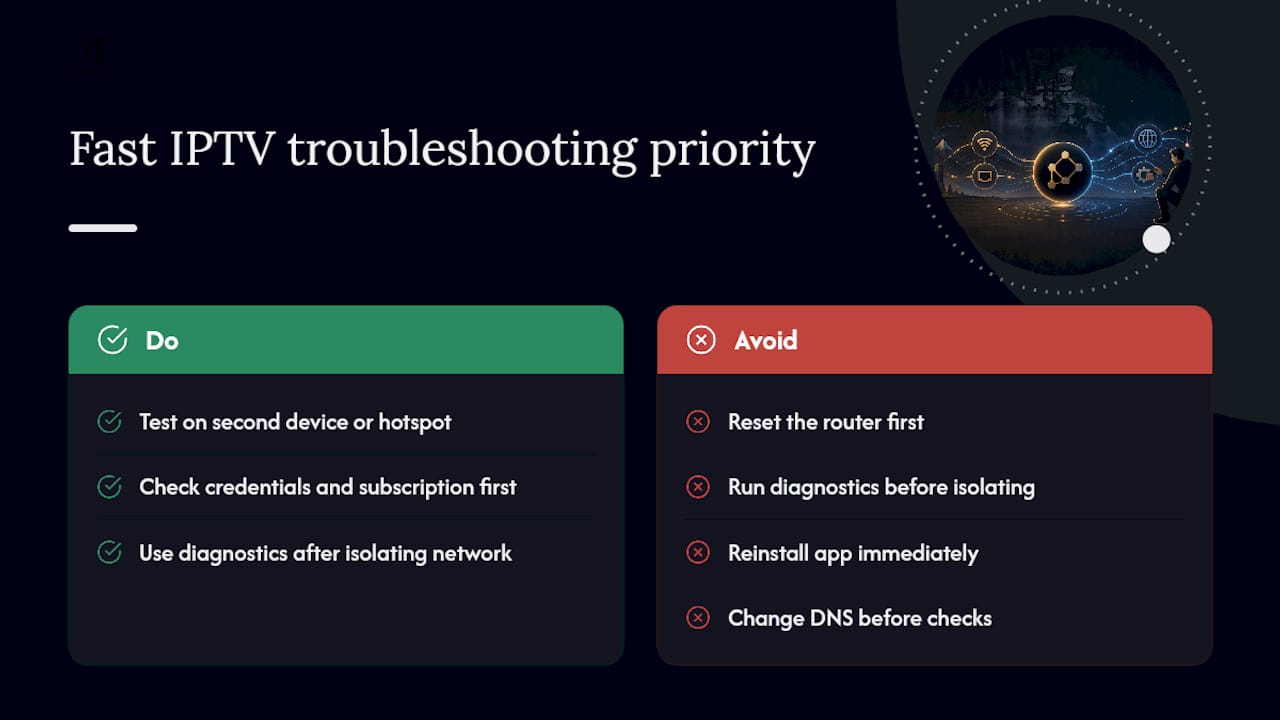
The conventional advice treats every fix as equally likely, working through a flat checklist regardless of what the reader is actually seeing on screen. It isn't. A blank list and constant buffering point to almost entirely different systems, and running network diagnostics against a credentials problem wastes real time.
What I'd prioritize differently: test on a second device or a mobile hotspot before doing anything else invasive. That single step tells you within two minutes whether you're dealing with your home network, your provider, or your device, and it saves you from resetting a router that was never the problem. Everything else in this guide branches off that one diagnostic.
— Aj
Sources
- What internet speed do you need for IPTV in Canada? Complete guide 2026 — The Action Elite
- Fast
- IPTV channels not loading? 8 fixes that work in minutes (2026) — Flickhaven
- IPTV troubleshooting — Fix buffering & freezing (IPTVSetup)