

Run a 24 to 48 hour trial and measure two things immediately: cold-start time on your top channels and the reachability ratio across the full playlist. If channels load quickly and a high proportion of listed streams actually connect, you're looking at a service worth a longer look. Anything worse than that, and you've saved yourself a subscription you'd cancel anyway.
TL;DR:
- Running a 24 to 48 hour trial should include testing cold-start times, reachability ratios, and stability during peak hours to accurately assess service quality.
- Structural playlist checks and verifying EPG accuracy early can reveal most issues with channel links and schedule inconsistencies before longer testing.
- Using open-source tools like iptv-provider-scorecard or IPTVChecker helps generate reproducible, defendable performance data across multiple providers.
- Network stability, especially via wired Ethernet and steady speeds above 10 Mbps for HD, is crucial; Wi-Fi variability can falsely suggest provider problems.
- Regularly retesting key channels and VOD libraries during the trial helps identify lineup stability issues that may develop over days or weeks.
Table of Contents
- What tests actually check IPTV quality?
- How do you run a full IPTV quality test step by step?
- Tools and reproducible scripts that measure IPTV performance
- Isolating your network from the provider's problems
- How long should you test an IPTV service?
- What results mean pass or fail?
- Testing security aspects like stream encryption and DRM support
- How do you check audio quality and sync during a trial?
- How stable is a channel lineup over the full trial period?
- What actually separates a solid IPTV provider from an inflated one?
- Try Toronto's Best IPTV: run the same checklist during your trial
- Sources
What tests actually check IPTV quality?
You don't need a lab setup to test IPTV quality properly. You need a short, ordered checklist you can run in 15 to 30 minutes before you decide whether a provider deserves a full 48 hour trial.
- Load five or six channels you'd actually watch and time how long each takes to appear on screen.
- Run a structural pass on the M3U playlist to confirm the URLs parse cleanly and check how many are reachable.
- Play a live sports or news channel during peak evening hours, since that's when weak infrastructure shows its cracks.
- Check the EPG (electronic program guide) on three or four channels for accuracy, then test one video-on-demand title start to finish.
- Confirm the app works on your actual device and that simultaneous streams behave as advertised.
This sequence matters because it front-loads the fastest, most revealing tests first. A channel that takes 12 seconds to load or a playlist riddled with dead links tells you almost everything you need to know before you've invested a single evening in a longer trial.
How do you run a full IPTV quality test step by step?
A proper test separates what you assume from what you can prove. Here's the sequence that gives you data you can actually compare across providers, and reuse if you ever need to dispute a charge.
Preparation:
- Get your login credentials or trial M3U/Xtream link ready before you start the clock.
- Test on the device you'll actually use daily, not just a laptop.
- Connect that device by Ethernet at least once to establish a wired baseline, since Wi-Fi variability can hide or exaggerate provider-side problems.
Structural and reachability checks:
- Parse the playlist for malformed entries and duplicate channel listings, which inflate advertised counts without adding real content.
- Set a reasonable timeout (2 to 5 seconds per stream) and run a reachability pass. A "reachable" stream is one that returns a valid response and starts delivering data within that window, not just one that resolves a URL.
Playback measurements:
- Time cold-starts from tap to picture on at least five channels; anything consistently quickly is a good sign, and slow loading on multiple channels is a real warning sign.
- Watch two or three channels for 20 to 30 minutes each during peak hours and log every rebuffer. Fewer than one rebuffer per hour is the benchmark for a stable feed.
- Sample resolution and bitrate with
ffprobeon a handful of streams, or check a player overlay like TiviMate if you'd rather avoid the command line. - Confirm the EPG lines up with what's actually airing, start a VOD title to check for stalls, and open a second device to verify simultaneous connections work as sold.
Log everything with a timestamp, the device used, and your network state (wired or Wi-Fi, other traffic on the network). That log is what turns a vague complaint into evidence.
Pro Tip: Run your first cold-start test on the channel you care about most, not a random one. If your must-watch channel struggles at minute one, you already have your answer.
Tools and reproducible scripts that measure IPTV performance
Manual spot-checks work, but they don't scale past a handful of channels, and they're hard to defend if you ever need to prove a provider misrepresented its lineup. A handful of open-source tools solve that.
- iptv-provider-scorecard runs a staged pipeline: parse the playlist, deduplicate entries, test reachability, sample a subset with
ffprobe, then output a graded report. On large playlists, a structural and reachability pass with--no-probefinishes in under two minutes, while a full run on 16,000 entries typically takes 4 to 9 minutes depending on dead links and sample size. - IPTV Stream Quality Tester, built by developer renny1990, runs channel probes in parallel through a simple desktop interface and exports CSV, TXT, and PNG reports showing resolution, frame rate, bitrate, and success rate for the run
- IPTVChecker, built by kristofferR, is a fast desktop validator that scans thousands of URLs and buckets them live as alive, dead, geoblocked, or DRM-protected as the scan progresses.
Full ffprobe sampling gives you real bitrate and resolution numbers, but it takes longer than a quick structural run. If you're triaging five providers in one evening, run the fast structural pass first and save the deeper sample for the one or two that survive. Run every tool locally against your own trial credentials, and don't hammer a provider's servers with excessive concurrent requests just to shave a few minutes off a scan.
Isolating your network from the provider's problems
Before you blame a provider, rule out your own setup. A generic internet speed test won't tell you much, since it measures the path to your ISP, not the path to the provider's actual streaming endpoint, which is the connection that determines whether your stream loads cleanly.
- Test on Ethernet at least once. Wi-Fi introduces variability that can mask a provider issue or invent one that isn't real.
- Aim for roughly 10 to 15 Mbps sustained for HD and 25 Mbps or more for 4K, but treat stability as more important than the peak number your router reports.
- Check jitter and packet loss with a basic network tool. Jitter above 30ms or packet loss above 1 to 2% will cause visible stutter even on a fast connection.
- Rule out an overloaded Wi-Fi band, an older router, or a streaming box with a weak processor. Older set-top hardware often struggles with 4K decoding no matter how good the feed is. Our IPTV troubleshooting guide walks through the most common device-side fixes.
How long should you test an IPTV service?
- Spend the first 30 minutes on the quick checklist above to catch obvious disqualifiers.
- If it passes, run a 24 to 48 hour check that includes at least one full prime-time evening.
- For deeper
ffprobesampling, a moderate size like 200 channels with a fixed random seed keeps two runs comparable, though a quick reachability pass alone can finish in a couple of minutes. - Repeat your channel spot-checks at a low-traffic time, mid-day, and peak evening hours, then compare the numbers side by side.
- Keep a simple log with timestamps, channels tested, and results. Guides on testing before you commit generally agree that 24 to 48 hours minimum, including one prime-time window, is the floor for a fair read.
What results mean pass or fail?
Numbers only help if you know what they're supposed to look like. Here's a rough scorecard:
A verified working rate above 90 to 95% during sampled runs is what separates a well-run service from one padding its channel count with dead entries. Beyond the numbers, watch for a bloated playlist full of duplicate entries, an EPG that's consistently wrong, or support that goes silent when you ask a direct question.
If a provider fails, don't argue from memory. Export your scorecard, note the exact timestamps of your worst rebuffers, and grab a short screen recording of a failed stream. That combination is what actually gets refunds processed instead of ignored.
Pro Tip: Save your scorecard's markdown output even for providers you like. If service quality drops three months in, you'll have a clean baseline to compare against.
Testing security aspects like stream encryption and DRM support
Not every IPTV problem shows up as buffering. Some show up as a channel that simply refuses to play, and encryption or DRM (digital rights management) mismatches can often be the reason. When you run a validator like IPTVChecker, pay attention to streams it flags specifically as DRM-protected rather than dead. That distinction matters: a DRM-flagged stream might be working exactly as intended but requires a licence or a specific player your device doesn't support, while a genuinely dead stream is just gone.
During your manual test, note whether any channels demand extra authentication steps beyond your standard login, or whether certain channels play on one device but fail silently on another. That pattern often points to device-specific DRM restrictions rather than a general service problem.
Encryption itself, at the transport level, is mostly invisible to you as a viewer and isn't something you can meaningfully audit without specialized tools. What you can observe is the practical result: does the stream play consistently across the devices you actually own? If a provider's app requires a proprietary player to unlock certain channels, ask before you subscribe whether that player works on your hardware. A service that's vague about which channels carry DRM restrictions, or that can't explain why a channel fails on your smart TV but works on your phone, is worth a direct question to support before you commit to anything beyond the trial.
How do you check audio quality and sync during a trial?
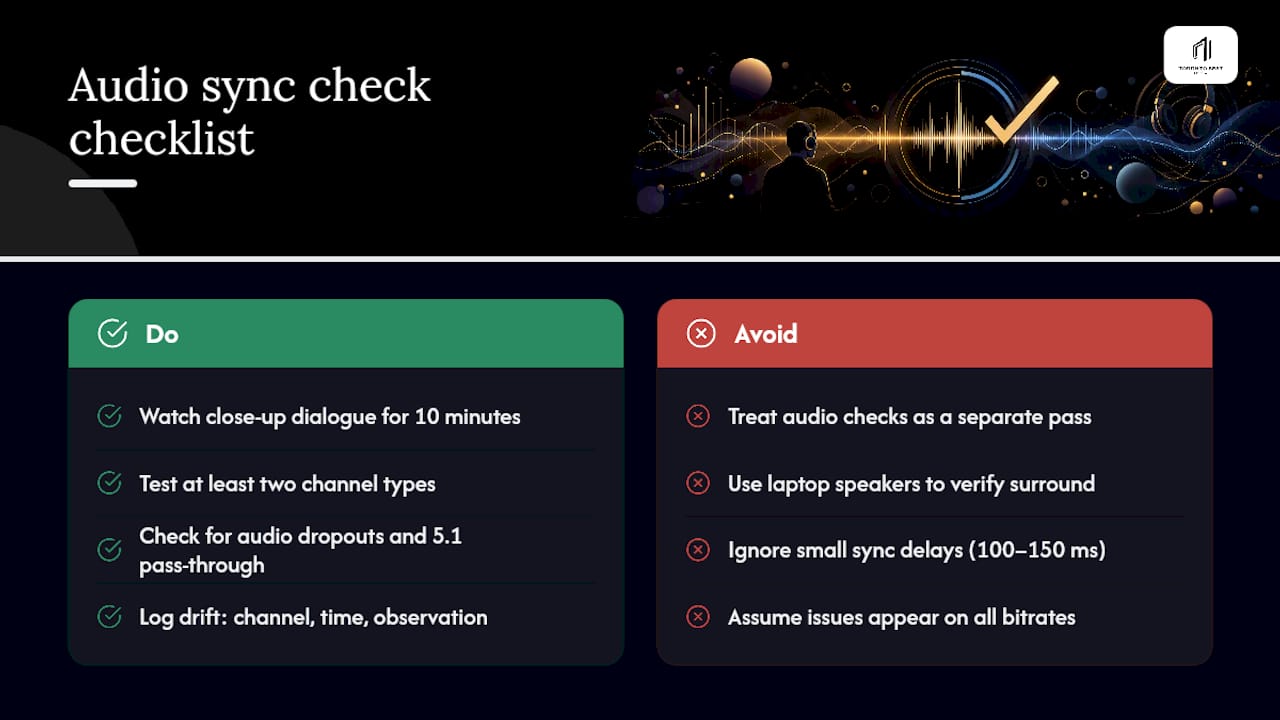
Audio problems are easy to miss because they creep in gradually rather than failing outright, and they're just as disqualifying as a bad picture. Build this into the same viewing sessions you're already using for cold-start and rebuffer checks rather than treating it as a separate pass.
Watch a talk show, news broadcast, or anything with close-up dialogue for ten minutes and watch the speaker's mouth against the audio. A delay of even 100 to 150 milliseconds is noticeable and irritating over a full episode, even if it's not dramatic in a short clip. Test this on at least two different channel types, since sync issues sometimes appear on one bitrate profile and not another.
Beyond sync, listen for audio dropouts that don't correspond to any visible buffering. That's usually a sign the audio and video streams are being handled separately somewhere in the pipeline, which points to a weaker transcoding setup on the provider's end. Also check whether surround sound or 5.1 audio passes through correctly if that matters to your setup. Some IPTV apps silently downmix to stereo regardless of what the source stream carries, and you'll only catch that by actually listening on your real speakers or soundbar, not through a laptop's built-in speakers.
If you notice sync drift specifically during high-motion content like live sports but not during a slower-paced show, that's a useful data point. Log it the same way you log rebuffers: channel, time of day, and what you observed.
How stable is a channel lineup over the full trial period?
A channel list that looks great on day one can quietly shrink by day three, and this is one of the most common ways providers oversell what they actually deliver. Testing content stability means checking the same channels more than once across your trial window, not just confirming they load the first time.
Pick 15 to 20 channels that matter to you, spanning a few categories (sports, news, a couple of international channels if that's relevant to you), and revisit that exact list at least three times over your 24 to 48 hour trial. Note anything that disappeared, moved, or started throwing errors it didn't have on the first pass.
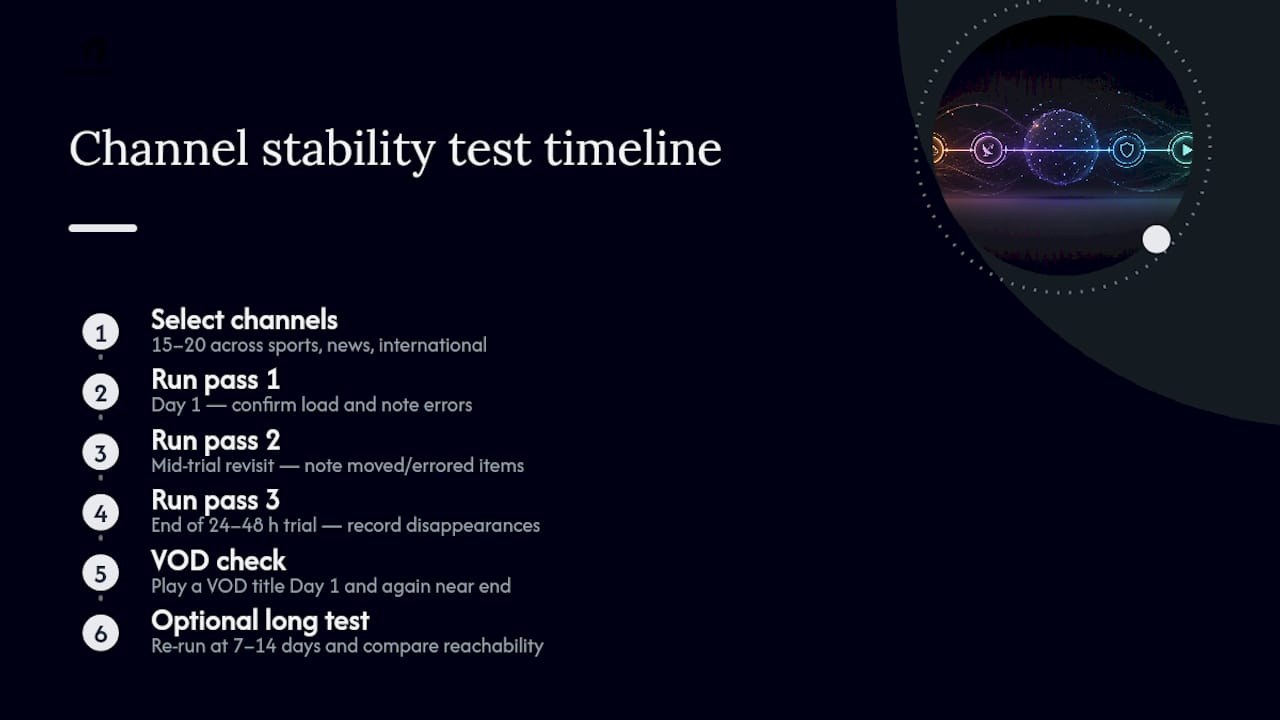
Pay particular attention to VOD (video on demand) libraries and catch-up TV. These sections are more prone to link rot than live channels, since they depend on a provider actively refreshing content rather than just keeping a live feed running. Try to play something from the VOD library on day one and again near the end of your trial. If the same title errors out or has vanished entirely, that's a sign the backend isn't well maintained.
If you extend your evaluation into the 7 to 14 day range some guides recommend for variance monitoring, run your reachability scorecard once more at the end and compare it directly against your first pass. A meaningful drop in reachable channels over that window, even a small one, tells you more about long-term reliability than any single day of testing ever could. Our guide on fixing EPG mismatches is useful here too, since a schedule that drifts out of sync with actual programming is often the first visible symptom of a lineup that's starting to decay.
What actually separates a solid IPTV provider from an inflated one?
An honest provider will point you toward reachability and routing quality before they ever brag about channel count, because a list of 20,000 channels means nothing if a third of them are dead links routed through overloaded servers. The providers most confident in their infrastructure are usually the ones happiest to let you run your own tests during a trial.
Small, reproducible checks expose inflated marketing faster than any amount of anecdotal praise or complaint ever will. A five-minute duplicate detection pass on a playlist tells you more than a dozen glowing reviews, and a 200-channel ffprobe sample tells you more than a provider's own claimed bitrate numbers. If you only run two things before committing to anything longer than a trial, make it those two.
— Aj
Try Toronto's Best IPTV: run the same checklist during your trial
Torontobestiptv gives you a two-day free trial specifically so you can run every test in this guide before spending a cent, with plans starting from $15 a month once you're satisfied. Most providers won't let you probe their playlist with an open-source scorecard. We built our service on Canadian edge routing precisely because we're comfortable with readers checking our reachability numbers themselves.
During your trial, run the 30-minute checklist first: time a few cold-starts on the channels you'd actually watch, load a live sports feed during a weeknight peak window, and check the EPG against what's actually airing. If you're comfortable with the structural pass, point iptv-provider-scorecard at your trial's M3U link and log the reachability ratio yourself. Our setup guides walk through device configuration if you hit a snag along the way, and our trust and business info page covers our local Toronto presence since 2016 if you want that context before you commit. Start the two-day trial today and see the numbers for yourself.