
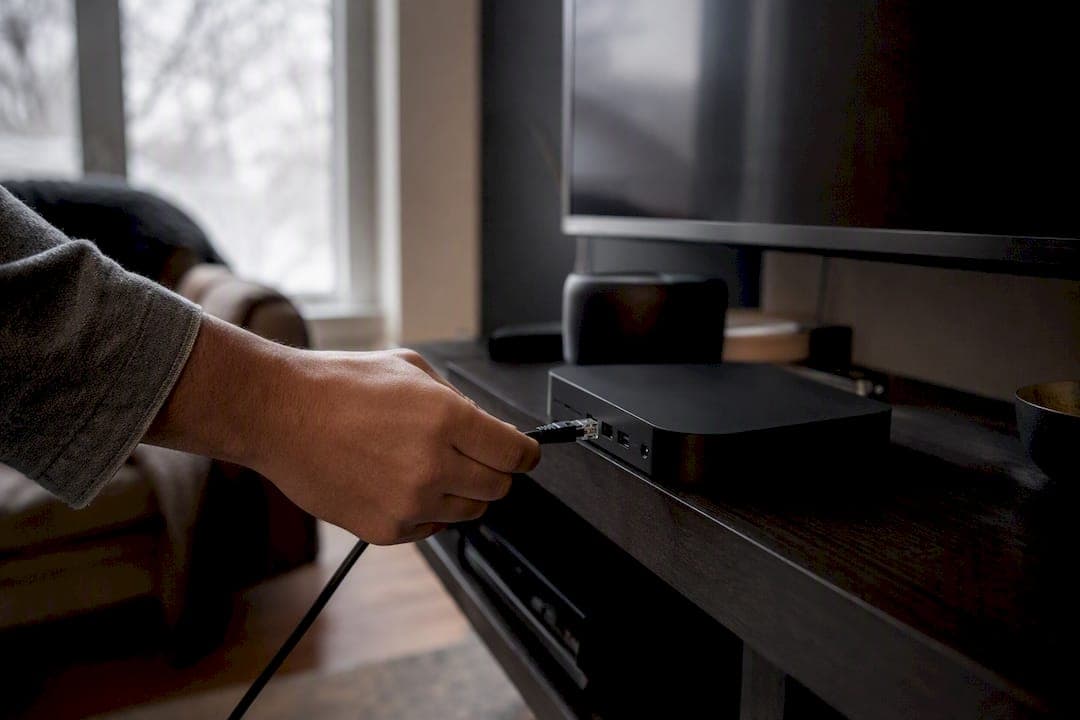
Most IPTV audio delay comes from three places: Bluetooth speakers, an HDMI receiver or soundbar, or a player that isn't handling timestamps properly. Test your TV's built-in speakers, then wired headphones, to isolate whether the problem lives in your external audio chain or the app itself. If it's external gear, nudge the receiver's lip-sync setting or the app's audio offset in 50 to 100ms steps. If only one channel drifts while everything else plays fine, that's usually on the provider's end, so report it with the channel name and timestamp.
TL;DR:
- Bluetooth speakers and HDMI receivers are the most common causes of IPTV audio delay, and adjusting their sync settings can often resolve the issue.
- Conducting step-by-step tests with built-in speakers, wired headphones, and external hardware helps pinpoint whether the delay comes from your device, app, or provider stream.
- Restarting devices, resetting app caches, switching to PCM audio, and using wired Ethernet are simple fixes that solve most local audio synchronization problems.
- Most IPTV apps include a hidden audio offset slider that should be adjusted in small steps of 50 to 100 milliseconds to achieve proper sync.
- Provider-side channel drift is rare but unfixable on your end; noting the channel name and timestamp when it occurs helps support identify the problem.
Table of Contents
- What's causing your IPTV audio delay?
- Quick fixes worth trying before anything else
- How do you adjust audio offset in your player?
- Fixing lip-sync on your TV, soundbar, or receiver
- Does your network cause IPTV playback issues?
- Can you fix audio delay with ffprobe and ffmpeg?
- What should you actually expect from IPTV troubleshooting?
- Get help fixing sync issues faster
- Where to go deeper
- Sources
What's causing your IPTV audio delay?
Run through these checks in order. Each one rules out a suspect before you move to the next.
- Test TV speakers first. If audio and video match on the built-in speakers, the problem lives downstream, in your Bluetooth device or receiver.
- Swap to wired headphones. Wired output removes wireless latency entirely. If sync improves, Bluetooth is your culprit.
- Check your receiver or soundbar. Bluetooth connections and HDMI receivers/soundbars are the two most common causes of lip-sync complaints, ahead of player or provider issues, according to field guides that rank root causes by frequency.
- Test other channels and other apps. If the delay shows up everywhere, the issue is local to your setup. If it's just one channel, the stream itself is likely broken upstream.
- Watch how the delay behaves. A constant offset that stays the same after pausing or seeking usually points to hardware or output settings. Drift that grows the longer you watch usually means the player isn't honouring the video's timestamps correctly.
- Estimate the offset in milliseconds. Find a clear visual cue, like a door slam or a clap, and count roughly how far behind or ahead the sound lands. That number tells you how big your fix needs to be.
Quick fixes worth trying before anything else
Most iptv audio delay cases clear up with basic maintenance, not technical tinkering.
- Restart everything. Power off your streaming device, close and reopen the app, and unplug your router for 30 seconds before restarting it.
- Clear app cache or reset player settings. A buffer configuration that's grown too aggressive over time can actually make sync worse, not better. Resetting to defaults often helps more than tweaking further.
- Switch digital audio output to PCM or stereo. Bitstream and passthrough formats push decoding work downstream to your receiver, which adds latency. PCM decodes on the source device and usually arrives faster.
- Try a wired Ethernet connection. Wi-Fi jitter causes the player to rebuffer repeatedly, which can look like sync drift even when it isn't.
Pro Tip: Before you touch a single setting, write down which fix you tried and what changed. Audio delay troubleshooting is trial and error, and it's easy to lose track of what actually worked once you've tried four things in a row.
A reboot, cache reset, and PCM switch resolves the majority of device-level delay without needing anything more advanced.
How do you adjust audio offset in your player?
Most IPTV apps have a hidden audio-sync slider buried in playback settings. Here's how to use it properly.
- Find the audio offset control. It's usually in the player's settings menu, sometimes labelled "audio delay," "sync," or "AV offset."
- Adjust in 50ms steps. Most people land on a fix somewhere between 50 and 100 milliseconds, so start small rather than overcorrecting.
- Toggle hardware decoding if video stutters. Some boxes drop frames under hardware decode; switching to software decoding (or back) can resolve both stuttering and the sync issue that comes with it.
- Save per-channel profiles if your app supports them. Some channels encode slightly differently, so a universal offset won't always fit every stream.
- Watch for drift that returns over time. If the offset you set keeps sliding out again during long sessions, your player isn't honouring the video's presentation timestamps correctly. Switching to a player built on a stronger media engine, like libmpv, ExoPlayer, or AVPlayer, usually eliminates that gradual drift for good.
Fixing lip-sync on your TV, soundbar, or receiver
Your AV chain is often the real source of delay, not the stream itself.
- Look for a "lip sync" or "AV sync" setting in your TV or receiver's audio menu; most modern receivers include one specifically for this.
- Bypass the receiver entirely as a test: plug your streaming device straight into the TV, then feed the soundbar through the TV's optical or ARC connection.
- Turn off surround sound processing and auto-volume features, since both add processing time before sound reaches your speakers.
- Try enabling "game mode" on your TV. It's designed to cut input lag on video, which sometimes closes the gap with audio.
- Switching output to PCM instead of bitstream passthrough usually cuts latency because your source device handles decoding instead of passing that job to the receiver.
Does your network cause IPTV playback issues?
Jitter and buffer underruns can mimic sync drift, since the player keeps resynchronizing every time it stalls.
- Use a wired Ethernet connection where possible; if that's not an option, 5GHz Wi-Fi beats 2.4GHz for stability.
- Increase your player's buffer or cache size if the app allows it. A larger buffer absorbs network hiccups before they show up as dropped audio or restarted streams.
- Test without a VPN, or switch to a server location closer to you, since VPN routing adds both distance and processing overhead.
- Change your DNS to 1.1.1.1 or 8.8.8.8, then retest during off-peak hours to rule out ISP congestion.
Can you fix audio delay with ffprobe and ffmpeg?
If you're working with a saved recording or a stream you can re-mux, ffprobe and ffmpeg give you exact control over timestamps instead of guessing with a slider.
Run ffprobe on the file first to check the start_time values for the audio and video streams. The difference between them is your offset. From there, you have two main paths depending on whether you can re-encode.
| Method | Command element | Units | Re-encode required |
|---|---|---|---|
| Shift timestamps only | -itsoffset | Seconds | No, use with -c copy |
| Delay audio track | adelay filter | Milliseconds | Yes, audio only |
| Correct small drift | -async | Sample-rate correction | Yes, audio only |
The most common mistake is mixing up units. ffmpeg's -itsoffset works in seconds while adelay works in milliseconds, and entering the wrong scale either does nothing or shifts audio by whole seconds instead of the fraction you meant.
What should you actually expect from IPTV troubleshooting?
Almost every delay you'll run into is fixable on your end, whether that's your Bluetooth speaker, your receiver's processing settings, or your player's offset slider. The exception is when a single channel drifts while everything else plays clean. That's a provider-side encoder issue, and no amount of local tweaking fixes it. Note the channel name, the time it happened, and your device before reaching out to support.
— Aj
Get help fixing sync issues faster
Troubleshooting audio delay on your own works most of the time, but you don't have to do it without backup. Torontobestiptv's Canadian edge routing keeps buffering and jitter to a minimum in the first place, which cuts down on how often you'll see delay-related symptoms show up during live sports or peak viewing hours.
If you're still narrowing down a fix, the troubleshooting hub walks through device-specific steps for clearing cache and resetting player settings, and the device setup guides cover the audio-output quirks specific to Android TV, Apple TV, and Fire TV boxes. Every plan comes with a two-day free trial, so you can test your exact setup, on your exact TV and receiver, before committing to anything. Start the trial through Torontobestiptv's main page and see how much of your sync trouble disappears with steadier routing alone.
Where to go deeper
For hands-on command references, the FFmpeg cookbook covers timestamp offsets in detail, and Tuneline's lip-sync guide breaks down player-specific offset settings.
Sources
- IPTV Audio Out of Sync? How to Fix Lip-Sync Problems on Any Player | Tuneline
- Audio delay fix with ffmpeg — FFmpeg cookbook
- IPTV audio delay explained and properly fixed - TopFirestick
- Audio not synced : r/TiviMate