
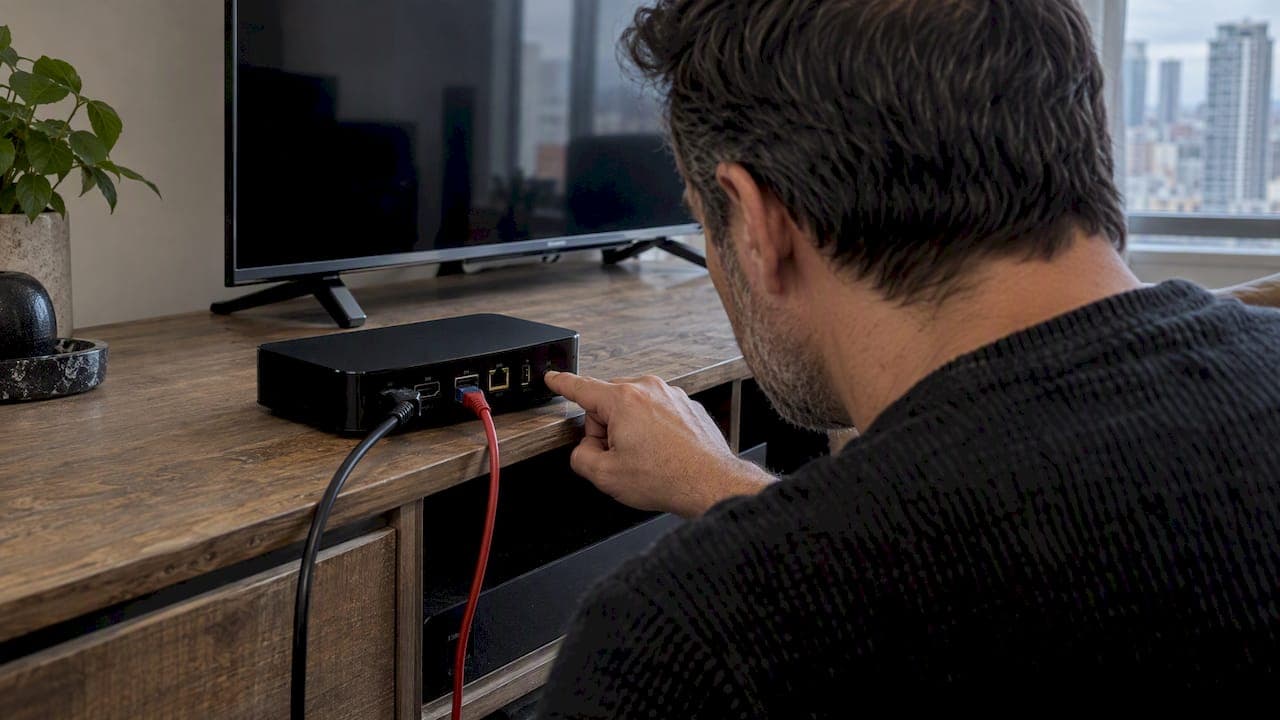
The fastest fix is a restart, then a factory reset through Settings if the box still responds, or a physical reset pin, remote combo, or recovery mode if it does not. A factory reset erases apps, saved logins, and local settings, so before you touch anything, have your IPTV server URL, username, and password ready.
TL;DR:
- Always record your IPTV login credentials, Wi-Fi details, and support contacts before attempting any reset to avoid prolonged troubleshooting.
- Start with a simple power cycle, then try a settings reset, followed by a physical reset, and only proceed to recovery mode if necessary.
- MAG boxes require a different recovery approach, using a service button to access emergency modes, with firmware reloads risking bricking if not carefully executed.
- A complete device failure with no response indicates it is bricked, requiring recovery mode and USB or network firmware reloads, but interruptions can worsen the problem.
- After resetting, reconnect your network, re-enter credentials, test multiple channels, and update firmware to ensure stable performance and avoid recurring issues.
Table of Contents
- Before you reset: what to record and try first
- The general factory-reset workflow that works for most boxes
- MAG series: model-specific steps and emergency recovery
- Android TV, Fire TV, and Chromecast reset steps
- Hard reset and bricked-device recovery: what to try, and when to stop
- After a reset: reconnect, test, and optimise
- Publisher perspective: how we support resets and recovery
- Our take: skip the theory, follow the steps in order
- If you want help: our setup, support, and hardware options
- FAQ
- Sources
Before you reset: what to record and try first
A reset only takes a few minutes, but losing your login details afterward can turn that into a frustrating afternoon of support tickets. Before you touch any button, take 60 seconds to write down what you will need to get back online.
- Your IPTV portal or server URL, username, and password from your provider
- Your Wi-Fi network name and password, plus your remote's pairing info and the device model or serial number
- A quick power cycle (unplug for 30 to 60 seconds) before jumping to a full factory reset
- Your warranty terms or support contact, in case recovery needs help from the vendor
Manufacturer guidance consistently points to the same lesson: resetting without your portal credentials on hand is one of the most common causes of repeat support requests. A minute of prep now saves a much longer troubleshooting session later.
The general factory-reset workflow that works for most boxes
Most IPTV boxes, whether MAG, Android-based, or a generic streaming stick, follow a similar sequence. Work through these steps in order and stop as soon as the problem clears.
- Restart first. Unplug the box for 30 seconds, then plug it back in. A simple power cycle resolves a surprising share of freezing, app crashes, and connection drops, and it will not touch your saved settings.
- Try a settings reset if the box responds. On most Android-based boxes, go to Settings, then Storage & Reset (or System), then Factory Data Reset. Confirm when prompted and wait for the device to reboot on its own.
- Use the physical reset if the menu is frozen or unreachable. Look for a small pinhole, often labelled "reset," on the back or bottom of the unit. Press it with a straightened paperclip for 10 to 15 seconds until the device restarts.
- Watch for feedback. A responsive box usually shows a progress bar or a manufacturer logo during the reset. An LED that blinks in a steady pattern, rather than staying solid or dark, is a sign the reset is in progress rather than stalled.
This covers the large majority of everyday fixes. Factory data resets reset the device to its out-of-box state, wiping installed apps and system settings along with whatever was causing the glitch.
MAG series: model-specific steps and emergency recovery
MAG boxes (the 250, 254, 524, and 5xx series among them) use a different recovery system than Android-based devices, built around a dedicated Service or FN button rather than an onscreen menu.
If the settings menu is responsive, you can usually open the System Recovery Utility by holding Menu while powering the unit on. When the box will not boot at all, the service button becomes your main tool. Pressing it cycles through emergency boot modes: Mode 2 resets the box to factory defaults and triggers a quick LED flash, while Mode 3 starts an emergency boot that loads a bootstrap file to reach the recovery utility itself.
Mode 3 is also how you reload firmware from a USB stick or a network source when the system partition is damaged. This works, but it carries real risk: interrupting the process partway through can leave the box in a worse state than before. Before starting, confirm you have a FAT32-formatted USB stick with the exact bootstrap file your model needs, or, for a network reload, a working DHCP and TFTP setup with the correct file paths tested on a spare device first. Our MAG box setup guide walks through portal configuration once the box is back up.

Android TV, Fire TV, and Chromecast reset steps
Android-based streaming devices share the same basic idea, with different menu paths and button combinations.
- Android TV or Google TV: go to Settings, then System, then About, then Factory Reset, and confirm. This wipes all user data and apps, so your portal credentials will need re-entry afterward.
- Fire TV: go to Settings, then My Fire TV, then Reset to Factory Defaults, or hold Back and the right side of the navigation circle together for several seconds if the menu is unresponsive. A factory reset removes account sign-ins and downloaded content, and the device shows pairing instructions once it restarts.
- Chromecast with Google TV: hold the physical button on the device itself until the LED blinks, or use Settings, then System, then About, then Factory Reset. The recovery menu lets you select "Try again" before committing to a full reset, which is worth attempting first.
It helps to keep these three outcomes straight: a restart just reboots the software, a power reset (unplugging for a minute or two) clears temporary errors without touching settings, and a factory data reset erases everything and starts fresh. Our Android TV setup guide covers reinstalling apps once the reset finishes.
Hard reset and bricked-device recovery: what to try, and when to stop
A box is likely bricked, not just frozen, if it shows no light, no logo, and no response to any remote or button press after a full minute of being plugged in. That is the point where a standard settings reset stops being useful and recovery mode becomes the right tool.
To trigger recovery mode on most MAG devices, hold the service or Menu button while powering the unit on, then release once you see recovery feedback on the LED or screen. From there, loading a bootstrap file over USB or network (TFTP) can restore the firmware, but this step genuinely carries risk. A failed or interrupted bootstrap load can leave the device unable to boot at all, so double-check your file and connection before starting, and never unplug midway through.
Pro Tip: If your box needs this kind of recovery more than once in a few months, that is often a sign of failing storage or overheating rather than a one-off glitch, and worth mentioning to support.
When recovery mode does not bring the box back, or you are unsure which mode your specific model uses, that is the point to contact your IPTV provider's support team or the box vendor rather than keep experimenting.

After a reset: reconnect, test, and optimise
Once the box restarts, the real work is making sure everything comes back cleanly rather than half-configured.
- Reconnect to Wi-Fi or Ethernet, and install any firmware update the device offers during first boot.
- Re-enter your IPTV portal URL, username, and password, then test a handful of live channels, not just one, to confirm the connection is stable.
- If buffering comes back quickly, run a speed test and try an Ethernet cable instead of Wi-Fi before assuming the service itself is at fault.
- Reinstall any apps you had before, re-pair your remote, and keep firmware updated going forward to avoid repeat resets.
Our power cycle and quick fixes guide and our troubleshooting page both cover what to check if buffering persists after these steps.
Publisher perspective: how we support resets and recovery
We have supported MAG and Android boxes since our start in 2016, and we publish detailed setup and maintenance guides so resets do not need to feel like guesswork. Preconfigured boxes typically come with warranty coverage, and guided support plus home installation visits may be available for those who prefer assistance. If a reset goes sideways, support teams are typically available to walk through recovery step by step.
Our take: skip the theory, follow the steps in order
The advice around IPTV box resets tends to overcomplicate a simple decision tree. Readers get buried in explanations of firmware architecture and bootstrap protocols when the real question is just: does the box respond to the remote right now, or not? That single fact determines whether you need Settings or a pinhole, and most guides bury that distinction under paragraphs of background.
The conventional advice also underweights the credentials problem. A reset itself takes five minutes. Forgetting your portal URL and password turns it into a half-hour wait on hold with support, and that gap is almost entirely preventable with one sticky note written before you start.
If we had to prioritize one thing for readers to do differently, it is this: always attempt the softest fix first; power cycle, then settings reset, then physical reset, then recovery mode, in that order. Jumping straight to a hard reset or a firmware reload because a channel buffered once is how a fixable problem turns into a bricked box.
— Aj
If you want help: our setup, support, and hardware options
We would rather you never need a hard reset in the first place, which is part of why we preconfigure every box before it ships and back it with a two-year warranty. If buffering or setup issues keep coming back, our team can walk you through a guided reset over the phone or handle it in person.
- Browse preconfigured boxes and replacement remotes, each sold with warranty coverage, in our shop.
- Book a home installation visit if you would rather have someone set it up for you.
- Check our plans, starting at $15 CAD per month, once your box is reset and ready for service.
FAQ
How do I reboot my IPTV box?
Unplug the box from power for 30 to 60 seconds, then plug it back in and let it fully restart. This simple power cycle fixes many freezing or buffering issues without erasing any of your settings or saved logins.
How do I factory reset my box?
On most Android-based boxes, go to Settings, then Storage & Reset, then Factory Data Reset, and confirm when prompted. If the menu is unresponsive, use the physical reset pinhole or, on MAG devices, the service button's Mode 2 emergency option instead.
How do I update an IPTV box?
Most boxes check for firmware updates automatically after a restart or factory reset and will prompt you to install one. For MAG devices that need a manual update, the System Recovery Utility can load new firmware from a properly formatted USB stick.
How do you reboot your TV box?
A reboot is just a restart: unplug the device, wait at least 30 seconds, then plug it back in. This differs from a factory reset, which wipes your apps and login details, so try the reboot first before anything more drastic.
Sources
- Reset Your Fire TV Device to Factory Settings — Amazon support
- Troubleshoot Android recovery screen — Google support (Chromecast)