
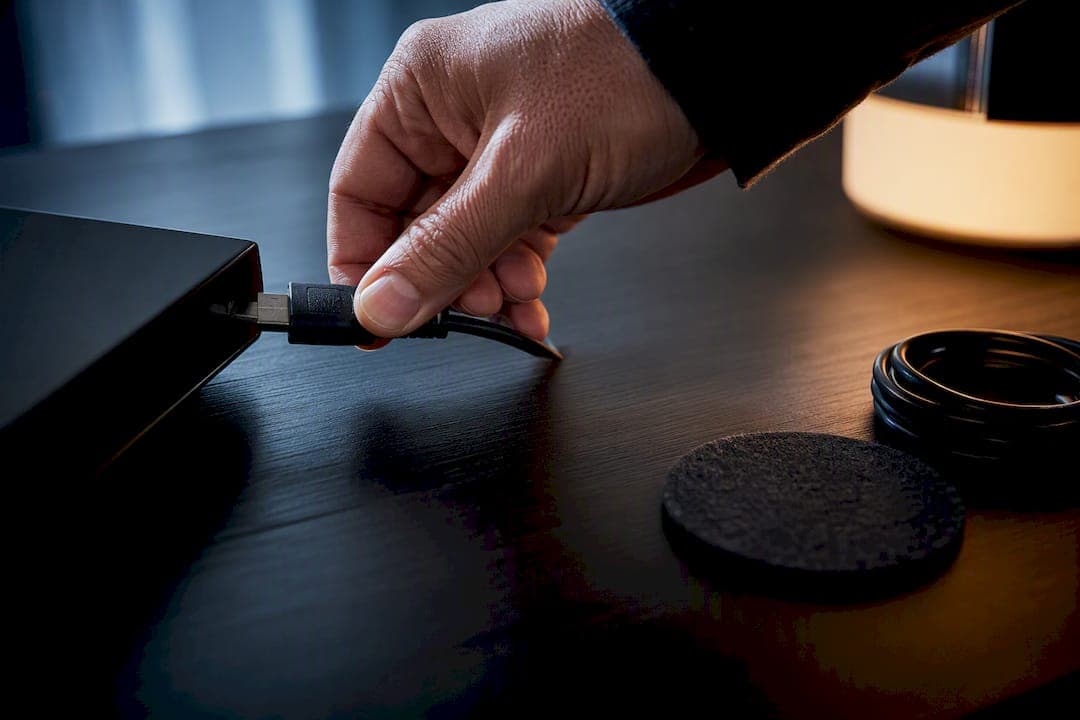
Try a full power cycle first: unplug the box for 60 seconds, check every cable, then clear the app cache and restart. That single sequence resolves most freezing, buffering, and app-crash complaints. If the box won't power on or the lights behave strangely even after that, the power adapter or internal hardware is probably the culprit, and it's time to look at warranty or repair options instead of digging deeper yourself.
TL;DR:
- Using a full power cycle and checking all cables often resolves most streaming and app issues without further repairs.
- Regularly clearing app cache, restarting, updating software, and cleaning vents prevent most emergencies and hardware failures.
- Power problems usually stem from faulty adapters, outlets, or internal faults, with changing these components being the first troubleshooting step.
- Buffering mainly results from network issues, so testing speeds, switching to wired connections, or lowering stream quality can improve performance.
- Prevent data loss by backing up app logins, network details, and settings before performing a factory reset, then restoring them in a logical order afterward.
Table of Contents
- Quick TV box maintenance checklist you can try right now
- How often should you do routine TV box maintenance?
- Why won't my TV box power on or boot properly?
- How do you fix buffering and slow streaming?
- What's the difference between a restart and a factory reset?
- Which setup guides and hardware options are worth using?
- How do you back up your settings before a reset?
- Is your TV box overheating or is something else wrong?
- What actually matters when your box acts up
- Get setup help and warranty-backed hardware instead of guessing
- Where this guidance comes from
- Sources
- FAQ
Quick TV box maintenance checklist you can try right now
Most streaming problems come down to power, connections, or clogged cache, in that order. Work through this sequence before assuming your box is failing:
- Full power cycle — unplug the box, then unplug your modem and router. Wait a full 60 seconds, then power the router back on first, followed by the modem, then the box last. This order matters because your box needs a stable network handshake to boot cleanly.
- Check every cable by hand — reseat the HDMI cable, confirm the power connector is fully in, and listen for the click on any Ethernet plug.
- Clear the cache on the app misbehaving, then restart the whole device, not just the app.
- Swap connections — try a different HDMI port or cable, or switch from Wi-Fi to a wired Ethernet connection.
- If none of that helps, contact your manufacturer or provider's support team with a short description of what you tried.
Pro Tip: Write down which step actually fixed the problem. If it's the same fix every time (say, cable reseating), that's a signal something is loose or wearing out, not a one-off glitch.
How often should you do routine TV box maintenance?
A few small habits, done on a schedule, prevent most of the emergency troubleshooting sessions people dread. Cache and data aren't the same thing, and mixing them up causes unnecessary headaches. Clearing an app's cache removes temporary files that speed up loading; clearing its data wipes your login and settings entirely, so save that for when an app is truly broken, not just slow.
On most Android TV boxes, cache clearing lives under Settings → Apps → See all apps → Clear cache, though Google TV and Android TV follow slightly different menu paths depending on the manufacturer's overlay. Clear it only when performance actually drops. Apps rebuild their cache within a day or two of normal use, and constantly clearing it defeats the purpose, since a fresh cache is what makes apps load fast in the first place.
Build these tasks into a rhythm:
- Restart the box regularly to help maintain performance.
- Check for software updates regularly and apply them promptly.
- Periodically unplug the box and clean dust from vents to ensure proper airflow.
- Remove unused apps and old recordings when necessary to free storage.
Boxes that run hot from dust buildup or that sit crammed into a closed cabinet tend to fail sooner than boxes with breathing room. A short, consistent maintenance checklist beats reactive troubleshooting every time, because you catch small issues before they turn into a dead box.
Why won't my TV box power on or boot properly?
Boxes that show no lights at all, or that flicker between booting and shutting off, are usually telling you it's a power problem, not a software one. Before assuming the worst, try these checks:
- Swap outlets. Plug the box into a different wall outlet you know works, ideally testing that outlet with another device first.
- Swap the adapter. If you have access to a compatible power adapter from a similar device, try it. A swap test is safer for most people than testing voltage with a multimeter, and if symptoms change with a different adapter, you've found your problem.
- Watch the LED pattern. A solid light with no boot means the box itself may be fine and the display connection is the issue. A blinking or flickering light during boot often points to inconsistent power delivery.
- Try maintenance or recovery mode only after basic checks are done, and only if your manufacturer's documentation walks you through it directly.
Pro Tip: Worn power adapters are one of the most common causes of a box that seems "dead." Testing with a spare adapter costs nothing and rules out the cheapest possible fix before you consider anything more invasive.
If swapping the outlet and adapter doesn't change anything, stop troubleshooting on your own. That's a sign of an internal fault, and it's warranty or repair territory.
How do you fix buffering and slow streaming?
Buffering rarely means your box is broken. It almost always points to the network path between your router and the screen. Work through it in this order:
- Run a speed test right next to the TV, not from another room. HD streaming generally needs a stable connection well above basic browsing speeds, and 4K content needs considerably more headroom to avoid stutter.
- Switch to wired Ethernet if you can. A physical connection eliminates most of the interference that Wi-Fi struggles with, especially in older homes with thick walls.
- If you must use Wi-Fi, choose the 5GHz band over 2.4GHz when your router supports it, since 5GHz suffers less from crowded households with multiple devices competing for bandwidth.
- Reboot your modem and router, waiting for the modem to fully reconnect before powering on the router.
- Lower the stream quality temporarily and close background apps if the problem happens during peak evening hours, which usually points to congestion on your provider's end rather than your own setup.
Our guide to fixing buffering on an Android TV box walks through device-specific settings, and if you're unsure what speed your setup actually needs, check the internet speed guidance for live TV before assuming your plan is too slow.
What's the difference between a restart and a factory reset?
A soft restart just reboots the software and clears temporary glitches, while a full power pull (unplugging for 60 seconds) forces every component to reset, including network connections. Use the soft restart for minor freezing, and the power pull when the box seems unresponsive or stuck on a loading screen.
Maintenance or recovery mode, when your box has one, is a step below a full factory reset. Vendor support pages typically walk through safe access to this mode for clearing stuck updates or corrupted settings without wiping everything.
Before you factory reset:
- Write down or screenshot your app logins and channel subscriptions.
- Note your Wi-Fi password and any custom network settings.
- Expect to reinstall every app and sign back in individually.
After the reset, update the system software first, install your most-used streaming app second, and test playback before reinstalling anything else. This order gets you back to normal viewing fastest.
Which setup guides and hardware options are worth using?
Some fixes are easier with a walkthrough built for your exact box rather than generic advice. If you're running a MAG Box, Formuler, or YokaTV device, step-by-step setup guides solve most activation and configuration headaches without guesswork.
- MAG Box setup guides cover activation codes and channel list loading, common sticking points for new users.
- Formuler and YokaTV guides walk through app installation and network configuration specific to each box's interface.
- Pre-configured boxes sold with a 2-year warranty cover hardware failures like a dead power supply or unresponsive board, the same failure points this article walks you through diagnosing.
- When to use publisher support versus independent repair: if your box is still under warranty, contact support before opening the case or paying a third party. If it's out of warranty and the fix is simple (like a cable or adapter swap), DIY is usually faster.
Our team has provided setup support and edge routing for streaming customers since 2016, so this guidance reflects patterns seen across many real households, not just theory.
How do you back up your settings before a reset?
Losing your app logins and channel setup is the most common regret people have after a factory reset, and it's almost entirely avoidable with five minutes of prep.
Start with your credentials. Screenshot or write down the login details for every streaming app you use, along with your IPTV provider's activation code or portal URL if applicable. Most people only think to do this after the reset wipes everything, when it's too late.
Check whether your box supports any built-in backup feature. Some Android TV boxes let you export a list of installed apps or sync settings to a Google account automatically, which saves you from manually reinstalling everything one app at a time. If your box doesn't have this, at minimum note down which apps you had installed, so your reinstall list is ready to go rather than something you're trying to remember from memory.
Save your network details too. Your Wi-Fi password, any static IP settings, and your router's admin login (if you've changed it from default) all need to be handy, since a factory reset wipes the box's memory of your network entirely.
Once the reset is done, restore in this order: connect to Wi-Fi or Ethernet first, apply any pending software update second, then reinstall your most-used app and confirm it streams properly before moving on to the rest. This order gets your main viewing back online fastest and lets you catch update-related issues before you've reinstalled a dozen apps on top of a problem.
If your provider stores your subscription details on their end rather than locally on the box, note their support contact information somewhere separate from the device itself, in case you need to re-activate after the reset.
Is your TV box overheating or is something else wrong?
Overheating and other hardware failures produce different symptoms, and telling them apart saves you from unnecessary troubleshooting. A box that's overheating usually shows gradual symptoms: it runs fine for the first 20 to 30 minutes, then starts stuttering, freezing, or randomly restarting the longer it's been on. Touch the casing. If it's noticeably hot rather than warm, especially near the vents, heat is likely a factor.
Compare that to power or network issues, which tend to be immediate and consistent rather than building over time. A box with a failing power adapter usually struggles from the moment you turn it on. A network problem causes buffering that correlates with your Wi-Fi signal strength or time of day, not how long the box has been running.
Placement is the most common cause of overheating that people overlook. A box tucked inside a closed media cabinet, stacked directly under a cable box, or sitting on a soft surface like a carpet or blanket, traps heat with nowhere to go. Move it to an open shelf with at least a couple of inches of clearance on all sides, and the difference often shows up within a day.
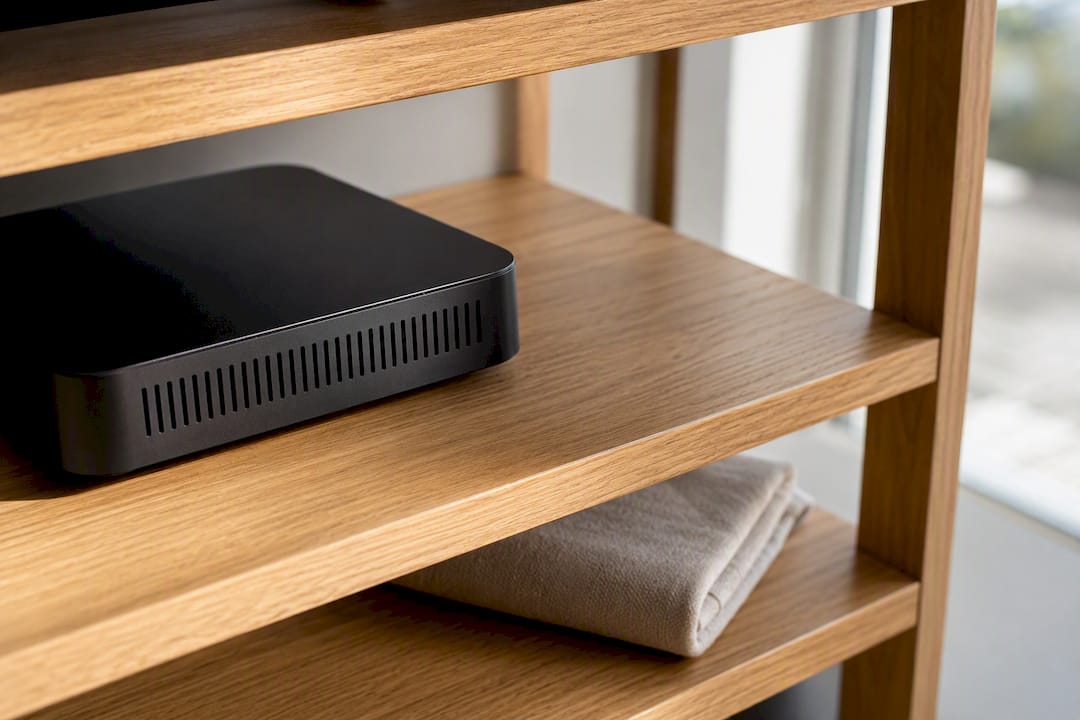
If cleaning the vents and improving placement doesn't calm down the stuttering, and the box still runs hot after 15 to 20 minutes even in open air, that points toward a failing internal fan or thermal paste degradation rather than something you fix with better airflow alone. At that point, it's a repair or warranty conversation, not a maintenance one.
What actually matters when your box acts up
Work through fixes in this order: power cycle, then cables, then cache, then updates, then factory reset, and warranty or repair only as the last resort. Skipping steps wastes time chasing software fixes for what's usually a power adapter or heat problem. When you do contact support, a two-sentence summary of exactly what you tried gets you a faster, more useful answer than a vague description of "it's not working."
— Aj
Get setup help and warranty-backed hardware instead of guessing
If you've worked through the checklist above and you're still stuck, or you'd rather skip the troubleshooting entirely, We sell pre-configured Formuler and YokaTV boxes backed by a warranty, so hardware failures like a dying power adapter are covered rather than an out-of-pocket repair bill.
Every box comes with setup support from a local team with years of experience, plus edge routing built to cut down on buffering during live sports and peak evening hours. There is a short free trial period available before committing, so you can confirm the performance for yourself before you pay. If your current box is on its last legs or you're tired of DIY fixes that only last a few weeks, browse the Formuler and YokaTV boxes and get one set up properly the first time.
Where this guidance comes from
The troubleshooting steps here draw on vendor cache-clearing guides for Android TV and Google TV, a structured troubleshooting checklist, and standard maintenance-mode documentation from TV box support pages.
Sources
- How to clear your Android TV cache (Make Tech Easier)
- How to clear the cache on Android TV and Google TV (Tech Junkie)
- TV box troubleshooting guide: fix glitches, freezes & no signal fast 2026 (ValiantCXO)
- How To Clear Your Android TV's Cache (And Why You Should) (BGR)
FAQ
How long does a TV box typically last?
Most Android TV and IPTV boxes last two to four years with regular maintenance, though heat exposure and power adapter wear are the most common reasons a box fails earlier than that.
Can a TV box actually be repaired, or should you just replace it?
Many issues, especially power adapter failures and loose connections, are fixable at home or through warranty support. Internal hardware faults like a failing board are usually not worth repairing on an older box and are better handled through a warranty replacement or a new device.
How do you update the software on a TV box?
Check your system settings menu for a "System Update" or "About" option, and apply any available update, then restart the box. Enabling automatic updates where your box supports it keeps this from becoming a manual chore.
How do you reset a TV box?
Use a soft restart first for minor freezing, unplug the box for 60 seconds for a full power cycle if that doesn't help, and reserve a full factory reset for when the box is unresponsive to everything else, since it erases your app logins and settings.