
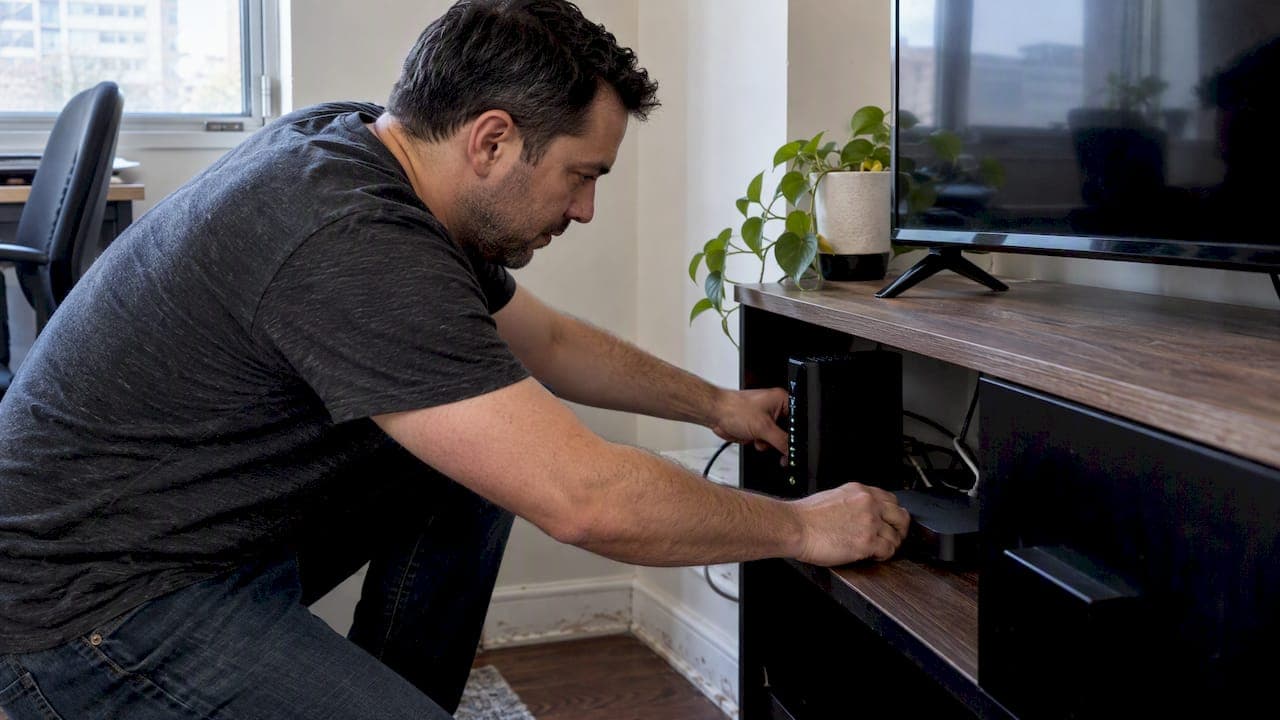
The quickest IPTV buffering fix is switching your streaming device to a wired Ethernet connection and trying the stream again. If that's not possible, run a quick speed test on the device itself, restart your router and streaming box, and drop the stream quality a notch as a backup plan. If only one channel keeps freezing, the problem is likely on the provider's end, so try a different channel first.
TL;DR:
- Using a wired Ethernet connection prevents jitter and maintains stable timing for live IPTV streams, significantly reducing buffering issues.
- Running a speed test on the streaming device should confirm at least 8 Mbps for HD or higher for 4K, indicating sufficient bandwidth.
- Restarting the device, router, and modem in order clears memory glitches and improves stream stability.
- Clearing the app cache on Android or Fire TV removes temporary files that can slow loading times without needing to sign out.
- If only one channel buffers during peak hours, the problem likely originates from server congestion rather than your network.
Table of Contents
- Quick checklist: what to try in the first five minutes
- Step-by-step fixes and why each one works
- Device-specific steps for Fire TV, Android TV, and Apple TV
- When the problem isn't on your end
- Why fast fixes come before deep network changes
- A managed option if you'd rather skip the troubleshooting
- FAQ
- Sources
Quick checklist: what to try in the first five minutes
Before digging into settings menus, run through this short list. Most buffering problems clear up with one of these four checks, and you'll know within minutes which one fixed it.
- Plug your streaming device into the router with an Ethernet cable, or move it closer to the router if wired isn't an option.
- Run a speed test directly on the streaming device: aim for at least 8 Mbps for HD and a higher speed for 4K as a rough guide.
- Restart your devices in order: streaming device first, then the router, then the modem if it's separate.
- Lower the stream quality temporarily and pause other household devices that might be hogging bandwidth.
If the stream runs clean after any one of these, you've found your culprit. If buffering continues, move on to the detailed fixes below.
Step-by-step fixes and why each one works
Switch to wired Ethernet. Wi-Fi is convenient, but it's more prone to interference from walls, other networks, and even microwaves, all of which cause the timing gaps known as jitter. A wired connection keeps that timing steady, which matters more for live video than raw speed does, according to Telecom decision 2009-657 — Internet traffic management - CRTC, which notes that jitter is a distinct cause of degraded time-sensitive audio and video. Our comparison of Ethernet and Wi-Fi for streaming breaks this down further if you want the full picture.
Test your actual speed, not your plan's advertised speed. Run Speedtest by Ookla on the device you're streaming on, not your phone. Apple's own troubleshooting guidance for streaming apps notes that HD generally needs about 8 Mbps, with 4K requiring considerably more, so compare what you're getting against what your plan promises. If the numbers don't match, it's time to call your ISP. We cover this in more detail in our guide to the internet speed live TV needs.
Restart everything, in order. Power off your streaming device first, then the router, then the modem if it's a separate box. Wait about 30 seconds between each, then power them back on in reverse order. This clears temporary memory glitches that build up during long streaming sessions.
Clear the app cache and update the IPTV app. On Android TV or Google TV, go to Settings, then Apps, choose your IPTV app, and tap Clear Cache. Google's own support documentation confirms that clearing cached data removes temporary files and can speed up load times without signing you out, so it's a safe first step. Avoid clearing app "data" instead of "cache" unless you're ready to re-enter your login details.
Lower stream quality or adjust the buffer. Most IPTV apps let you drop from 4K or HD down to a lower resolution inside the player's settings menu. If your app exposes a buffer setting, nudging it up by a few seconds can smooth out brief network hiccups at the cost of a short delay.
Cut down on competing traffic. Pause downloads, close background apps, and ask other household members to hold off on heavy streaming or gaming while you watch.
Try a different server or channel. Many IPTV apps mirror the same content across multiple servers. Switching channels or reloading the stream often routes around a temporary bottleneck.
- A VPN can sometimes help route around congested paths, but it can also add latency and may conflict with your provider's terms, so use one only if you understand the trade-offs.
- Check your router for Quality of Service (QoS) settings and prioritize your streaming device's traffic if the option exists.
- Watch for "double NAT," a setup where two routers are both trying to manage your network traffic, since it can quietly cause buffering.
- Move your router to an open space away from thick walls or large appliances.
Pro Tip: Keep your router's firmware updated. Manufacturers release patches that fix exactly these kinds of connectivity quirks.
Device-specific steps for Fire TV, Android TV, and Apple TV
Different devices hide these settings in different menus, so here's where to look.
- Fire TV: Go to Settings, then Applications, then Manage Installed Applications, select your IPTV app, and clear cache. Check network settings under Settings and My Fire TV, then restart the device from the same menu. Our Firestick-specific buffering guide walks through this step by step.
- Android TV / Google TV: Settings, then Apps, then select the app, then Clear Cache. System updates live under Settings, then System, then About. Use an Ethernet adapter if your box supports one. We also have a dedicated Android TV box tutorial with screenshots.
- Apple TV: Check Settings, then Network, and separately Settings, then System, then Restart. Apple's own troubleshooting page notes that distance, physical obstructions, and double NAT setups are common causes of connection trouble. Use the Ethernet port on the back if your model has one, and keep the unit in open air, not tucked behind a TV.
- Other IPTV boxes and set-top boxes: Check for firmware updates in the system menu, confirm you have enough free storage, and look for a buffer or cache setting inside the player app itself.
When the problem isn't on your end
Sometimes the fault sits upstream. If only one channel buffers while everything else streams fine, or if the problem appears mainly during peak evening hours or a big live event, that points to server congestion rather than your network. Check your provider's status page if one exists, and try reloading the stream or switching to a backup server first. If the issue persists across multiple channels and devices after you've worked through the checklist above, contact your provider with details: which channel, what time, and what device, since that evidence speeds up any support conversation.

Why fast fixes come before deep network changes
We prioritize Ethernet and restarts before touching router settings because they fix the most common cause first: jitter, not raw speed. The CRTC's own guidance draws a clear line between throughput and timing variation, and live video suffers more from the latter. Most buffering problems have a simple fix, and working through them in order saves you from unnecessary router surgery.
— Aj
A managed option if you'd rather skip the troubleshooting
If you'd rather not chase cables and cache menus every time a game starts, our Canadian edge routing is built to keep live sports loading fast and buffering low from the first kickoff. We pair that with pre-configured IPTV boxes so the setup work is done before the box reaches your door.
- Our plans start with a 1 Month option at affordable monthly rates, with 6 Month and 12 Month options available.
- A trial period lets you test streaming quality before committing to anything.
- Our shop carries IPTV boxes and remotes to support your setup.
- A home installation visit is available as an option if you'd rather have it set up for you.
Check out our plans page to start your trial today.
FAQ
How do I fix excessive buffering?
Start by switching to a wired Ethernet connection and restarting your router and streaming device. If that doesn't clear it, run a speed test, clear your app's cache, and lower the stream resolution as a fallback.
Why is my IPTV freezing or buffering?
Freezing usually comes from jitter, meaning your connection's timing is inconsistent even if your overall speed looks fine, a distinction the CRTC's traffic management guidance outlines. Weak Wi-Fi, outdated apps, and server congestion on the provider's side are the other common culprits.
Why is TV buffering when internet speed is good?
A strong speed test result doesn't rule out jitter or congestion on your local Wi-Fi network. Try wired Ethernet, restart your devices, and check whether other devices on your network are competing for bandwidth at the same time.
How to clear cache on IPTV?
On Android TV or Google TV, go to Settings, then Apps, select your IPTV app, and tap Clear Cache, a step Google's support documentation confirms won't sign you out. On Fire TV, the same option sits under Settings, then Applications, then Manage Installed Applications.
Sources
Official Apple and Google device support pages, plus Speedtest by Ookla for measuring your real connection.
- If your Apple TV has network or streaming issues - Apple Support
- Free up storage on Chromecast with Google TV or Google TV streamer - Streaming Help
- Telecom decision 2009-657 — Internet traffic management - CRTC