

Most of the time, IPTV subtitles disappear because the stream itself never carried subtitle tracks in the first place, or your player lost track of the selection after a seek. Open the same channel in a second player, like VLC, to check if tracks actually exist. If they show up there but not in your usual app, it's a player issue. If no player finds any subtitle track, the fix has to come from your provider.
TL;DR:
- Subtitles generally fail because the stream lacks tracks from the start or your player loses track after seeking; check with a second player like VLC first.
- Restarting the app, reselecting subtitle tracks, or switching decoding modes often resolves common issues within seconds; more technical fixes are rarely needed.
- Using VLC’s codec info or ffprobe can confirm if subtitle tracks exist, and missing streams indicate provider re-encoding or missing content.
- Subtitle formats like DVB, Teletext, and CEA-608/708 each require different handling; garbled text often results from encoding mismatches rather than stream corruption.
- If no player detects subtitles, contact your provider with proof like screenshots or ffprobe outputs to determine if the issue is pipeline re-encoding or missing tracks.
Table of Contents
- Quick diagnostic checklist: is it your provider, your player, or your device?
- Step-by-step fixes, from fastest to most technical
- Fixing subtitles on Fire TV, Android TV, smart TVs, and mobile apps
- Advanced diagnostics: proving what's actually in the stream
- Why subtitles come out garbled, and how to fix the encoding
- What to send your provider when the fix isn't on your end
- How Toronto's Best IPTV supports subscribers through setup and testing
- Realistic expectations for live IPTV subtitles
- Ready to stop guessing and start watching?
- Sources
- FAQ
Quick diagnostic checklist: is it your provider, your player, or your device?
Before touching any settings, figure out where the fault actually lives. This takes about two minutes and saves you from chasing the wrong fix.
- Open the same stream in a second player. VLC on a desktop or laptop is your best bet because it tends to expose track information other apps hide. If subtitles appear there, your usual app or device is the problem.
- Give the player time to parse tracks. Wait 5 to 10 seconds after playback starts, or flip to another channel and back to force a re-parse of the stream's metadata.
- Check the track labels. Names like "tel," "txt," "888," "dvb," or "cea" tell you what subtitle format is actually being carried, which matters for the fixes below.
- Run the seek test. Skip forward briefly and see whether subtitles vanish. If they do, that's a known behaviour, not a broken app.
- Note whether subtitles can be toggled off and on. If there's no subtitle menu option at all, the text may be burned directly into the video, which behaves completely differently from a selectable track.
Step-by-step fixes, from fastest to most technical
Work through these in order. Most subtitle problems get solved in the first two or three steps, so don't skip ahead unless something specifically points you there.
- Restart the player and let it fully parse the channel. Closing and reopening the app forces a fresh read of the stream's program map table (PMT), which is where subtitle track information lives. Give it a few seconds before opening the subtitle menu.
- Reselect the subtitle track after any seek. Seeking a network stream often re-opens the demuxer and re-reads the PMT, which resets your subtitle selection to default. On many players, pressing "C" cycles through available tracks quickly, or you can use the on-screen subtitle overlay.
- Switch between software and hardware decoding. Some Android and Fire TV devices render DVB subtitles poorly with hardware decoding turned on. Flipping to software decoding fixes this in a lot of cases, though it does push your device's processor a bit harder.
- Try a different app or device entirely. If VLC or a desktop player shows subtitles fine but your set top box doesn't, you've confirmed a platform-specific decoding gap rather than a missing track. That's useful information either way.
- Test each subtitle track individually if the menu shows options. Sometimes a channel lists two or three subtitle tracks, but one is just an empty placeholder left over from the original broadcast feed. If selecting a track does absolutely nothing, the track may be empty or use a codec your platform doesn't support.
Pro Tip: Test a video-on-demand title from your provider's library before troubleshooting live channels. VOD files usually carry properly tagged subtitle and audio tracks, so if subtitles work there but not on live TV, you've already narrowed the problem down to how the live stream is being delivered.
Fixing subtitles on Fire TV, Android TV, smart TVs, and mobile apps
Every platform hides its subtitle controls in a slightly different spot, and knowing where to look saves a lot of frustrated tapping.
- Fire TV: Subtitle toggles usually live inside the app's own playback menu rather than Fire TV's system settings. If subtitles render as garbled blocks, check whether the app has a decoding option and switch from hardware to software.
- Android TV and Google TV: Use the D-pad to bring up the on-screen overlay during playback, which typically reveals a subtitle or closed-caption icon. Some IPTV apps also bury a subtitle toggle inside their own in-app settings menu, separate from Android's system-wide caption settings.
- Smart TVs (webOS and Tizen): Check whether your TV's app has current firmware, since older versions occasionally lose subtitle rendering permissions after an update. Remote shortcuts vary by manufacturer, so check the app's help screen if the usual button does nothing.
- MAG and other set-top boxes: Subtitle behaviour is often tied to portal settings your provider controls, not the box itself. A full reboot after any firmware update is worth trying before assuming the worst.
- iOS and Android phones: Tap the screen during playback to bring up the overlay, and separately check your device's own accessibility caption settings, since some apps respect system-level captions while others ignore them completely.
If the app itself seems to be the bottleneck rather than the platform, our Firestick setup guide and Android TV setup guide walk through the playback settings menus in more detail.
Advanced diagnostics: proving what's actually in the stream
When the quick fixes don't work, you need evidence rather than guesses. This is where VLC's track info window and a free command-line tool called ffprobe come in.
- In VLC, open the "Tools" menu and select "Codec Information" while a channel is playing. This window lists every audio, video, and subtitle track VLC can detect, along with their format labels.
- ffprobe, a free tool that ships with FFmpeg, gives you the same information from a terminal. Running
ffprobe -i [your stream URL]lists every stream the file or feed contains, including subtitle and audio PIDs. - If the output shows only one audio track and no subtitle stream at all, that's strong evidence the provider's re-encoding pipeline is stripping extra tracks before the stream ever reaches your device.
- Screenshot the VLC window or copy the ffprobe text output. This becomes your proof when you contact support, and it turns a vague complaint into something a technician can actually act on.
Upstream ffmpeg pipelines commonly strip secondary audio and subtitle tracks by default, which is why one clean ffprobe log can save several back-and-forth messages with support.
Why subtitles come out garbled, and how to fix the encoding
Garbled or scrambled subtitle text almost always comes down to a mismatch between formats, not a broken stream. Understanding the difference between them helps you pick the right fix.
- DVB subtitles are actually bitmap images layered over the video, not text, which is why they render fine on some players and completely fail on others.
- Teletext subtitles, commonly on page 888, use an older broadcast standard that not every app decodes correctly.
- CEA-608/708 is the closed captioning format standard in North American broadcasting, and it behaves differently again from DVB or Teletext.
- Burned-in subtitles are part of the video image itself. If yours look garbled, the fix is a different feed, not a settings change.
For video-on-demand files, garbled text is usually a character encoding problem rather than a format problem. Converting an .srt file to UTF-8 and reloading it locally clears up most scrambled or accented characters. External subtitle files work fine for VOD but aren't practical for live channels since live streams have no fixed timeline to sync a separate file against.
Pro Tip: If one player renders a channel's subtitles as boxes or question marks and another shows them cleanly, don't touch any files. Desktop players like VLC generally support Teletext and DVB formats more broadly than mobile IPTV apps, so the fix is switching apps, not fixing text encoding.
What to send your provider when the fix isn't on your end
If you've confirmed no player anywhere can find a subtitle track, the ball is in your provider's court. Give their support team something concrete to work with.
- Gather the essentials: the stream URL, your device and app version, and a list of exactly which channels are missing subtitles.
- Attach your evidence: screenshots from VLC's codec info window or the raw ffprobe output showing the missing tracks.
- Ask directly whether they enable multi-audio and subtitle passthrough, or whether their pipeline re-encodes channels in a way that drops secondary tracks.
- Request a short test clip or a passthrough trial on one affected channel so you can confirm whether a fix actually worked before assuming it's resolved.
A reasonable provider should acknowledge the report within a day or two and confirm whether the fault is fixable on their end or tied to how the original broadcaster tags the feed.
How Toronto's Best IPTV supports subscribers through setup and testing
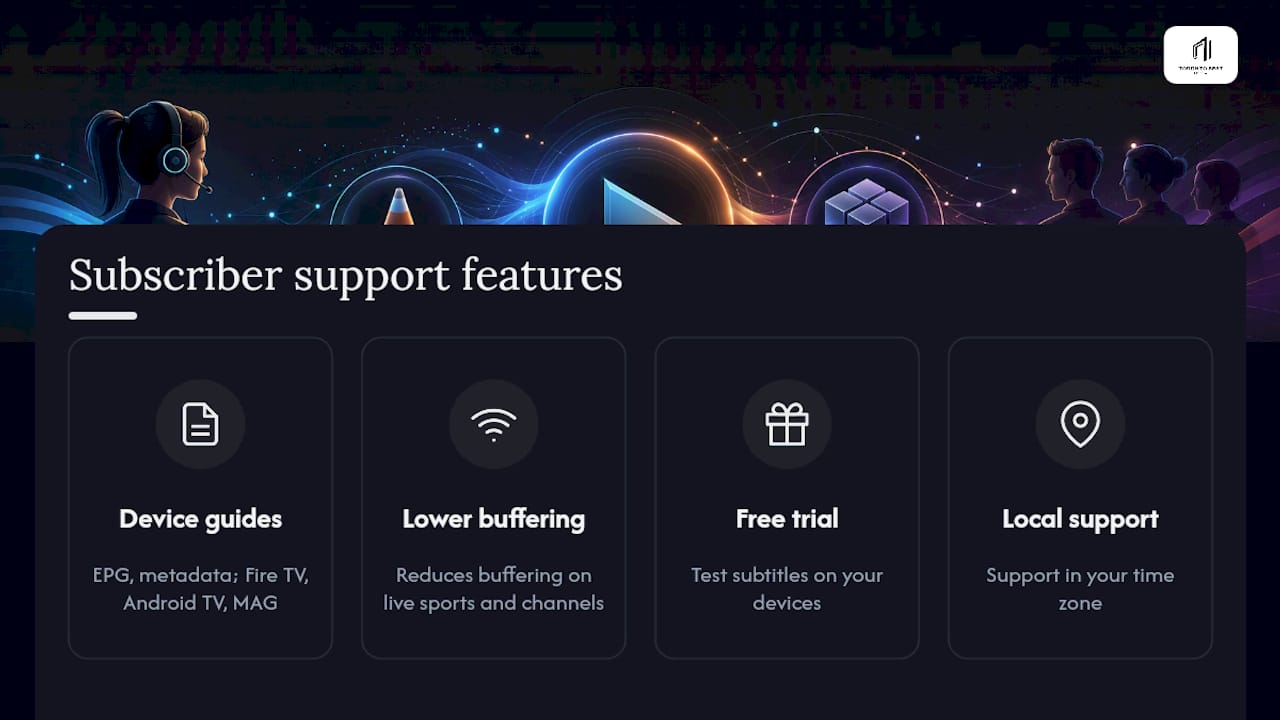
Diagnosing subtitle problems is a lot easier when your setup guide already tells you where the settings live. Torontobestiptv publishes device walkthroughs covering EPG and metadata behaviour, Fire TV, Android TV, and MAG box configuration, all built around the same diagnostic logic covered above.
Subscribers get a service built to reduce buffering on live sports and general channels, a free trial to test subtitle behaviour across your own devices before committing. Local support means you're not stuck explaining ffprobe output to someone in a different time zone.
Realistic expectations for live IPTV subtitles
Live channels will never match the reliability of on-demand content when it comes to subtitles. Broadcast metadata varies by network, region, and how a provider's pipeline handles re-encoding, so some inconsistency is baked into the format itself.
The practical habit that actually helps: test a VOD title first, keep a short checklist handy, and gather ffprobe or VLC evidence before messaging support. Some channels simply never had a selectable subtitle track to begin with, and no amount of troubleshooting on your end changes that.
— Aj
Ready to stop guessing and start watching?
The service gives you a free trial specifically so you can run these subtitle checks yourself, on your own devices, before paying a cent. That's the real advantage here: instead of committing to a provider and hoping the subtitle tracks are intact, you get to verify it firsthand, on Fire TV, Android TV, or a MAG box, with a service built to reduce buffering on live sports and general channels.
If your diagnostics above pointed to a provider-side issue, that's exactly the kind of evidence a local support team can act on quickly rather than passing you between departments. Plans start from a low monthly rate, and you can check your setup and device costs with the pricing calculator before you commit to anything. Start your two-day trial today and put your subtitle tracks to the test.
Sources
- IPTV Subtitles & Multi-Audio Tracks: The Complete 2026 Setup Guide | Tuneline
- How to Set Up IPTV Subtitles: Complete Guide (2026)
FAQ
Why are my IPTV subtitles missing on some channels but not others?
The channels missing subtitles usually never had a subtitle track to begin with, or the provider's re-encoding process stripped it out. Check the track list in a second player like VLC to confirm.
How do I enable subtitles on IPTV?
Open the subtitle or closed-caption menu inside your player during playback, often accessed by tapping the screen or pressing a dedicated remote button, then select an available track. If no menu appears at all, the app or device likely doesn't support subtitle selection for that stream.
Why do my subtitles disappear when I skip forward?
Seeking forces the player to reread the stream's metadata, which commonly resets the subtitle selection back to default. Reselecting the subtitle track after every seek is the simple fix.
What should I do when subtitles are not working at all?
Test the same channel in a second player to rule out a device issue, run the seek test, and check whether the subtitle menu shows any tracks whatsoever. If no player anywhere finds a track, contact your provider with ffprobe or VLC evidence.
Is Canada blocking IPTV?
Canada has no blanket ban on IPTV as a technology; legality depends on whether a specific service holds proper rights to the content it distributes. Choosing a provider with legitimate distribution rights, rather than the delivery method itself, is what matters legally.