
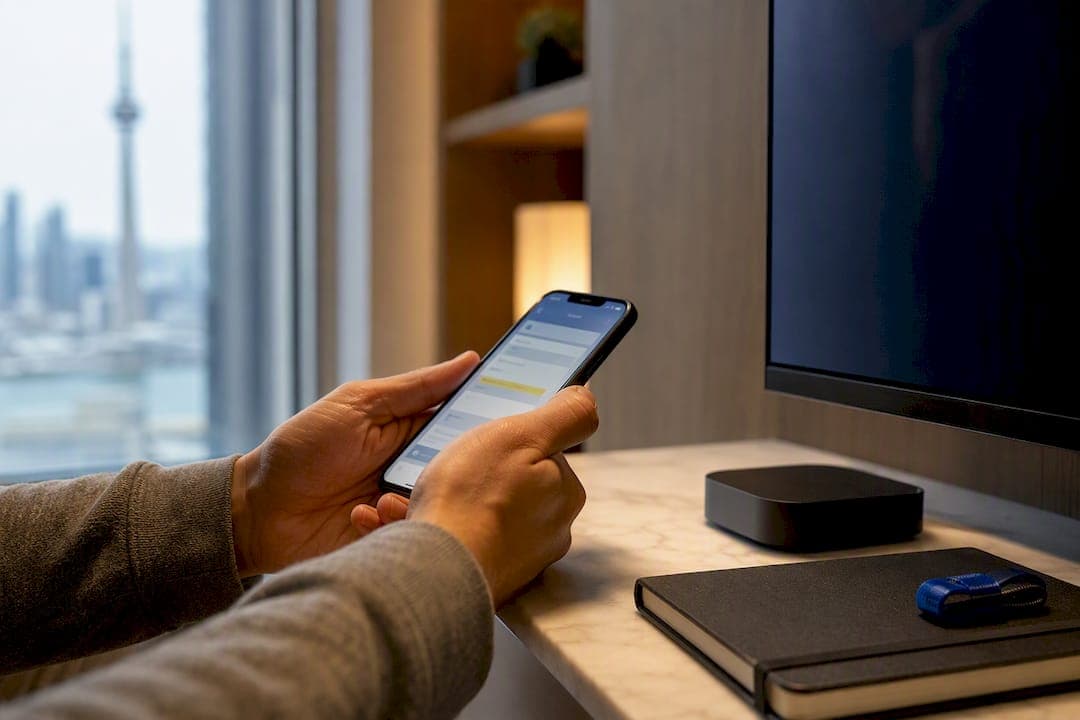
Install the correct player for your device, then add your provider's login using an M3U URL or Xtream Codes API. Firestick users sideload through Downloader; Android, iOS, and Windows users usually grab the app straight from an official store. Most people are streaming within 5 to 15 minutes once they have working credentials in hand.
TL;DR:
- Use a stable internet connection of at least 20 Mbps for HD streams and 50 Mbps for 4K content, preferably wired Ethernet rather than Wi-Fi.
- Confirm your provider's credentials are correct by copying and pasting the M3U URL or Xtream Codes details; testing on a second device can help identify credential issues.
- On Firestick, sideload IPTV apps using Downloader and delete the APK afterward to free storage, as low space causes installation errors.
- Samsung and LG TVs require MAC address registration on your provider’s portal, as direct app installation is not possible on their closed operating systems.
- Choosing Xtream Codes instead of an M3U URL generally offers better program guide updates and easier long-term management due to automatic EPG synchronization.
Table of Contents
- How do I prepare for a smart IPTV setup?
- How do you install Smart IPTV on each device?
- Should you use M3U or Xtream Codes to connect?
- Why is your stream buffering or not loading?
- What settings improve long-term playback quality?
- How does Torontobestiptv support your setup?
- What actually saves the most time on setup day?
- Ready for a setup that just works?
- Sources
How do I prepare for a smart IPTV setup?
Half the frustration with IPTV setup has nothing to do with the app itself. It's a missing password, a maxed-out hard drive, or a Wi-Fi signal that can't keep up with a hockey broadcast in HD. Sort these things first and the actual installation becomes almost boring.
Start with your credentials. Your provider will give you one of two things: an M3U URL (a single link) or Xtream Codes login details (a server URL, username, and password). Copy these into a note app on your phone before you touch your TV. Trying to type a 40-character URL with a remote control, one letter at a time, is nobody's idea of a good evening.
Your network matters more than most people expect. A recommended minimum is 20 Mbps for stable HD streams, and closer to 50 Mbps if you're watching in 4K. Wired Ethernet beats Wi-Fi every time, especially in older houses where the router sits three rooms away from the TV.
Pro Tip: If your Firestick or Android box has been acting sluggish for weeks, check storage before you blame your internet. A device sitting at 50MB free will choke on new app installs long before your Wi-Fi does anything wrong.
Before you start:
- Have your M3U URL, or Xtream Codes server address, username, and password, ready to paste.
- Confirm your connection meets 20 Mbps for HD or 50 Mbps for 4K content.
- Free up at least 200MB of storage on Firestick or streaming boxes to avoid install failures.
- Switch on developer options and allow apps from unknown sources on any device that needs sideloading.
- Download installers only from official app pages or verified APK sources, never random third-party sites.
How do you install Smart IPTV on each device?
Every smart TV platform handles app installation a little differently, and that's exactly where most guides get scattered across five open browser tabs. Here's the process broken down by hardware, so you can jump straight to yours.
Fire TV and Firestick
Amazon's Appstore doesn't carry most IPTV players, which means sideloading is the standard route, and it's genuinely simple once you've done it once.
- From the Firestick home screen, go to Settings > My Fire TV > Developer Options and turn on Apps from Unknown Sources and ADB Debugging.
- Search the Appstore for Downloader and install it. This little app is your gateway for grabbing APK files directly by URL or code.
- Open Downloader, select the URL field, and enter the official download link or Downloader code for your chosen player, such as IPTV Smarters Pro.
- Let it download, then tap Install when prompted.
- Once installed, delete the APK file when Downloader asks. This isn't optional housekeeping. Leftover install files eat storage fast.
- Open the app from your Fire TV apps row and log in with your M3U URL or Xtream Codes credentials.
Sideloading through Downloader typically takes 5 to 10 minutes from start to first stream, assuming your credentials are correct on the first try. If your Firestick throws an "App not installed" error partway through, that's almost always a storage problem rather than a broken download. For a deeper walkthrough with screenshots specific to Amazon's newer Fire TV models, Torontobestiptv's Firestick setup guide covers the finer points.
Android TV and Android boxes
If you're running a Google TV or Android TV box, check the Play Store first. IPTV Smarters Pro and several similar players are listed there directly, which skips the sideloading dance entirely. Search, install, open, and log in.
Not every player shows up in every regional Play Store, though. When that happens, the sideload process mirrors the Firestick method: install Downloader (or use a file manager if the box already has one), grab the official APK, and install manually. One extra step Android boxes sometimes need: granting storage permission so the app can read local M3U files saved on the device rather than pulling them from a URL every time. Torontobestiptv's Android TV setup guide walks through box-specific menu quirks that vary between manufacturers.
Samsung and LG smart TVs
Samsung and LG TVs run on Tizen and webOS, closed operating systems that don't allow sideloading the way Android does. This is where Smart IPTV and SmartSTB earn their reputation. Instead of installing your provider credentials directly inside the app, you register the app's unique MAC address on your provider's portal, then the playlist loads automatically when you open it.
Search your TV's app store for Smart IPTV or SmartSTB, install it, and note the MAC address shown on screen (usually in settings). Log into your provider's control panel, add that MAC address along with your playlist URL, and restart the app. The tradeoff for this system's simplicity is flexibility. Smart IPTV works best when you already have a reliable, provider-supplied playlist, since the app itself does very little beyond displaying what it's fed. Some Tizen and webOS versions also run on a trial basis before requiring activation, so check your version's status before assuming something's broken. Full MAC-registration steps live in Torontobestiptv's Samsung and LG setup guide.
Apple TV and iOS
Apple's ecosystem keeps things tidier, if slightly more restrictive. Search the App Store on your Apple TV for IPTV Smarters Player Lite, the free tier of the app, and install it directly. No sideloading, no developer settings.
The one hiccup: typing a long Xtream Codes server URL using the Apple TV remote is painful. Most people solve this by opening the app on an iPhone or iPad first, entering credentials there, and letting iCloud or the app's sync feature carry the login over, or by using the TV's on-screen keyboard paired with the Apple TV remote app on their phone for faster typing. Torontobestiptv's Apple TV and iPhone guide covers both paths in detail.
Windows and macOS
Desktop setup is the most forgiving of the bunch. On Windows, IPTV Smarters Player is available directly through the Microsoft Store, so it's a straightforward search-and-install. Mac users generally rely on the official installer downloaded from the developer's site rather than the App Store.
VLC Media Player is worth keeping installed on either system as a fallback. It can open an M3U playlist directly through Media > Open Network Stream, which is handy for quickly testing whether a playlist works at all before you troubleshoot an app-specific problem. Some providers also offer browser-based players, useful in a pinch on a laptop, though they rarely match the stability of a dedicated app. Full desktop instructions, including VLC configuration, sit in Torontobestiptv's Windows and Mac setup guide.
| Device | Typical setup time | Main method |
|---|---|---|
| Firestick | 5 to 10 minutes | Sideload via Downloader |
| Android TV/box | 5 to 10 minutes | Play Store or sideload |
| Samsung/LG TV | 10 to 15 minutes | MAC registration |
| Apple TV/iOS | 5 minutes | App Store install |
| Windows/macOS | 5 minutes | Store or installer |
Should you use M3U or Xtream Codes to connect?
Once the app is installed, you'll hit a login screen asking how you want to connect. This choice affects more than you'd think, particularly around program guide accuracy and how much manual upkeep you'll be doing months from now.
An M3U URL is a single link containing your entire channel list. You paste it into one field, and the app loads everything at once. It's the simpler of the two options, but it's also static: if your provider updates channels or the playlist structure changes, you may need to re-add the URL manually. Smart IPTV in particular depends heavily on the quality of the playlist you feed it, since the app itself doesn't do much beyond display what's handed to it.
Xtream Codes API asks for three separate pieces: a server URL, a username, and a password. It takes ten extra seconds to fill out compared to a single paste, but the payoff shows up later. IPTV Smarters supports both methods, and Xtream Codes typically delivers noticeably better EPG and catch-up integration when your provider's backend supports it, because the app can pull live guide data and playback history directly from the server instead of relying on a static file.
Pro Tip: If your provider offers both options, choose Xtream Codes. The EPG data updates automatically instead of going stale, and you won't need to manually swap URLs every time your provider refreshes their playlist structure.
After logging in, a few settings deserve a look before you settle in for a viewing session:
- Player decoding mode: hardware decoding is usually smoother on modern TVs and boxes; software decoding is the fallback if video looks choppy.
- EPG refresh interval: set this to update daily so your program guide doesn't drift out of sync with actual air times.
- VOD paths: confirm on-demand content is pointing to the correct category if your provider splits movies and series into separate feeds.
If you're juggling more than one provider, Smarters and similar players let you add multiple subscriptions inside a single interface, switching between them from a profile menu rather than logging out and back in every time. That's a genuinely underused feature, especially for households that split sports packages and general entertainment across two services.
Why is your stream buffering or not loading?
Almost every IPTV problem falls into one of five buckets, and working through them in the right order saves you from chasing the wrong fix for twenty minutes.
- Run a speed test first. Compare the result against the 20 Mbps HD / 50 Mbps 4K benchmarks. If you're below that on Wi-Fi, switch to a wired Ethernet connection before touching anything else in the app.
- Re-check your credentials. Copy and paste your username, password, and server URL again rather than retyping them. A single wrong character causes most "login failed" errors, and testing the same login on a second device (or a web-based Xtream Codes player) tells you instantly whether the problem is your credentials or your device.
- Clear the app cache or reinstall. If channels load but freeze constantly, a corrupted cache is a common culprit. Clearing it, or doing a clean reinstall, resolves this more often than switching servers.
- Switch decoding modes. If video stutters specifically during fast motion (sports are the classic case), try toggling from hardware to software decoding in the player's settings, or vice versa depending on what's currently set.
- Free up storage. On Firestick and similar boxes, low storage causes crashes and installation failures that look like network problems but aren't. Freeing roughly 200MB clears most of these.
- Rule out the provider before blaming your setup. If credentials and network both check out but nothing loads, ask your provider whether their servers are experiencing downtime before spending another hour troubleshooting locally.
If none of that resolves it, contacting your provider's support with specifics speeds things up enormously. Have your device model, app version, the exact error message, and the time the issue started ready before you message them. Vague reports like "it's not working" get vague answers back.
For a longer diagnostic walkthrough covering edge cases like Wi-Fi interference and router settings, Torontobestiptv's troubleshooting guide digs into more scenarios than fit here.
What settings improve long-term playback quality?
Getting IPTV working is one thing. Keeping it running smoothly six months from now, across multiple TVs and providers, is a different problem, and it's mostly about a handful of habits rather than any single setting.
Hardware decoding is the right default on most modern boxes and smart TVs, since it offloads video processing to a dedicated chip rather than the device's general processor. Only drop to software decoding if you're seeing consistent stutter on hardware mode, which usually points to an older or underpowered device struggling with a specific codec.
EPG problems are almost always fixed by a manual refresh inside the app's settings menu, and by confirming the EPG URL your provider supplied matches what's entered exactly (a trailing space or missing character breaks the sync silently). Category mapping, matching what your provider calls a channel group to how your app displays it, is worth double checking if guide listings look scrambled. Torontobestiptv's guides on setting up EPG on a Firestick and on an Android TV box both walk through this specific fix.
Pro Tip: If you're streaming on multiple TVs at once during a big game, place your router centrally and use Ethernet on at least one device. Wi-Fi bandwidth gets split across every connected device, and four simultaneous 4K streams on one wireless network is asking for trouble.
A short maintenance checklist worth revisiting every few months:
- Update your player app only from official stores or the developer's own site, never a random forum link.
- Clear cache periodically, especially after major app updates.
- Keep a simple note of which profile or provider is loaded on which device if you're managing more than one subscription.
How does Torontobestiptv support your setup?
Not everyone wants to spend an evening sideloading APKs and testing decoding modes, and that's fair. Torontobestiptv has been operating in Toronto since 2016, and its setup guides cover most of what you've just read in device-specific detail, including Samsung and LG smart TVs, MAG boxes, Windows, and Mac.
What makes the difference for live sports specifically is the routing underneath the app. Using Canadian edge routing technology helps keep load times quick and buffering minimal during high-demand broadcasts like NHL and NFL games, exactly the moments when a generic setup tends to choke.
A few things worth knowing before you reach out for help:
- Plans start from affordable monthly subscriptions, with access to channels spanning Canada, the USA, and international lineups, including kids' and educational programming.
- A short free trial lets you test the service on your actual device before committing to anything.
- Support has been handling Toronto-area customers since 2016, so the team has likely seen your specific device model before.
If you do request assisted setup, have your device model, the app you're using (or planning to use), and your current provider credentials ready if you're migrating from an existing service. It shortens the call considerably.
What actually saves the most time on setup day?
The single biggest time-saver, hands down, is provisioning devices in order of difficulty rather than convenience. Do the fiddly one first, a Samsung TV needing MAC registration, or an Apple TV where you're typing a server URL on a tiny remote, while you're still fresh and patient. Save the Android box or Windows install, the ones that take five minutes flat, for last. Doing it backwards means you hit the annoying device after you're already tired of the process, and that's when people give up or make copy-paste errors in their credentials.
The most common misstep isn't technical at all. It's skipping the storage check on Firestick and assuming a failed install means broken credentials, when it's almost always just a full drive. Second most common: typing credentials from memory instead of pasting them.
This guide draws on the same device-by-device workflows used across established IPTV Smarters and Smart IPTV tutorials, condensed into one practical reference for readers setting up their own hardware.
— Aj
Ready for a setup that just works?
If sideloading APKs and troubleshooting decoding modes sounds like more evening than you wanted to spend, Torontobestiptv offers a genuinely faster path: pre-configured IPTV boxes that arrive ready to stream, backed by a two-year warranty, so you skip the Downloader step entirely.
Local support teams have likely handled many TV models before, helping answer setup questions efficiently. Before reaching out, have your device model, current provider credentials if you're switching services, and a rough idea of which channels or sports packages matter most to you. That alone turns a twenty-minute call into a five-minute one.
You can test everything risk-free with the two-day free trial, starting from $15 a month for access to Canadian, American, and international channels, including kids' and educational content. If you'd rather understand the full service before committing, the complete IPTV guide breaks down exactly what you're getting and how the Canadian edge routing keeps live sports smooth. Start your trial today and see how a properly configured setup should actually feel.
Sources
Stick to official sources when downloading any player. The IPTV Smarters official site hosts verified installers directly, and the Downloader-based Firestick guide covers sideloading in more granular detail than fits here. Avoid third-party APK repositories entirely; they're the most common source of malware disguised as IPTV apps.