
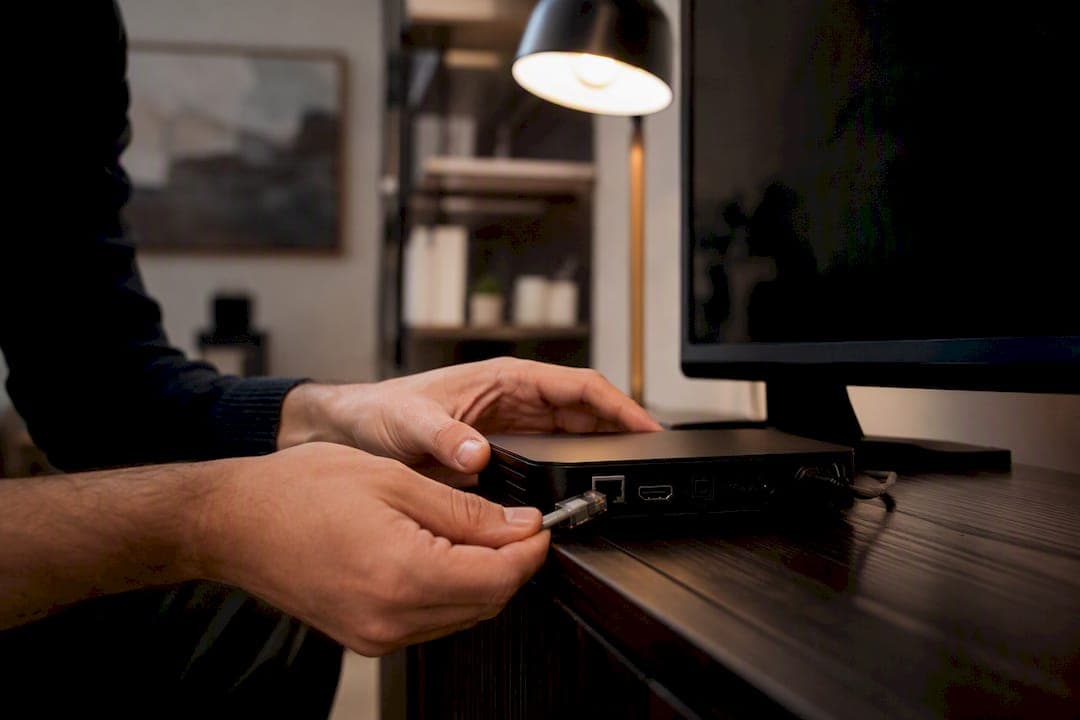
Drop your streaming resolution one notch, flip on your app's data-saver mode, and download your regular shows over Wi-Fi instead of cellular. Those three moves alone can cut your streaming data by more than half. Video resolution is the single biggest factor in how much data you burn, so that's where you start.
Here's your fastest path to lower data usage:
- Drop video resolution from 4K to HD, or HD to SD, when you're on mobile or a capped connection
- Turn on your app's data-saver mode (Netflix, YouTube, and most video apps have one)
- Download shows or playlists on Wi-Fi for anything you'll rewatch, especially on commutes
- Enable your phone's low-data mode and restrict background app refresh
- Turn off autoplay and avoid running more than one stream at a time
Each of these targets a different data drain. Together, they stack.
Key Takeaways
Reducing streaming data usage comes down to controlling resolution, automating Wi-Fi downloads, and layering app-level and device-level data saver modes together.
| Point | Details |
|---|---|
| Resolution is the biggest lever | Dropping from 4K to HD can cut hourly data use from about 7 GB to 3 GB. |
| Layer app and OS controls | Combining an app's data saver with your phone's Low Data Mode or Data Saver cuts more than either alone. |
| Download once, stream never | Wi-Fi downloads use zero cellular data on replay, ideal for repeat viewing and commutes. |
| Kill autoplay and background sync | Disabling autoplay and pausing cloud backups on cellular stops quiet, incidental data loss. |
| Track before you're capped | Set carrier alerts at 75 and 90 percent, and test settings changes with a real 10-minute playback check. |
Table of Contents
- How do you reduce data usage while streaming?
- How much data does streaming actually use per hour?
- Which app settings actually cut your data usage?
- What do iOS and Android data-saver modes actually do?
- When should you download instead of stream?
- Why do small settings add up to big data savings?
- How do you track and cap your monthly data usage?
- Get more from every gigabyte with the right IPTV setup
- What actually moves the needle on data savings
- Sources
How do you reduce data usage while streaming?
Here's a one-minute routine you can run right now, on your phone or your TV app, without touching a single advanced setting.
- Open your streaming app and switch playback quality to "save data," "auto (low)," or the mobile-specific data option, if you're not on Wi-Fi.
- Turn on Low Data Mode (iPhone) or Data Saver (Android) in your phone's settings, then whitelist apps you need running in the background, like navigation or messaging.
- Queue up downloads for shows or podcasts while connected to Wi-Fi, and delete finished downloads to free storage.
- Go into your streaming and social apps and switch off autoplay, both for the next episode and for video previews in feeds.
- Set a data threshold alert with your carrier or check your router's usage dashboard so you get a warning before you're anywhere near your cap.
Do all five and you've addressed the biggest sources of accidental data use in under sixty seconds.
How much data does streaming actually use per hour?
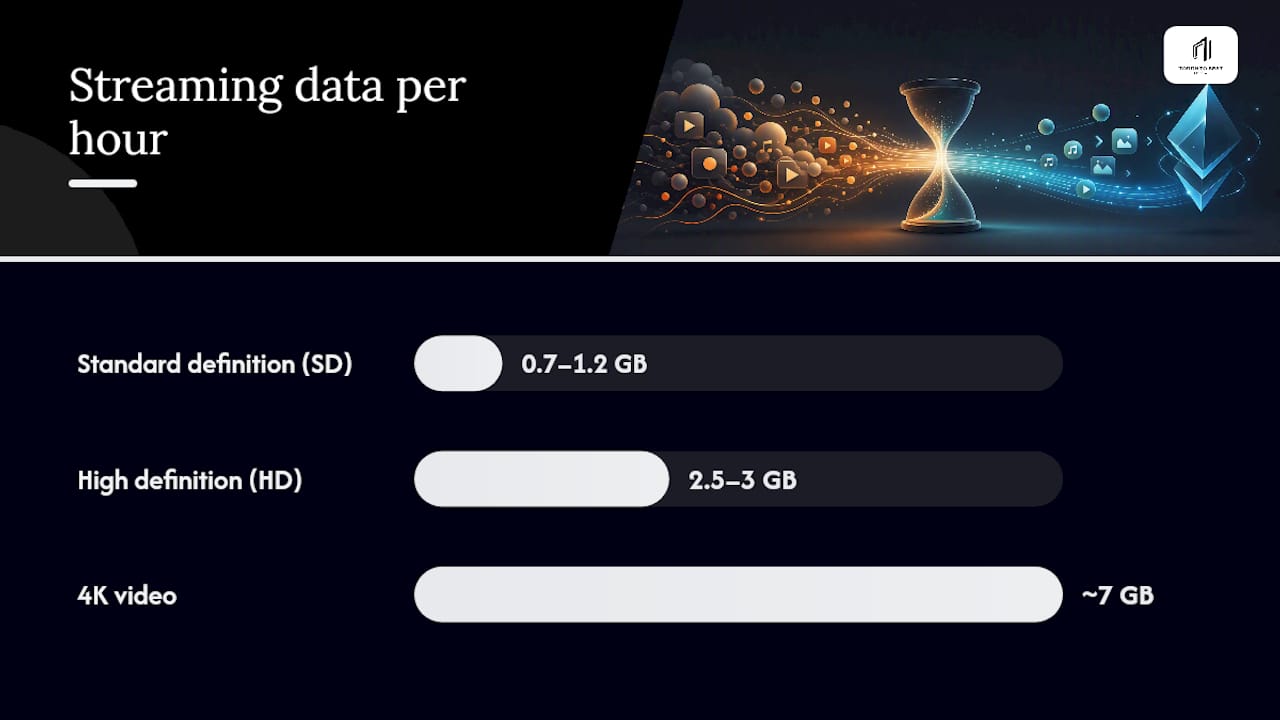
Resolution decides almost everything about your data bill, and the gap between quality tiers is bigger than most people expect. Standard definition (SD) video runs roughly 0.7 to 1.2 GB per hour, HD sits around 2.5 to 3 GB per hour, and 4K climbs to about 7 GB per hour depending on the service and how it compresses video.
Pro Tip: On a phone or tablet screen under 55 inches, most viewers can't visually tell HD from 4K. Capping playback at 1080p can save 60 to 75 percent of your data with zero noticeable drop in picture quality.
Audio is a different world entirely. Music streaming ranges from about 11 MB per hour at low quality up to 144 MB per hour at the highest bitrate, meaning a full day of high-quality music streaming still costs you roughly 1 GB, a fraction of one hour of HD video.
| Format | Data per hour |
|---|---|
| Standard definition (SD) video | 0.7 to 1.2 GB |
| High definition (HD) video | 2.5 to 3 GB |
| 4K video | ~7 GB |
| Music, high quality | ~144 MB |
| Music, data-saver quality | ~11 MB |
Run the math forward and the numbers get real fast. A two-hour 4K movie costs about 14 GB, while the same film in HD costs roughly 6 GB. Watch two hours of 4K content daily and you'd blow through 420 GB a month. Drop to HD and that same habit costs under 180 GB. Step down again to SD and you're looking at 60 GB or less. One setting change, three very different monthly totals.
Which app settings actually cut your data usage?
Every major streaming app buries a data-saving toggle somewhere in its settings menu, and most people never find it. Here's where to look and what changes when you flip it.
- Netflix: Under each profile's playback settings, you'll find data usage options, typically Low, Medium (Standard), High, or Wi-Fi only for downloads. Switching from High to Low can drop hourly consumption dramatically without killing SD-level clarity.
- YouTube: Look for Video Quality Preferences in the app's settings, with a dedicated "Data saving" toggle for mobile networks. It automatically caps resolution when you're off Wi-Fi.
- Spotify (and similar music apps): Cellular streaming quality is adjustable separately from Wi-Fi quality, and there's usually a standalone data saver switch that also compresses downloads.
- Every other app: Look for Wi-Fi-only download settings and disable automatic app updates over cellular, since these settings together are among the fastest wins available with no change to your viewing habits.
Pro Tip: Combine an app's internal data saver with your phone's system-level data saver. Used together, they cut both foreground and background usage more than either does alone, because one controls what you watch and the other controls what runs behind it.
What do iOS and Android data-saver modes actually do?
Your phone's operating system has its own layer of control, separate from any single app, and it's worth understanding what it actually restricts before you rely on it.
- iOS Low Data Mode reduces background refresh, pauses automatic photo and video uploads, and stops apps from fetching data you're not actively using. Turn it on for cellular and for any Wi-Fi network you know is metered.
- Android Data Saver, available since Android 7, blocks background data for most apps by default. You can whitelist specific apps, like your messaging or navigation app, so they still work normally.
- Metered Wi-Fi: Marking a network as metered in your phone's settings tells the device to treat it like limited cellular data, pausing large downloads and deferring updates.
- Router-level limits: Many routers let you cap bandwidth per device, useful for a household with multiple streamers competing for the same connection.
Expect trade-offs. Notifications may lag, cloud backups pause, and apps stop auto-updating until you're back on unrestricted Wi-Fi.
When should you download instead of stream?
If you or your kids rewatch the same shows, movies, or podcasts, downloading them once on Wi-Fi beats streaming them every single time. It's the most reliable data-saving move available, because offline playback uses zero cellular data after that initial download.
- Download full seasons or playlists overnight while connected to home Wi-Fi, not one episode at a time on the go.
- Pick a lower download quality on phones and tablets to balance storage against data. You don't need 4K downloads for a five-inch screen.
- Set your apps to download automatically on Wi-Fi only, and clear finished downloads regularly so storage doesn't fill up.
- Pro Tip: Before starting a multi-gigabyte download, double-check you're on a trusted, unmetered Wi-Fi network. A "free" airport or café hotspot can quietly be capped or shared, and a bad connection mid-download wastes both time and data.
Why do small settings add up to big data savings?
Autoplay, background sync, and app preloading drain data quietly, without you ever pressing play on purpose.
- Turn off autoplay in streaming apps, so the next episode doesn't start automatically.
- Disable video previews and autoplay in social feeds, which preload upcoming clips even when you're just scrolling.
- Turn off automatic media downloads in messaging apps.
- Pause cloud photo backup and cloud sync when you're on cellular data.
None of these feel significant alone, but together they're often the difference between finishing a month comfortably under your cap or getting a surprise overage notice.
How do you track and cap your monthly data usage?
Guessing your usage is how caps get blown. Measuring it takes two minutes.
- Check your carrier's usage dashboard or app and set a threshold alert at 75 and 90 percent of your plan.
- Use your phone's built-in data usage screen to see which apps consume the most, and check your router's admin panel for household-wide tracking.
- Estimate your monthly total using the per-hour figures above, then build in a buffer of at least 10 to 15 percent for background use you haven't accounted for.
- When you're approaching your cap, drop video quality immediately, pause non-essential downloads, and shift heavier viewing to Wi-Fi until the billing cycle resets.
Practitioner tips for smoother, leaner playback
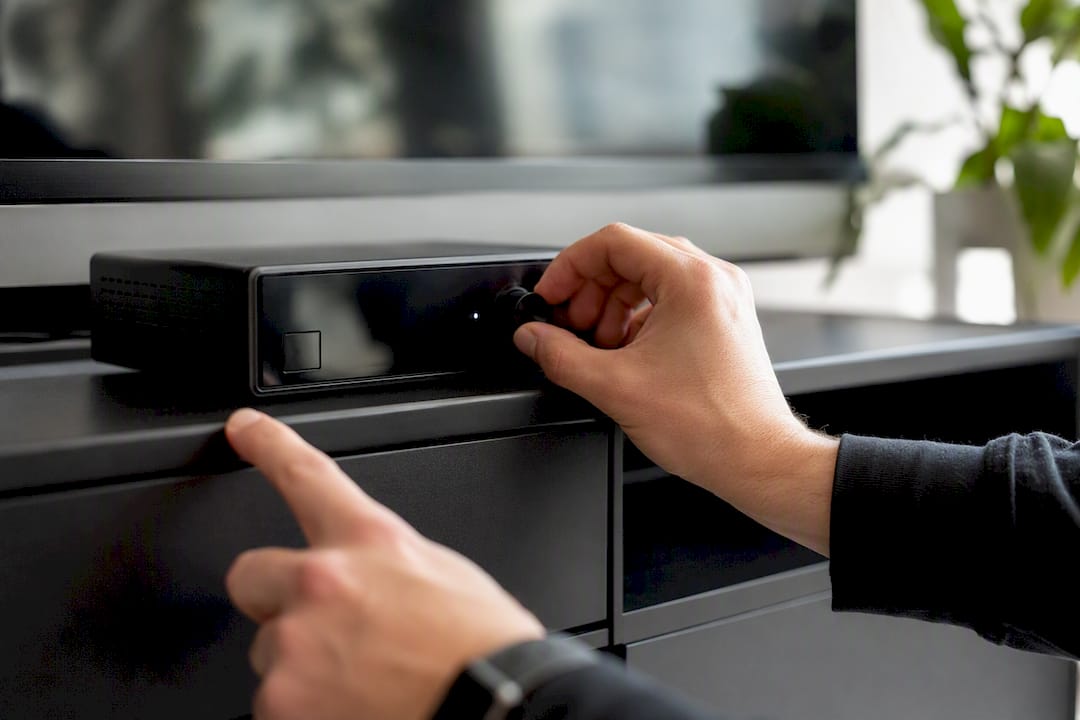
Provider-side routing matters more than most viewers realize. Services using edge-routed delivery reduce retransmits, which means fewer repeated data pulls when a connection stutters. On set-top boxes, adjusting buffer settings and using hardware decoding can keep playback smooth at lower bitrates, an approach detailed in this guide to fixing buffering on Android TV boxes.
Pro Tip: Test any setting change yourself: note your data meter, play 10 minutes at the new setting, then check the meter again. Numbers on a spec sheet don't always match what your device and network actually deliver.
Get more from every gigabyte with the right IPTV setup
Data-saving settings only get you so far if your streaming service itself is inefficient. A provider that leans on smart routing to minimize buffering and repeated data pulls means fewer wasted megabytes when your connection dips, whether you're watching live sports or a weeknight movie. Toronto's Best IPTV uses Canadian edge routing built to keep playback smooth without forcing you into the highest bitrate just to avoid stutter, and plans start from $15 a month with a two-day free trial to see the difference for yourself.
What actually moves the needle on data savings
Most advice on this topic buries the one setting that matters most under a dozen minor tweaks. Resolution is that setting. If you only do one thing from this entire guide, cap your video quality, because it accounts for a bigger swing in your data bill than every background-sync toggle and autoplay switch combined.
Where conventional advice falls short is treating every tip as equally important. Turning off autoplay saves you megabytes. Dropping from 4K to HD saves you gigabytes. That's not a small distinction, and articles that list both as equivalent "data-saving hacks" do readers a disservice.
Start with resolution and Wi-Fi downloads first. Layer in app and OS data-saver modes second. Save autoplay and background sync cleanup for last, since they matter, but they're cleanup, not strategy. And always verify with a real test on your own device. Estimates are a starting point. Your network and hardware decide the actual number.
— Aj
Sources
- How Much Data Does Streaming Use? + 5 Tips to Manage Data (Panda Security)
- Cleanor
- How to reduce data usage on your Android device (AndroidPolice)
- Data-saving techniques — iPhone and Android app settings that cut mobile data use (SimFinder)
- Metered connection behaviour and effects (ExpressVPN glossary)