

IPTV parental controls are usually a 4-digit PIN inside your IPTV app that locks or hides adult channels. Set a PIN that isn't the default, lock or hide the adult categories, then test it by watching as your child would. Clear the watch history too, since thumbnails can give away what's supposedly hidden. That's the whole job in under a minute. Everything else is verification.
TL;DR:
- Parental controls are most effective when the app, device, and provider all enforce restrictions simultaneously.
- Regularly test locks by trying to access adult categories, clear watch history, and change PINs every few months for ongoing protection.
- Setting up device-level restrictions like Screen Time or Family Link prevents children from uninstalling apps or changing settings that bypass app PINs.
- Proper playlist tagging by your provider ensures adult content is properly separated, making PIN locks or category hiding effective.
- Confirm whether your IPTV provider properly tags adult content and periodically update or reconfigure restrictions after app or playlist updates.
Table of Contents
- What do parental controls on IPTV actually do?
- How do I set or change the parental-control PIN?
- Reinforcing controls at the device level
- Ask your provider to tag adult categories properly
- Fixing the most common parental-control problems
- Best practices that keep the locks working
- Where Torontobestiptv fits into the setup process
- An editorial note on keeping controls reliable
- Want help testing it properly? Here's the shortcut.
- Where to check official parental-control guidance
- Sources
- FAQ
What do parental controls on IPTV actually do?
A single PIN feels like a lock on a door, but it's really just one layer of three. Effective IPTV parental controls work best when the app, the device, and the provider all pull in the same direction, according to a complete family guide on the topic. Skip one layer and the other two are doing extra work they weren't built for.
Here's how each layer contributes:
- App-level: the PIN itself, plus the choice to lock a category (visible but blocked) or hide it entirely (invisible in the menu), and locking purchases or settings changes.
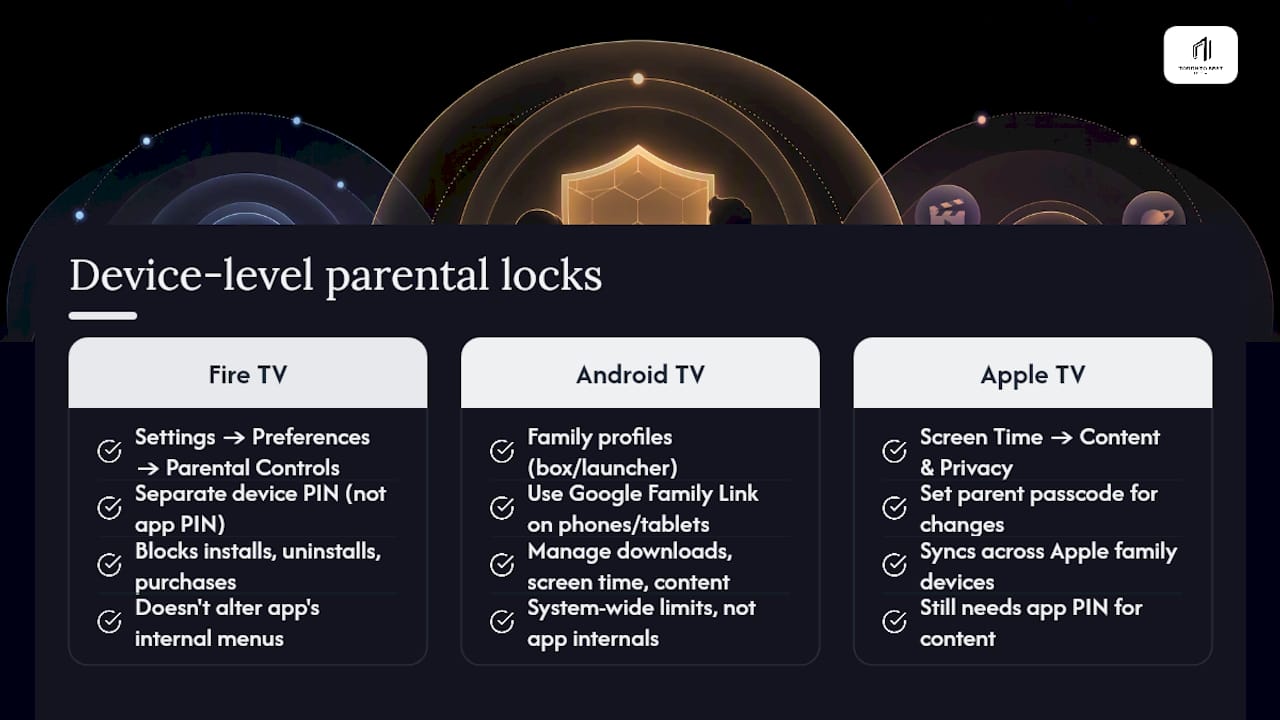
- Device-level: Apple's Screen Time, Google's Family Link, or Fire TV's built-in restrictions, which stop a kid from simply uninstalling the app that has the lock.
- Provider or panel-level: how your playlist is organized before it ever reaches the app. If adult content isn't separated into its own category by whoever manages your channel list, no app-level PIN can cleanly isolate it.
Miss the third layer and you're locking a door that has no wall around it.
How do I set or change the parental-control PIN?
Most IPTV players follow a near-identical pattern, and it takes about five minutes to lock down properly.
- Open the app's Settings menu and find Parental Controls (sometimes labelled Lock Settings or PIN Settings).
- Create a 4-digit PIN. Skip 0000 and 1234. Most apps ship with one of those two as the default PIN, and a lock nobody changes isn't really a lock.
- Avoid birthdays too. Kids notice patterns faster than parents give them credit for, and a PIN typed the same way every day is easy to memorize just by watching over your shoulder.
- Go into the channel or category list and either lock the adult/movie categories (they show up but require the PIN) or hide them completely, if your app supports it.
- Turn on "lock settings" if it's offered, so the parental controls menu itself needs the PIN to open. Otherwise, a curious kid can just switch it off.
- Clear your watch history. Some apps keep "continue watching" thumbnails alive even after a category gets locked, so this step matters more than it sounds.
- Restart the app. Hidden categories don't always refresh until the app reloads.
- Test it. Try to search for a locked title and try to open "recently watched." If either one still works, the lock isn't complete.
Pro Tip: Change the PIN every few months and enter it out of your child's line of sight. Security researchers note that kids often learn PINs simply from watching a parent type one in over and over.
Reinforcing controls at the device level
An app-level lock only matters if your child can't just get around the app. That's where the device itself comes in, and the steps differ depending on what's under your TV.
Fire TV: Go to Settings → Preferences → Parental Controls and set a PIN there too. This one is different from your IPTV app's PIN, and it's the one that stops app installs, uninstalls, and purchases without your say. For a full walkthrough, our Firestick setup guide covers this step by step.
Android TV and boxes: Set up family profiles where your box or launcher supports them. On a phone or tablet running Android, pair the device with Google Family Link, which lets you manage app downloads and screen time and restrict mature content system-wide, not just inside one app.
Apple TV and iOS: Turn on Screen Time and set Content & Privacy Restrictions so any change to app settings requires a parent passcode. Apple's own Screen Time tools sync across every Apple device tied to the family, which matters if your household has more than one screen. Our Apple TV and iPhone setup guide walks through pairing this with your IPTV app.
None of these device tools reach inside a third-party IPTV app's own menus, though. They stop the workaround. Your app PIN still has to do the actual content locking.
Ask your provider to tag adult categories properly
The single most common reason a parental lock fails isn't a bad PIN. It's an untagged playlist. When adult channels and kids' channels sit in the same bundled feed with no separation, an app PIN has nothing distinct to lock, because there's no boundary drawn at the source.
If you suspect this is the problem, contact your provider and ask directly:
- "Is adult content separated or removed from my playlist entirely?"
- "Can you hide or remove the adult categories on my account line?"
- "Will retagging the playlist affect any other channels I use?"
Once your provider confirms a change, refresh the playlist inside your app (most players have a "reload" or "update playlist" button), restart the app, and check that the adult categories are actually gone, not just renamed.
Fixing the most common parental-control problems
Most failures trace back to one of three things.
- Forgot the PIN? Check whether your provider offers PIN recovery first. If not, clearing the app's data or reinstalling it resets everything, including your custom channel favourites, so treat that as a last resort.
- Locked channel still plays? Turn on "lock search results" if your app has it, since search often bypasses category locks entirely. If that option doesn't exist, hide the category instead of just locking it, or ask your provider to retag the playlist.
- Everything broke after an update? App updates sometimes reset parental settings or rename categories. Re-check your PIN, your locked categories, and any newly added channel groups every time the app updates.
Best practices that keep the locks working
Set-and-forget is where most parental controls quietly fail. The three-layer approach (device, app, provider) only holds up if you actually check it, so build a habit around it rather than treating the initial setup as the finish line.
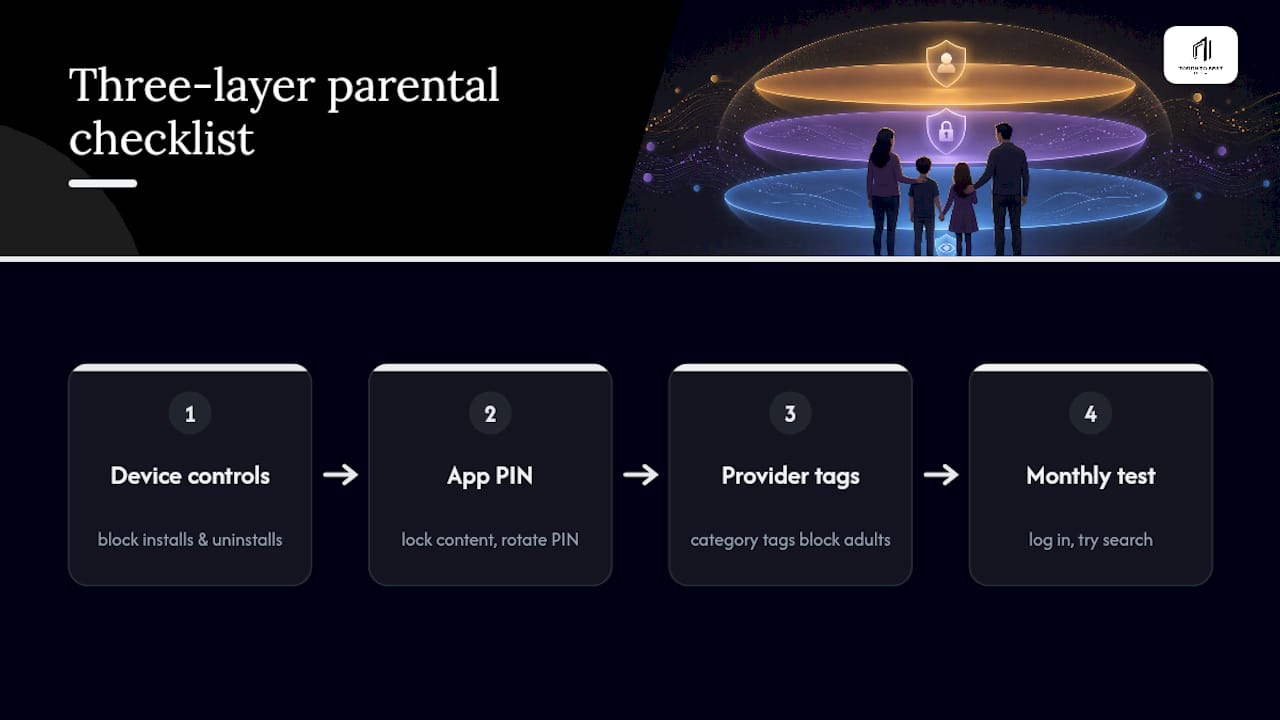
Put a reminder on your calendar for a monthly test: log in as your child would, try a search, check recently watched, and rotate the PIN every few months while you're at it. Pro Tip: Pair the technical setup with a short, honest conversation about what's off-limits and why. A determined ten-year-old can sometimes out-Google a PIN, but a kid who understands the reasoning is far less likely to try.
Where Torontobestiptv fits into the setup process
If you'd rather not troubleshoot alone, Torontobestiptv publishes device-specific setup guides covering Firestick, Android boxes, and Apple TV, built around the exact steps above. The two-day free trial gives you a real window to test PIN locks, category hiding, and profile restrictions across every device in your household before committing to anything. If your playlist needs adult categories separated or retagged, our support team handles that directly on request.
An editorial note on keeping controls reliable
The mistake I see most often is treating parental controls as a one-time setup instead of an ongoing check. A PIN set once in January and never tested again isn't protection by June. Set it, test it as your child would, and put a recurring reminder on your calendar to review it. Pair that with an honest conversation about what's off-limits, because a rule your kid understands holds up better than one they just have to guess at.
— Aj
Want help testing it properly? Here's the shortcut.
Setting up parental controls across three or four devices in one household eats an evening fast, especially when you're comparing Fire TV restrictions against Apple Screen Time against an app's own PIN menu. Some IPTV providers offer a free trial period so you can test parental controls in your own home before committing to a subscription.

Setup guides can help you lock categories on your IPTV player, and support teams may assist with retagging playlists to separate adult content if needed. Some IPTV services use edge routing technology to reduce buffering and improve streaming quality for live sports and kids' channels. Start the two-day free trial today, and use our pricing calculator to see what multi-device coverage costs for your household before you decide.
Where to check official parental-control guidance
For device-level instructions straight from the source, see Apple's Screen Time support, Google Family Link support, and Common Sense Media's parental controls guide for broader household advice.
Sources
- How to Set Up Parental Control PIN & Lock Adult Categories in IPTV? | IPTV Help Center
- IPTV With Parental Controls (2026): The Complete Family Guide
- Set up parental controls on your child's device - Apple Support
- Set up parental controls with Google Family Link - Google Support
FAQ
How do I unlock parental controls on IPTV?
Enter your app's parental-control PIN in the Settings menu under Parental Controls or Lock Settings; if you never changed it, try the common defaults 0000 or 1234 before resetting the app.
What is the default IPTV parental-control password?
Most IPTV apps ship with 0000 or 1234 as the factory PIN, which is exactly why security guidance recommends changing it immediately after setup.
How do I set a parental-control code for IPTV channels?
Go into your app's Settings, open Parental Controls, choose a 4-digit PIN that isn't a default or a birthday, then lock or hide the categories you want restricted.
How do I remove a lock from IPTV?
Enter the current PIN in the Parental Controls menu and disable the specific category lock or the master PIN; if you've forgotten it, clearing the app's data resets it but also erases saved favourites.
Can parental controls on IPTV be bypassed?
Yes. Kids can memorize a PIN by watching it entered, use search to find locked content if search isn't restricted, or uninstall the app on an unrestricted device, which is why combining app, device, and provider controls matters more than any single lock.