
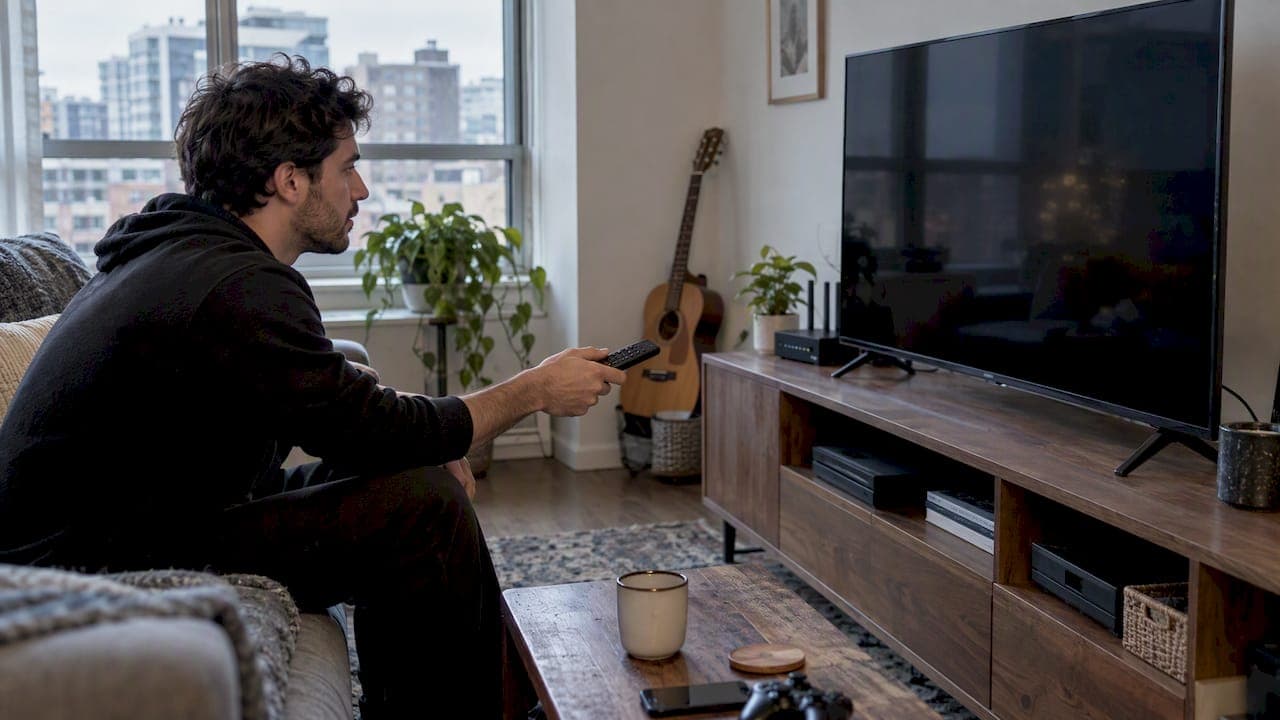
Yes, you can run IPTV on a Sony TV, as long as it's a Google TV or Android TV model, and the smartest route for most people is an Android TV native player like TiviMate rather than a phone app squeezed onto a big screen. You'll still need a lawful subscription or playlist to feed it. If your model doesn't show the app in its Play Store, safe sideloading is the fallback, not the first move.
TL;DR:
- Ensure your Sony TV is running the correct platform and has the latest software update before attempting to install IPTV apps.
- Compatibility and app availability vary by TV model, region, and software version, which can block app installation or filtering in the Play Store.
- Installing a native Android TV player like TiviMate requires proper setup of custom playlists, provider credentials, and EPG mapping for optimal functionality.
- Using wired Ethernet and connecting to the 5 GHz Wi-Fi band improve streaming stability and reduce buffering during live IPTV playback.
- A lawful IPTV subscription typically uses M3U, Xtream Codes, or Stalker Portal formats; correct entry and validation ensure smooth channel and program access.
Table of Contents
- Which IPTV apps and features actually work on Sony TVs
- Step-by-step: install and configure an IPTV player on Sony Google TV or Android TV
- How to add playlists and connect a lawful IPTV subscription
- Troubleshooting and network tips: reduce buffering and fix playback errors on Sony TVs
- Publisher perspective: how local routing and setup support improve the Sony TV experience
- What this means for Sony owners trying IPTV
- If you want help getting IPTV working on your Sony TV
- Sources
- FAQ
Which IPTV apps and features actually work on Sony TVs
Before you install anything, figure out what you're actually working with. Newer Sony sets run Google TV, older ones run Android TV, and a handful of entry-level models don't support app installation at all. The easiest way to check is through the TV's settings menu under "About," or by seeing whether your remote has a Google Assistant button, a strong hint you're on one of the newer platforms.
Here's the part that trips people up: the Play Store on a Sony TV doesn't show the same catalogue to every owner. Sony explains that app availability depends on your specific TV model, software version and region, and a feature called Basic TV mode can block installation entirely until you sign into a Google account and switch out of it. That's why two neighbours with similar-looking Sony TVs sometimes get completely different search results in the Play Store.
Once you've confirmed your TV can install apps, the feature list matters more than the name on the icon. Prioritize:
- A remote-first interface built for a directional pad, not a touchscreen layout stretched onto a TV.
- Electronic programme guide (EPG) support so you get a proper channel grid instead of a blank list.
- Compatibility with M3U, Xtream Codes, or Stalker Portal, the three common ways providers hand you access.
- Catch-up or recording features, where your provider supports them.
TiviMate is a good example of what an Android TV native player looks like done right: it's a player only, meaning it doesn't come with channels built in. You add your own playlist or provider credentials after installing it, and its EPG, favourites and catch-up tools all run through whatever service you connect.
Step-by-step: install and configure an IPTV player on Sony Google TV or Android TV
Getting a player running smoothly takes a few minutes if you work through it in order rather than jumping straight to installing an app.
Start with these checks:
- Confirm whether your TV is Google TV or Android TV, and update the system software if a pending update is sitting in settings.
- Make sure you're signed into a Google account on the TV and that Basic TV mode is switched off, since Sony notes this restricts app installation until you do.
- Check free storage, since a nearly full TV will silently fail installs or updates.
- Verify date, time and network connectivity are correct, as a wrong clock can break secure playback.
With that done, open the Play Store from your TV's home screen, search for your chosen player, and install it the same way you would any app. If an update is available later, the Play Store will flag it automatically, so check back every few weeks rather than assuming it updates itself silently.
If the app doesn't appear in your search results at all, that's usually the region or model filtering Sony describes, not a mistake on your part. At that point, sideloading becomes a reasonable fallback, but treat it with some caution. Google's own guidance explains that Play Protect scans installed apps and flags potentially harmful ones, and sideloaded apps sit outside that normal vetting. Only use a verified APK source, enable unknown sources temporarily in settings, install the app, then turn unknown sources back off once you're done.
Once the player is installed, a few configuration steps make a real difference:
- Grant storage and network permissions when prompted, since denying them breaks playback.
- Enter your playlist or provider credentials carefully.
- Map the EPG so channel numbers line up with programme data.
- Select ExoPlayer as the decoder if your app offers a choice, since it tends to handle live streams more reliably than default system players.
- Organize your favourites early, before your channel list grows unwieldy.
Pro Tip: Set up your favourites list before adding every channel from your provider; it's much easier to curate ten channels than to prune three hundred later.
How to add playlists and connect a lawful IPTV subscription
Every legitimate provider hands you access through one of three common formats, and knowing the difference saves a lot of frustrated retyping.
An M3U URL is a direct playlist link, usually one long web address that the player downloads to build your channel list. Xtream Codes logins use a server address, username and password instead of a link, and the player fetches everything through that combination. Stalker Portal is less common but still used by some providers, identified by a portal address rather than a plain playlist URL. Google's setup guidance frames the whole process the same way regardless of format: connect to the internet, sign in, install a compatible player, get legitimate credentials from your provider, add the playlist, then test everything.

In most Android TV players, you'll find the option to add a playlist under a settings or "add playlist" menu, where you choose M3U, Xtream Codes or Stalker Portal and fill in the matching fields. A single misplaced character in a server address or a password typed with the wrong capitalization is the most common reason a playlist fails to load.
Once it's entered, run through this quick validation:
- Double-check punctuation and capitalization in the server address and credentials.
- Load a live channel to confirm video and audio both play.
- Check that the EPG populates with actual programme titles, not blank time slots.
- Test subtitles if your provider offers them.
- Confirm your account status shows as active rather than expired.
If you're unsure which login type your provider uses, our comparison of Xtream Codes and Stalker Portal breaks down when each is typically issued. On the privacy side, treat your IPTV credentials the way you'd treat a streaming password: don't share them publicly, and avoid pasting them into unofficial forums looking for "free" access, since that's a common way accounts get compromised.
Troubleshooting and network tips: reduce buffering and fix playback errors on Sony TVs
Most playback problems on a Sony TV come down to one of four things: the TV, the network, the app, or the provider's account status. Working through them in order saves you from unplugging your router when the real issue is an outdated app.
Sony's own troubleshooting guidance recommends a specific sequence: try another streaming app first, run the TV's built-in network diagnosis tool, restart the TV and router, update both the app and the TV's system software, and check your subscription status before assuming a hardware fault. If a different app streams fine while your IPTV player buffers constantly, that points toward the app or your provider account rather than your internet connection.
On the network side, a few habits make a bigger difference than people expect:
- Use wired Ethernet where possible, since live sports streams are the least forgiving of Wi-Fi drops.
- If Wi-Fi is your only option, connect to the 5 GHz band rather than 2.4 GHz.
- Run a speed test during the time you'd normally watch, since evening congestion affects live streams more than file downloads.
- Restart your router occasionally and check whether other devices on the network are hogging bandwidth during peak hours.
One diagnostic flow catches most issues: Sony's recommended order is another app, then network diagnosis, then restart, then clear cache, then update. Working through it in that order tends to isolate the fault before you need to contact anyone.
If the app itself is the problem, clearing its cache and data, switching the decoder (ExoPlayer versus the system default), or reinstalling it often resolves stubborn freezing. Contact your IPTV provider when the issue is account-specific, like an expired subscription or a channel that's down for everyone, and contact Sony support when the issue is clearly the TV or network hardware itself, after trying another app to confirm. Have your TV model, software version and a description of what you've already tried ready before reaching out either way.
Publisher perspective: how local routing and setup support improve the Sony TV experience
A lot of buffering on live sports comes down to how far your stream has to travel before it reaches your TV. Edge routing works by keeping that path shorter: Toronto's Best IPTV routes Canadian traffic through local infrastructure designed to cut the distance a signal travels, which matters most during high-demand moments like a close NHL third period when everyone's watching at once.
That's paired with practical support most owners actually need: step-by-step setup guides, pre-configured boxes for anyone who'd rather skip the Play Store altogether, home installation visits for hands-on help, and a two-day trial to test everything on your own Sony TV before committing to anything.
What this means for Sony owners trying IPTV
The advice around IPTV setup tends to focus heavily on finding the "best" app, as if the player is the hard part. It usually isn't. The platform quirks, Basic TV mode silently blocking installs, regional Play Store filtering, an outdated system update sitting unapplied, cause more failed setups than any difference between one Android TV native player and another.
If you take one thing from this guide, prioritize confirming your platform and updating your TV's software before you touch the Play Store at all. Sideloading gets treated like a clever workaround online, but it should be your last option, not your first, given how Google's own scanning protections work differently once you step outside the Play Store.
The other thing worth saying plainly: a good player with no lawful playlist behind it is just an empty app. Spend less time comparing player interfaces and more time making sure whatever service you connect to is legitimate, stable and actually supported where you live.
— Aj
If you want help getting IPTV working on your Sony TV
If the setup steps above feel like more than you want to handle alone, that's exactly the gap Toronto's Best IPTV fills. Plans start at $15 CAD per month, with 6-month and 12-month options available, and every subscription comes with Canadian edge routing built in to keep live sports buffering to a minimum.
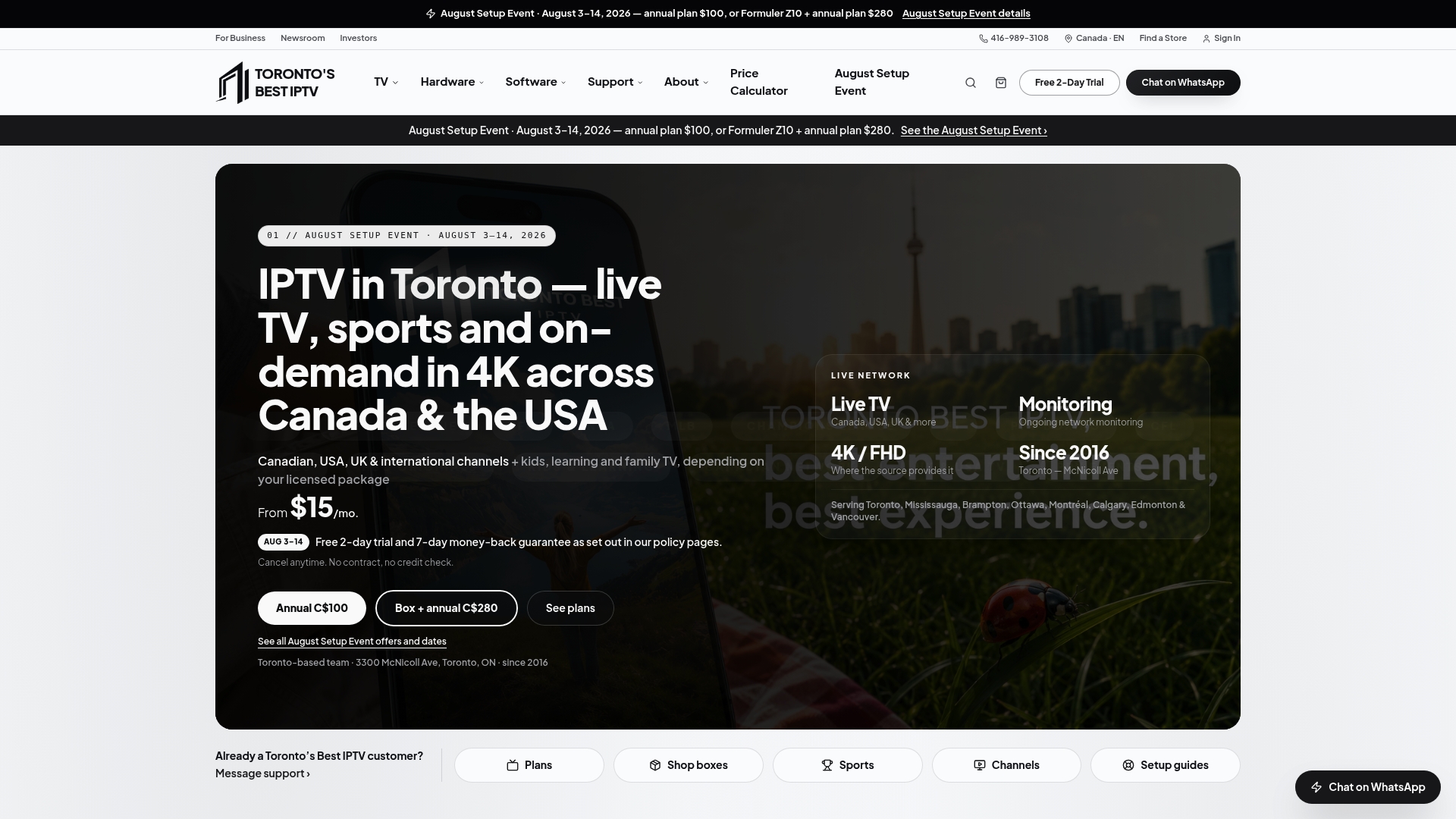
For anyone who'd rather skip app installation entirely, pre-configured IPTV boxes are available through our shop, and a home installation visit is available for $60 CAD one-off if you want someone to set it up in person. A short free trial period allows you to test the IPTV service on your Sony TV before purchase. Start with the plans page to see what fits your household.
Sources
- Which apps can I install on my Android TV or Google TV? | Sony USA
- Troubleshooting the Internet Connection for your BRAVIA TV | Sony Ireland
- Protect your TV from harmful apps with Google Play Protect - Android TV Help
FAQ
Can IPTV be installed on a smart TV?
Yes, IPTV players can be installed on most Google TV and Android TV models through the Play Store, provided the model supports app installation and Basic TV mode is turned off. Some older or entry-level smart TVs don't support app installation at all, so checking your platform first saves time.
How do I add an app to my Sony television?
Open the Play Store from your Sony TV's home screen, search for the app, and select install, the same process as on a phone. If the app doesn't appear, Sony notes that availability depends on your model, software version and region, so updating your software or checking your account region is worth trying first.
Which IPTV app is better for Sony TVs?
Android TV native players like TiviMate tend to work better than phone-first apps because they're designed around remote control navigation and support EPG, M3U, Xtream Codes and Stalker Portal playlists. The right choice still depends on pairing that player with a lawful, stable provider subscription.
Can you get TiviMate on a Sony TV?
Yes, TiviMate is built for Android TV and installs through the Play Store on compatible Sony Google TV and Android TV models. It's a player only, so you'll need to add your own playlist or provider login after installing it.
Why does my IPTV app keep buffering on my Sony TV?
Buffering usually points to the network, the app, or the provider account rather than the TV itself. Sony recommends testing another streaming app, running network diagnosis, restarting your router, and checking your subscription status before assuming a hardware problem.